Notes
Notes let you attach rich, free-form knowledge to objects in a solution project. Where a description field is too short to hold what you need to capture, a note gives you a full Markdown document — join logic, field-level rules, entity context, transformation decisions — tied directly to the warehouse or table it describes.
Notes serve two purposes at once: they add information and knowledge to a warehouse or table for the people working on it, and they feed the platform's AI-assisted mapping. When you run Map Assist, the knowledge captured in notes is provided to the model alongside the structured ERM metadata, so the more context your notes carry, the better it can identify mappings.
Notes are authored primarily by data engineers as they build and enrich a model for mapping.
Where notes apply
Notes are currently available at two levels of the Local Source Model:
- Warehouse level — notes about the model as a whole (overall context, vendor patterns, conventions that apply across tables).
- Table (entity) level — notes about a specific table (what a row represents, join logic, field rules, known quirks).
Each object tracks its own note count, shown as a badge on the Edit Notes action.
Accessing notes
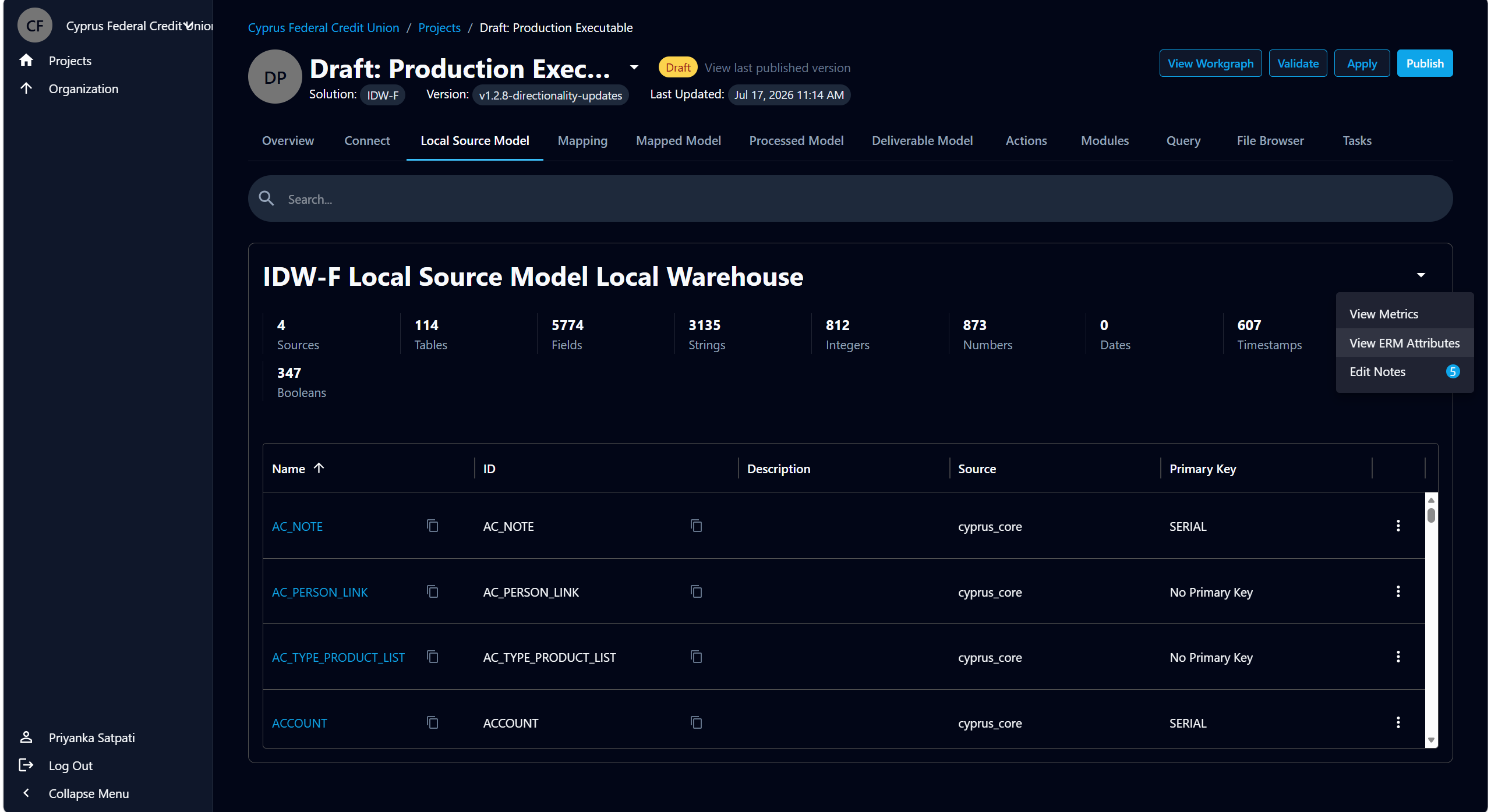
From the Local Source Model tab, open the warehouse's more (⋮) menu in the top-right of the warehouse panel. Alongside View Metrics and View ERM Attributes, you'll find Edit Notes, with a badge showing how many notes exist at the warehouse level.
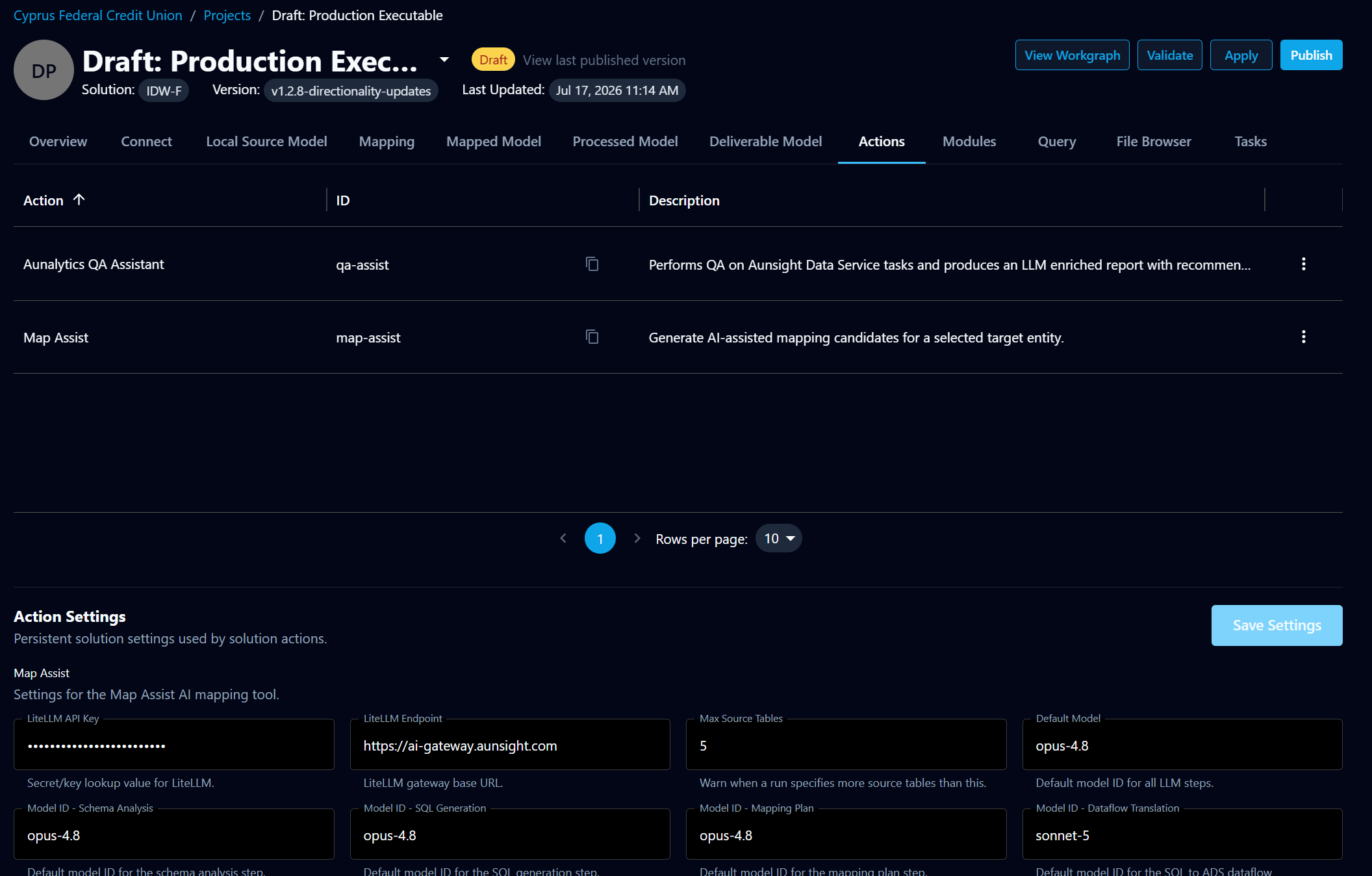
For a specific table, open that table's more (⋮) menu in the table list. It offers Explore Table and Edit Notes, again with its own note count.
Working with notes
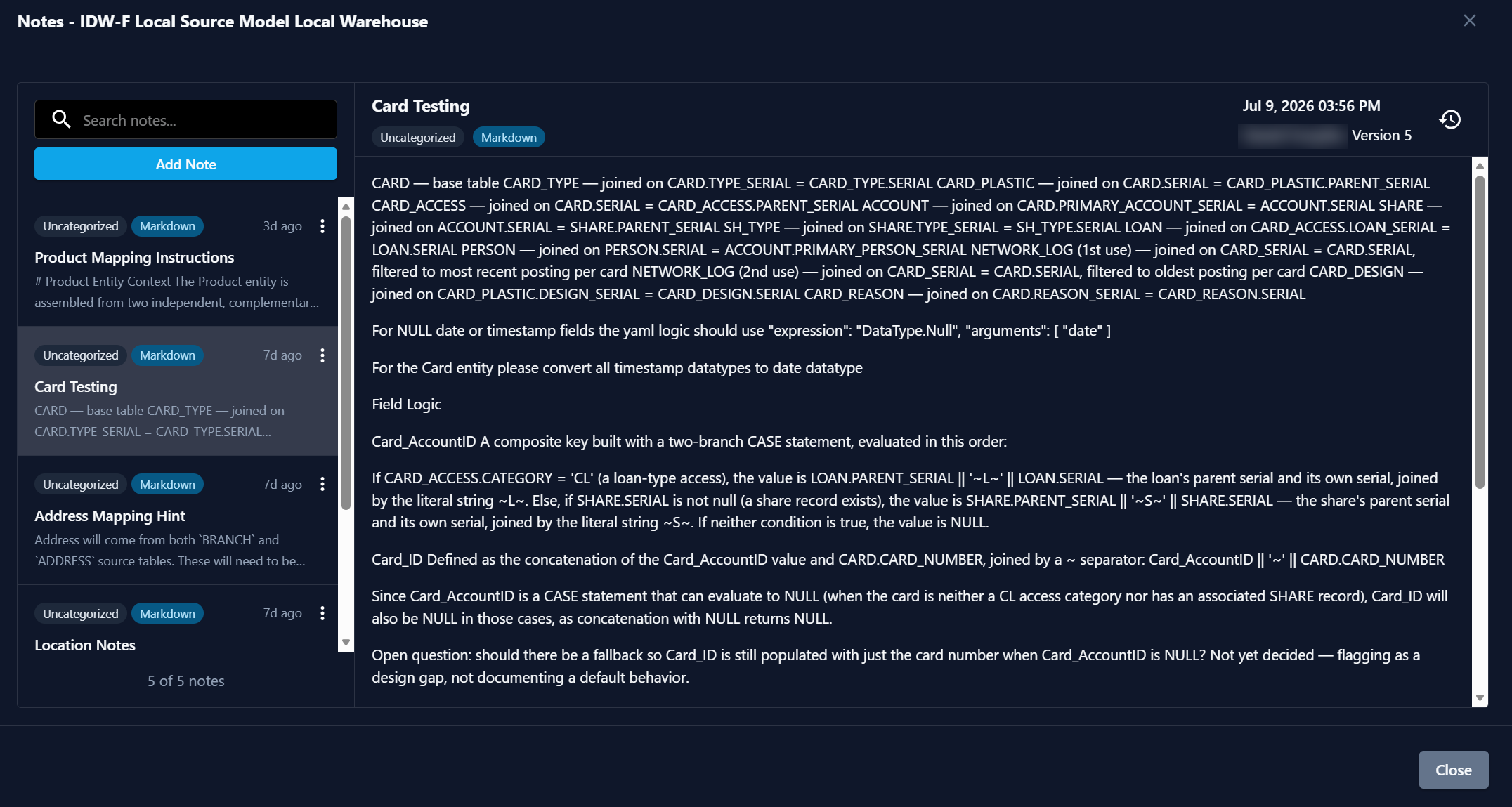
Choosing Edit Notes opens the Notes panel for that object. The left side is a searchable list of the object's notes; the right side shows the selected note.
Browsing and viewing
The note list shows each note's title, its category and format tags, and when it was last updated, with a short preview of the body. You can:
- Search notes by keyword
- Sort newest-first or oldest-first
Selecting a note opens it in a read-only view that renders the Markdown body — including fenced code blocks and Mermaid diagrams — and shows the title, tags, last-updated timestamp, author, and version number. A history icon opens the note's version history, so you can see how the documentation has evolved.
Adding and editing
Click Add Note to create a new note, or open an existing note and switch to edit mode. A note has:
- Title — a short name (2–64 characters) so the note is easy to identify in the list.
- Category — organizes notes by intent. Currently the only category is Uncategorized.
- Format — the body format. Currently the only format is Markdown.
- Body — the note content, edited as plain text and rendered as Markdown.
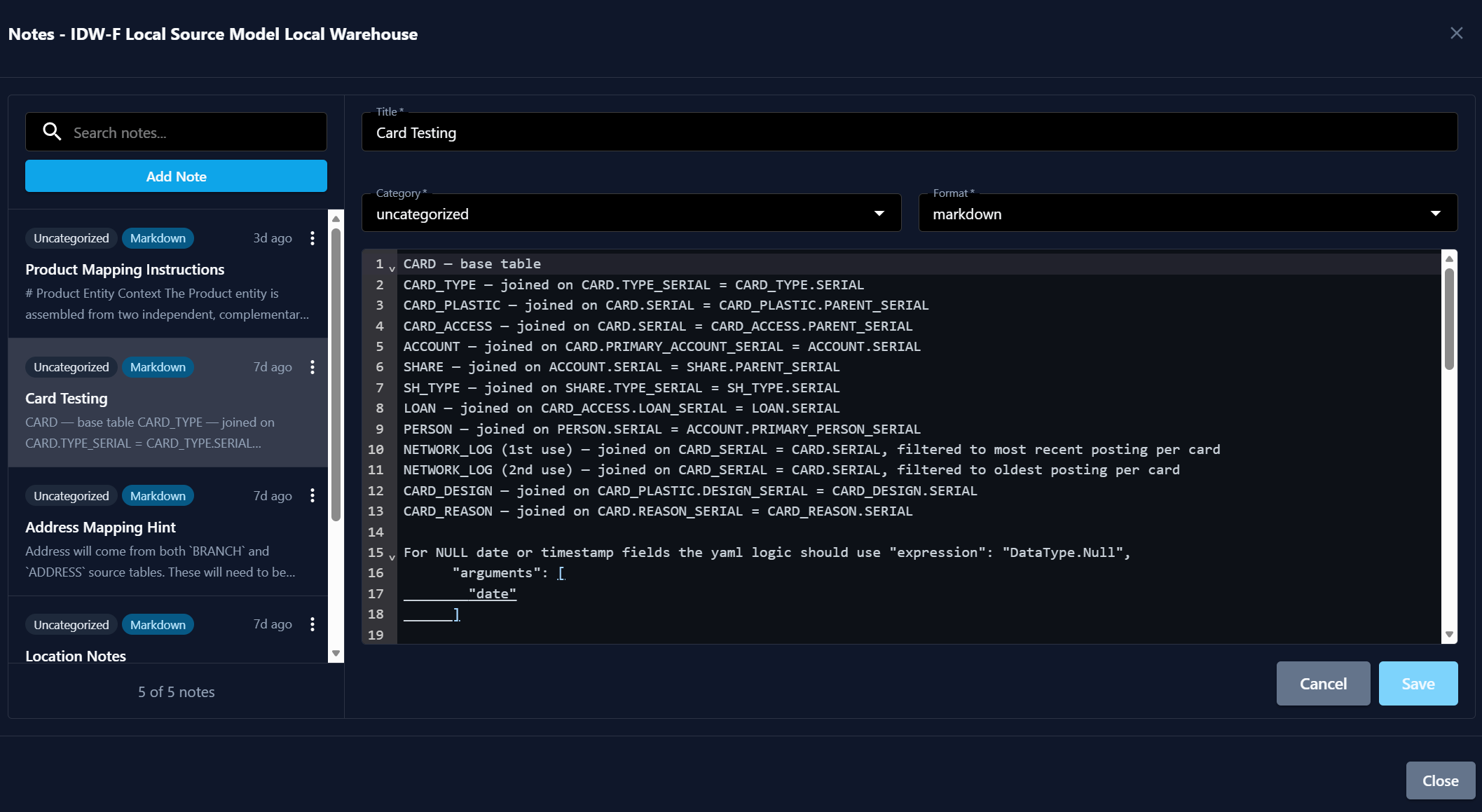
The panel tracks unsaved changes and prompts you to Save or Cancel before leaving. Notes are versioned — each save creates a new version you can review later from the history icon.
What to put in a note
Because notes feed AI-assisted mapping, the most valuable notes capture the kind of implementation knowledge that structured metadata can't:
- Entity context — what a table represents and how it relates to others.
- Join logic — how tables are joined to assemble an entity, including join keys and filters.
- Field logic — how a target field is derived, including composite keys, CASE logic, and null handling.
- Known quirks and open questions — data-quality caveats or decisions still to be made.
How notes are used
Notes are one half of the model's knowledge base; structured ERM metadata is the other. Together they feed the solution's AI-assisted mapping action — Map Assist — which uses this knowledge to identify source-to-target mappings and generate mapping dataflows. See ERM metadata for the structured side.
Related
- ERM metadata — the structured knowledge that complements notes
- Local Source Model — where notes are accessed