Local Warehouse
A Local Warehouse is a warehouse managed inside Aunsight Data Services, within a compute environment. It holds structured data — tables of rows and columns — and is the primary structured store for a project. Acquired source data lands in a local warehouse, and the models built on top of it live there too.
Local warehouses appear in both kinds of project:
- In custom projects, you work with local warehouses directly from the Data Acquisition tab — creating warehouses, adding tables, defining schema, and ingesting data.
- In solution projects, local warehouses surface as the pipeline models — the Local Source Model, Mapped Model, Processed Model, and Deliverable Model. See Local Source Model for that view.
This page describes the warehouse and table mechanics, which are common to both contexts.
Warehouses in a project
In a custom project, the Data tab lists the project's warehouses. Each row shows the Storage Name, the Storage Type (Local Warehouse, Remote Warehouse, or Accelerated Warehouse), and who created and last updated it. Use + Create Warehouse to add a new one.
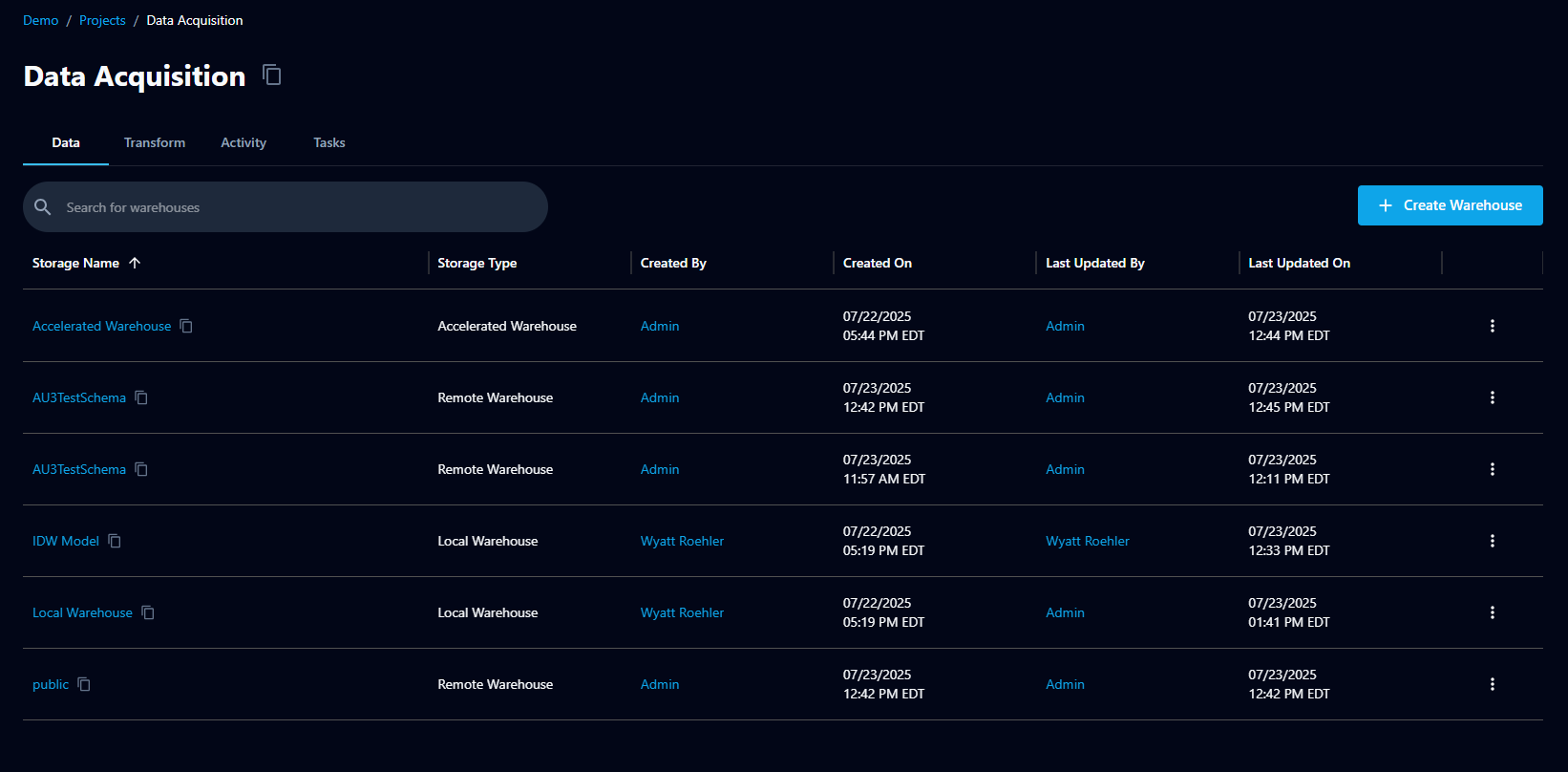
Click a warehouse name to open it. A warehouse has four tabs: Settings, Tables, Queries, and Activity.
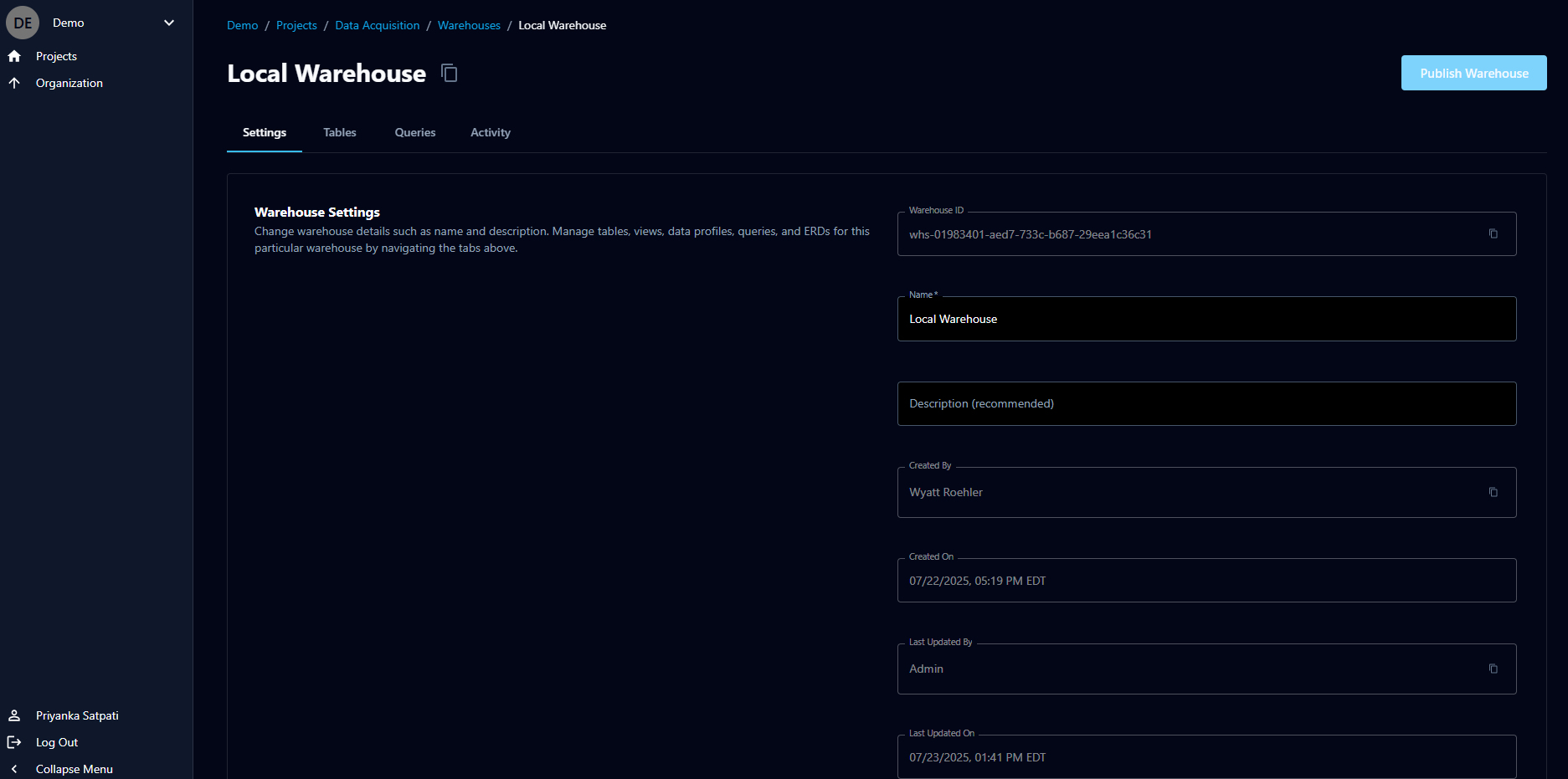
Settings
The Settings tab holds the warehouse's details — its Warehouse ID, editable Name and Description, and created/updated metadata. The Publish Warehouse button applies pending changes (see Publishing).
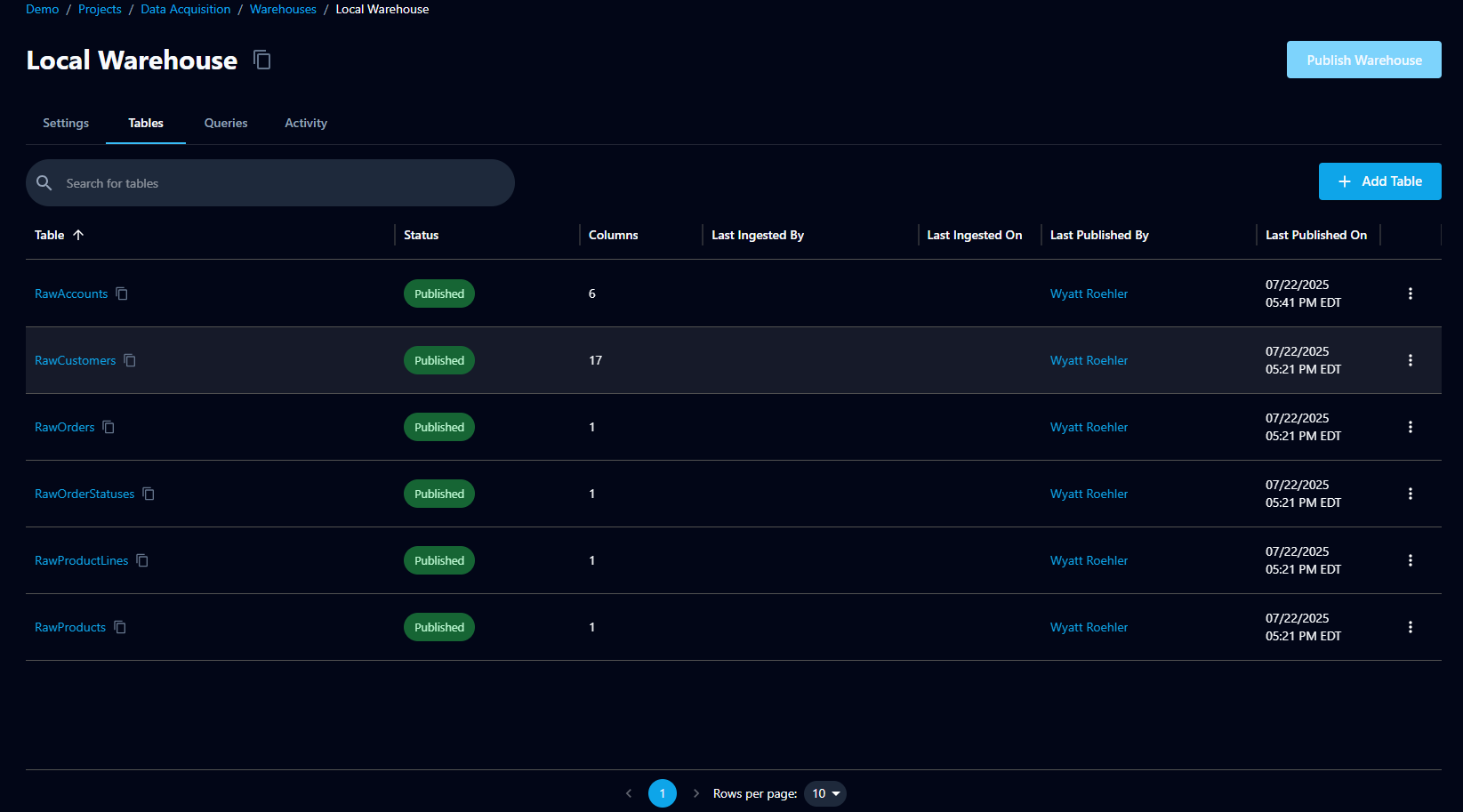
Tables
The Tables tab lists the tables in the warehouse. Each row shows the table's Status (for example, Published), its Columns count, and who last ingested and published it, and when. Use + Add Table to create a new table.
Queries and Activity
The Queries tab lets you run queries against the warehouse, and the Activity tab shows the warehouse's change history.
Working with tables
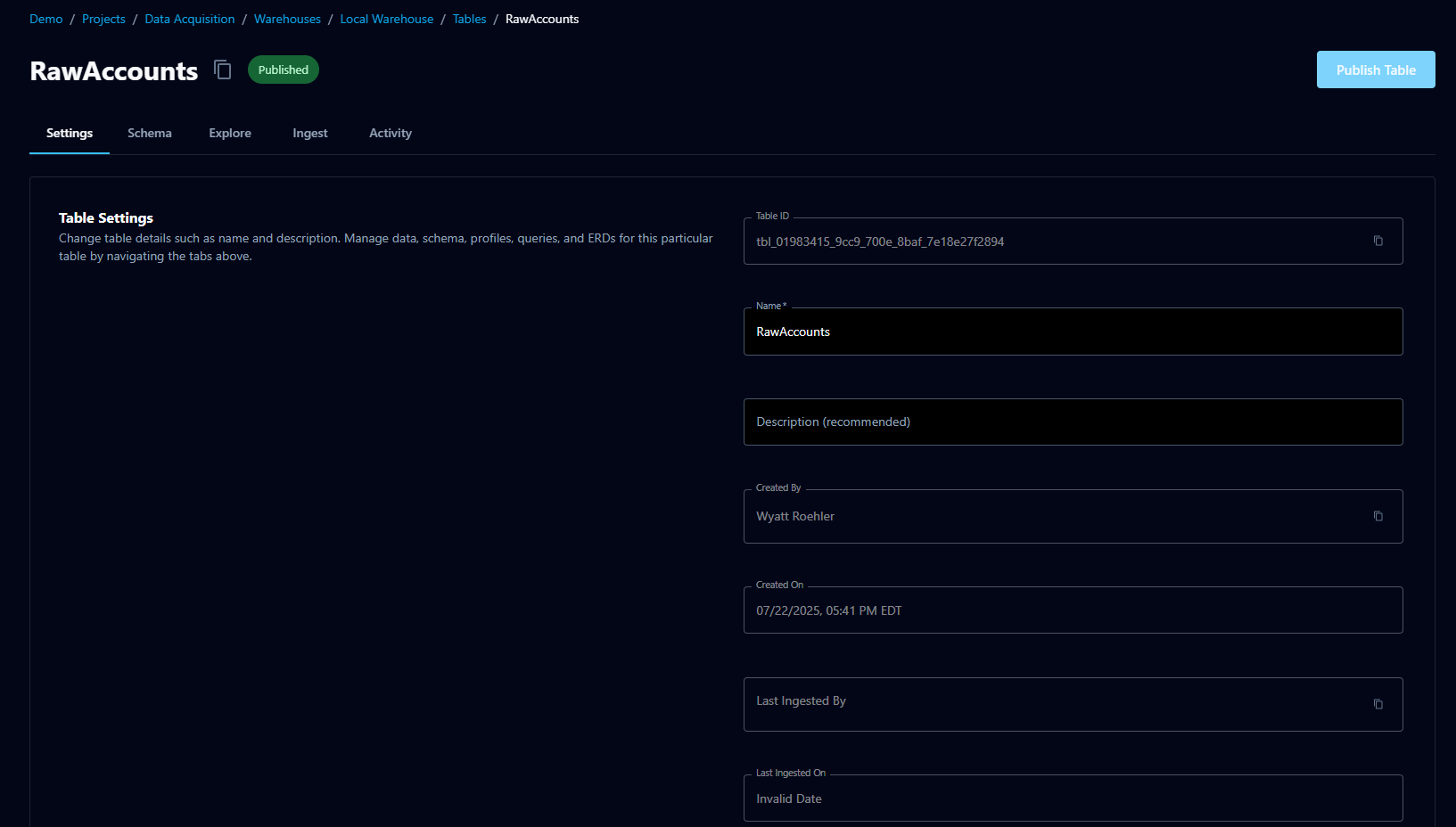
Click a table name to open it. A table has five tabs: Settings, Schema, Explore, Ingest, and Activity.
Settings
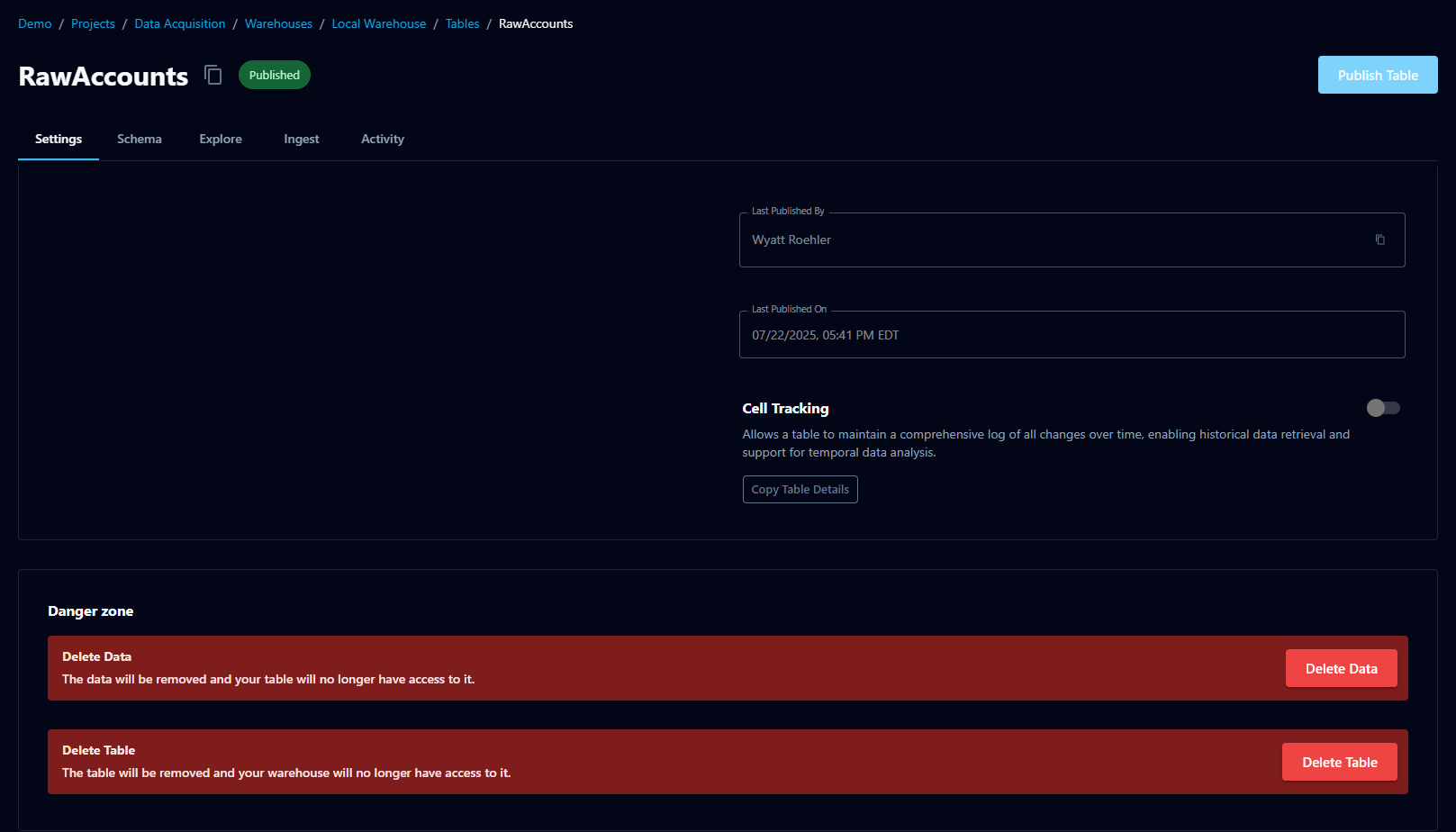
The Settings tab holds the table's details — its Table ID, editable Name and Description, and ingest/publish metadata. It also includes:
- Cell Tracking — a toggle that lets a table maintain a log of all changes over time, enabling historical data retrieval and temporal data analysis.
- Danger zone — Delete Data (removes the table's data) and Delete Table (removes the table entirely). Both are destructive.
Schema
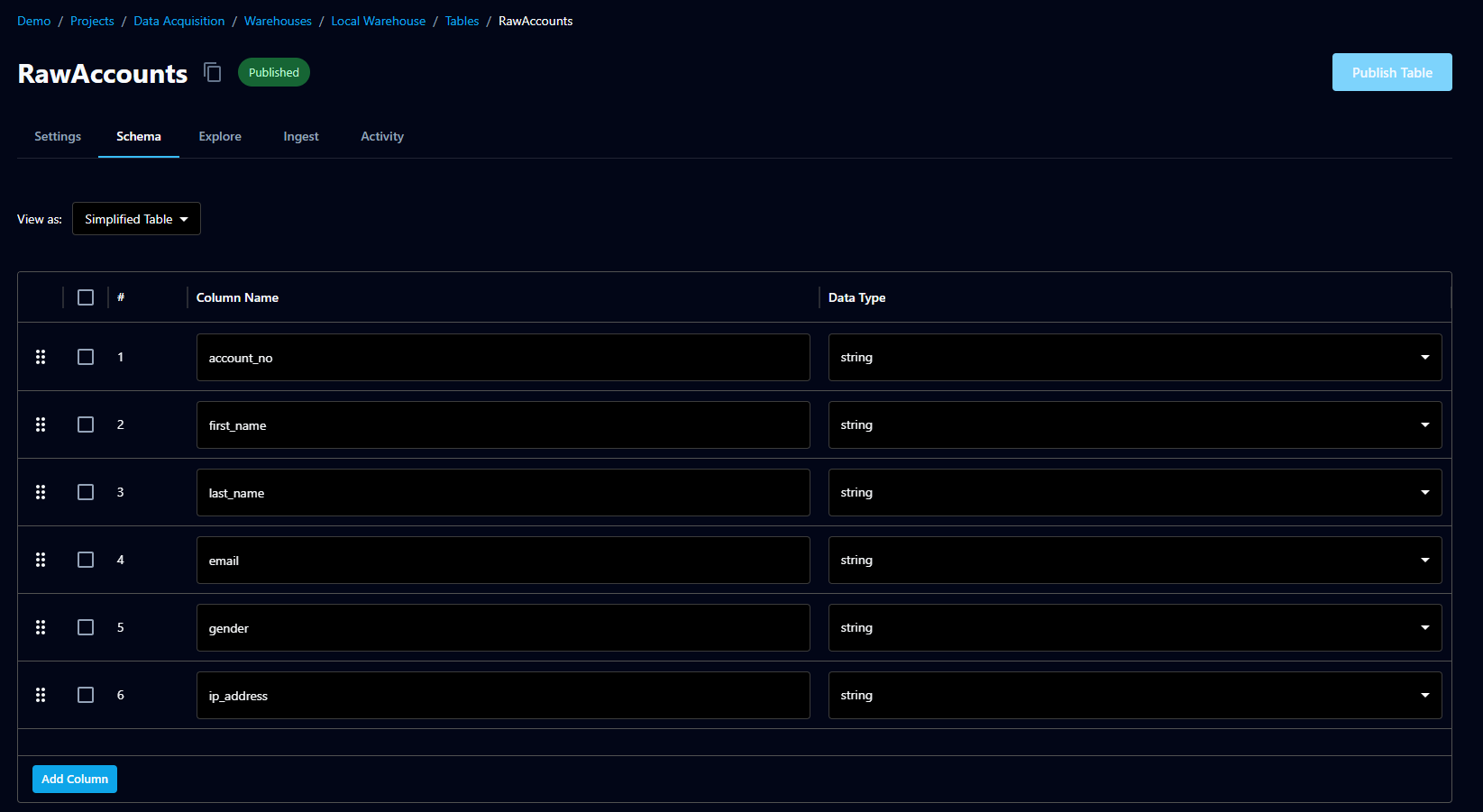
The Schema tab defines the table's columns. Each column has a Column Name and a Data Type (string, integer, and so on). Columns can be reordered, and Add Column appends a new one. A View as control switches between schema display formats.
Explore
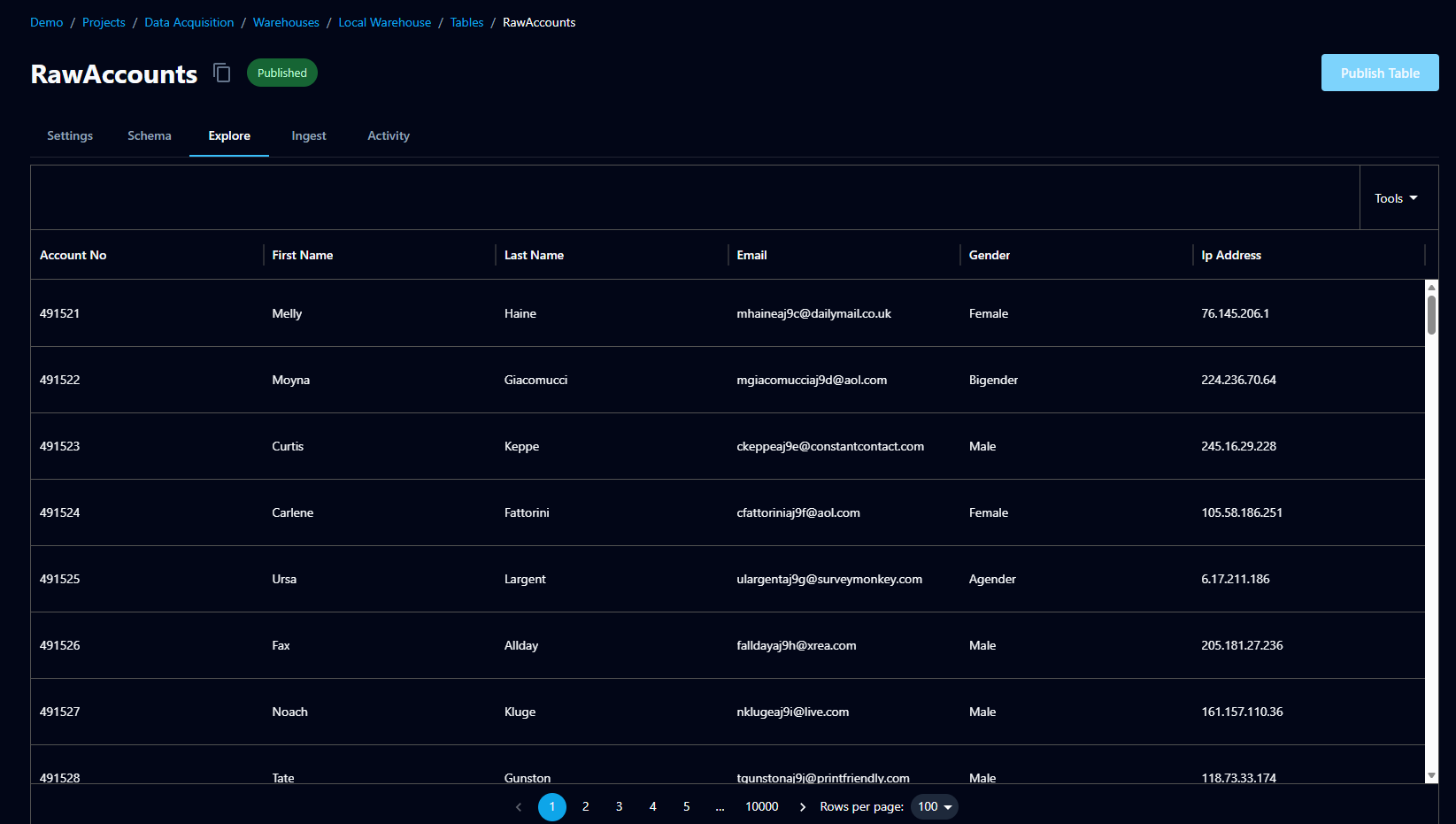
The Explore tab shows the table's data in a grid, with pagination and a rows-per-page selector. The Tools menu offers Reload and Download CSV.
Ingest
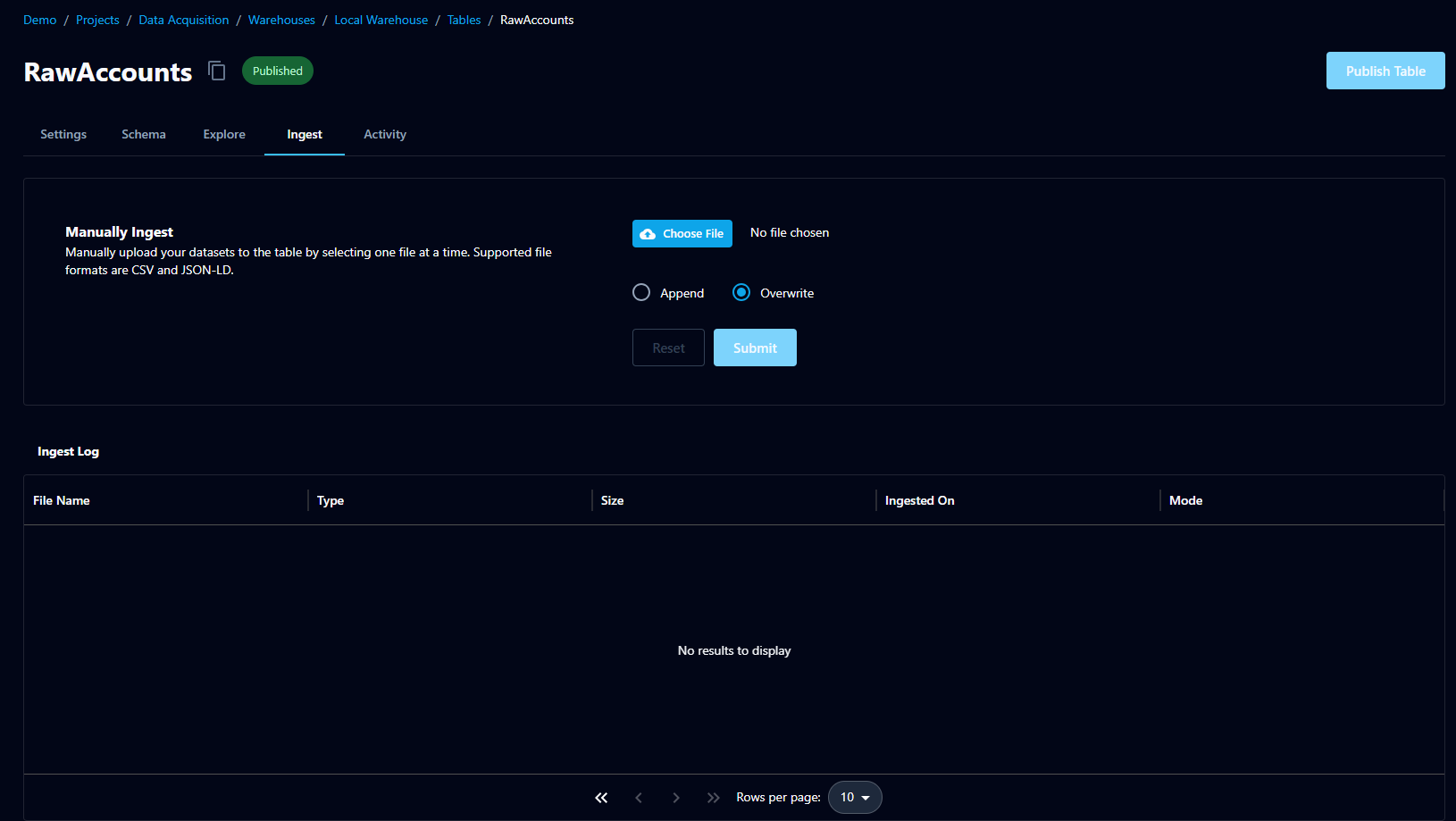
The Ingest tab loads data into the table. Under Manually Ingest, choose a file (CSV or JSON-LD are supported), select Append or Overwrite, and click Submit. The Ingest Log below records each ingest with its file name, type, size, timestamp, and mode.
Activity
The Activity tab shows the table's change history.
Publishing
Local warehouses and their tables follow a draft-and-publish model. Changes you make — to a warehouse, a table's schema, or its data — are staged until published. Use Publish Table to publish an individual table and Publish Warehouse to publish the warehouse. A table's Status column reflects whether it has been published.
Related
- Warehouses — warehouse types (local, remote, user, accelerated)
- Local Source Model — how local warehouses appear in a solution project