Data Lineage Generator
The Data Lineage Generator shows how each Mapped Model field is built from the Local Source Model. Use it to trace a field back to its source tables and fields, review the transformation logic, and answer "where did this value come from?" without reading dataflow SQL by hand.
| Action name | Data Lineage Generator |
| Action ID | lineage-generator |
| Location | Solution > Actions tab |
| Output | Lineage Document (artifact on the run) |
What the lineage covers
The generator traces lineage from the Local Source Model to the Mapped Model.
Local Source Model tables and fields keep the same names as the client's source tables and fields. This means the lineage document points straight back to the source fields known to the client.
Mapped Model fields include all mapped fields, including standard (solution-managed) fields, passthrough/supplemental fields, and tier 2 fields that have been mapped using the mapping dataflow.
All Mapped Model tables are included
This is a platform feature. It reads every table in the Mapped Model, whether or not a data engineer uses it downstream. If the Mapped Model contains additional or intermediate tables, the document includes lineage for those tables as well.
Output format
The Lineage Document contains one row per Mapped Model field.
| Column | Description |
|---|---|
| Table Name | Mapped Model table the field belongs to. |
| Field Name | Mapped Model field being traced. |
| Source Tables | Local Source Model tables that feed the field. |
| Source Fields | Specific source fields used, written as Table.field. |
| Lineage Logic Description | Plain-language summary of how the field is derived (see below). |
| SQL Logic | The dataflow SQL that produces the field, across every step in the chain. |
Reading the Lineage Logic Description
The description uses arrows to show the direction of the derivation.
| Marker | Meaning |
|---|---|
← derived from |
How the field is assembled (single source, or combined from several). |
← components: |
Each contributing source field, with the source system and any condition applied to it. |
using: |
The transformation applied (for example UNION, CASE logic, regex extraction, trimming, deduplication). |
→ renamed to |
Final field name in the Mapped Model. |
Example row
| Column | Value |
|---|---|
| Table Name | Address_Input |
| Field Name | Zipcode |
| Source Tables | BBOT_ACIExtract_COMPANY, TRANSACTIONAL_ATM_PROFILE, TRANSACTIONAL_BRANCHFIL_IH_EXTENSION, TRANSACTIONAL_CUP00301, TRANSACTIONAL_CUP00401, sei_TrustAccts_AUGR, ... |
| Source Fields | BBOT_ACIExtract_COMPANY.postcode, TRANSACTIONAL_ATM_PROFILE.ZIP, TRANSACTIONAL_CUP00301.cuzip, ... |
| SQL Logic | Full SQL for each dataflow step that touches the field. |
Lineage Logic Description for the example:
← derived from multiple source fields (assembled into Address_Zipcode)
    ← components: BBOT_ACIExtract_COMPANY.postcode (direct passthrough);
      TRANSACTIONAL_ATM_PROFILE.ZIP (trimmed);
      TRANSACTIONAL_CUP00301.cuzip (cast to decimal then varchar);
      sei_TrustAccts_AUGR.addressline3 (regex extracted 5-digit number); ...
    using: UNION of multiple address sources, a window function to keep the
      most recent record per Address ID, then zero-padding to 5 digits
    → renamed to Zipcode
Not included yet
The current version stops at the Mapped Model. The following will be added in a later release:
- Lineage for calculated fields added after the Mapped Model.
- Lineage for Machine Learning or other modules added after the Mapped Model.
Run the Data Lineage Generator
Step 1: Open the Actions tab
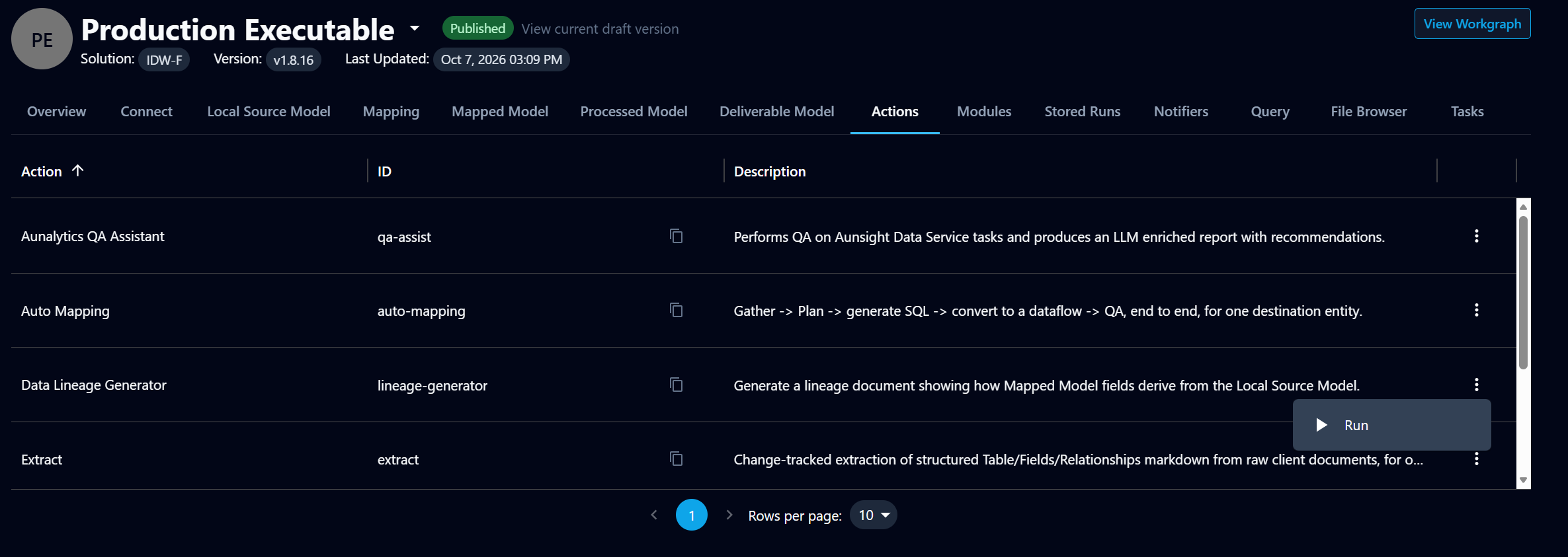
- Open the solution and select the executable you want to trace (for example, Production Executable).
- Select the Actions tab.
Step 2: Start the action
- Find Data Lineage Generator (
lineage-generator) in the list. - Select the ⋮ menu on that row.
- Select Run.
The Run Data Lineage Generator dialog opens.
Step 3: Choose the destination tables
The dialog shows an Argument JSON editor with one field, destination_tables.
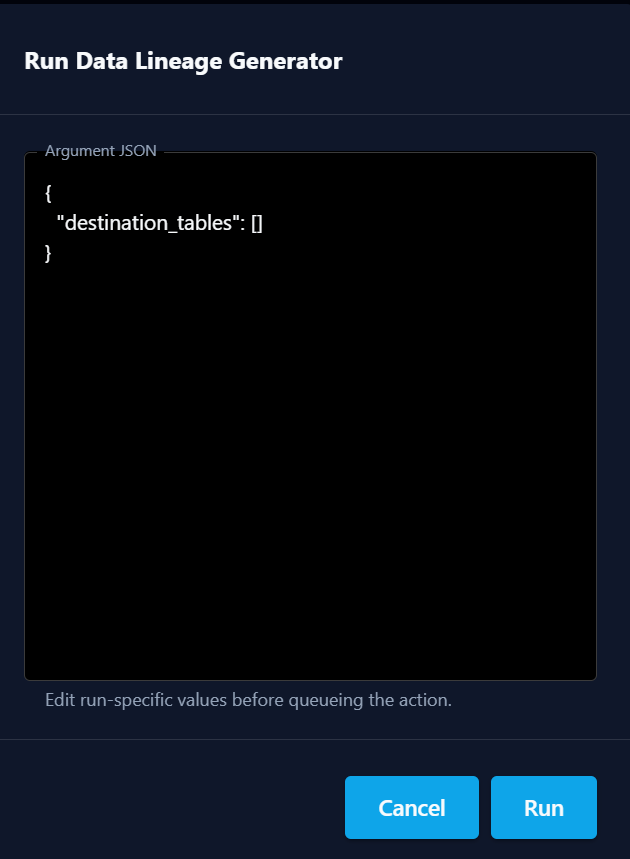
To trace specific tables, add one or more destination table IDs:
{
  "destination_tables": ["<destination-table-id>", "<destination-table-id>"]
}
To trace every Mapped Model table, leave the list empty:
{
  "destination_tables": []
}
Tip
Running for all tables on a large solution produces a large document. Start with the tables you need if you are reviewing a specific area.
Step 4: Run and wait for the task to finish
- Select Run to queue the action.
- Track the run until it completes.
Step 5: Download the Lineage Document
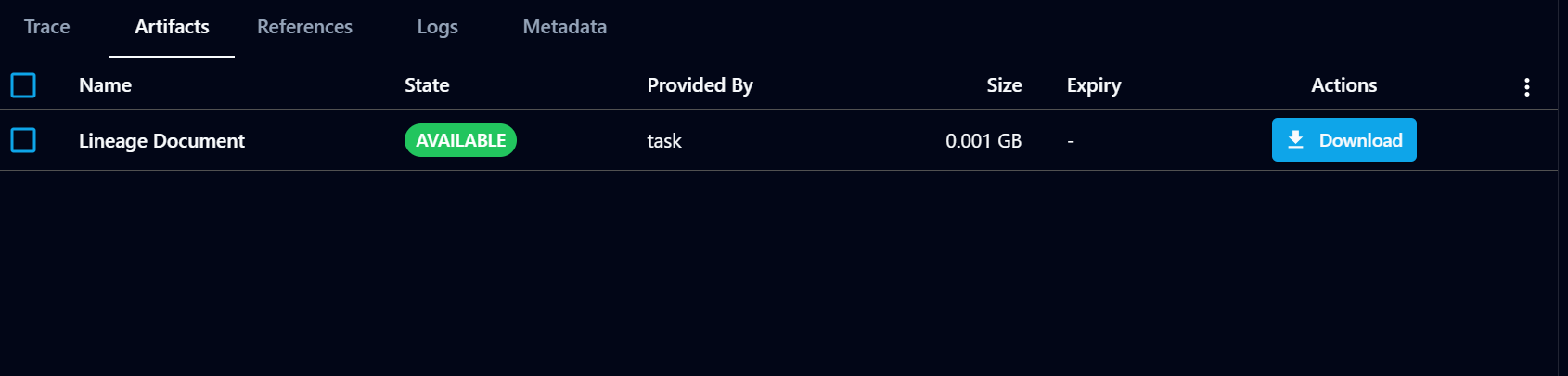
- Open the completed run and select the Artifacts tab.
- Confirm Lineage Document shows the state AVAILABLE.
- Select Download.
Step 6: Convert to Excel
Open the downloaded Lineage Document and convert it to Excel for review, filtering, and sharing.