Connections
A connection links a Sync Agent to a specific data source through a plugin. Once a Sync Agent is installed, you create connections to tell it what to connect to — a SQL Server database, a PostgreSQL database, a file bucket, and so on. Each connection carries the source-specific details (host, credentials, paths) the agent needs to reach that source.
Connections are managed from the Connections tab at the organization level.
Viewing connections
The Connections tab lists every connection in the organization. Each row shows:
- Connection — the connection's name
- Source — the plugin it uses (for example, Plugin SQL Server, Plugin LFS Bucket, Plugin PostgreSQL)
- Plugin Status — whether the plugin and its configuration are valid
- Connection Status — whether the connection is valid and can actually reach the source (this reflects whether the connection test passes)
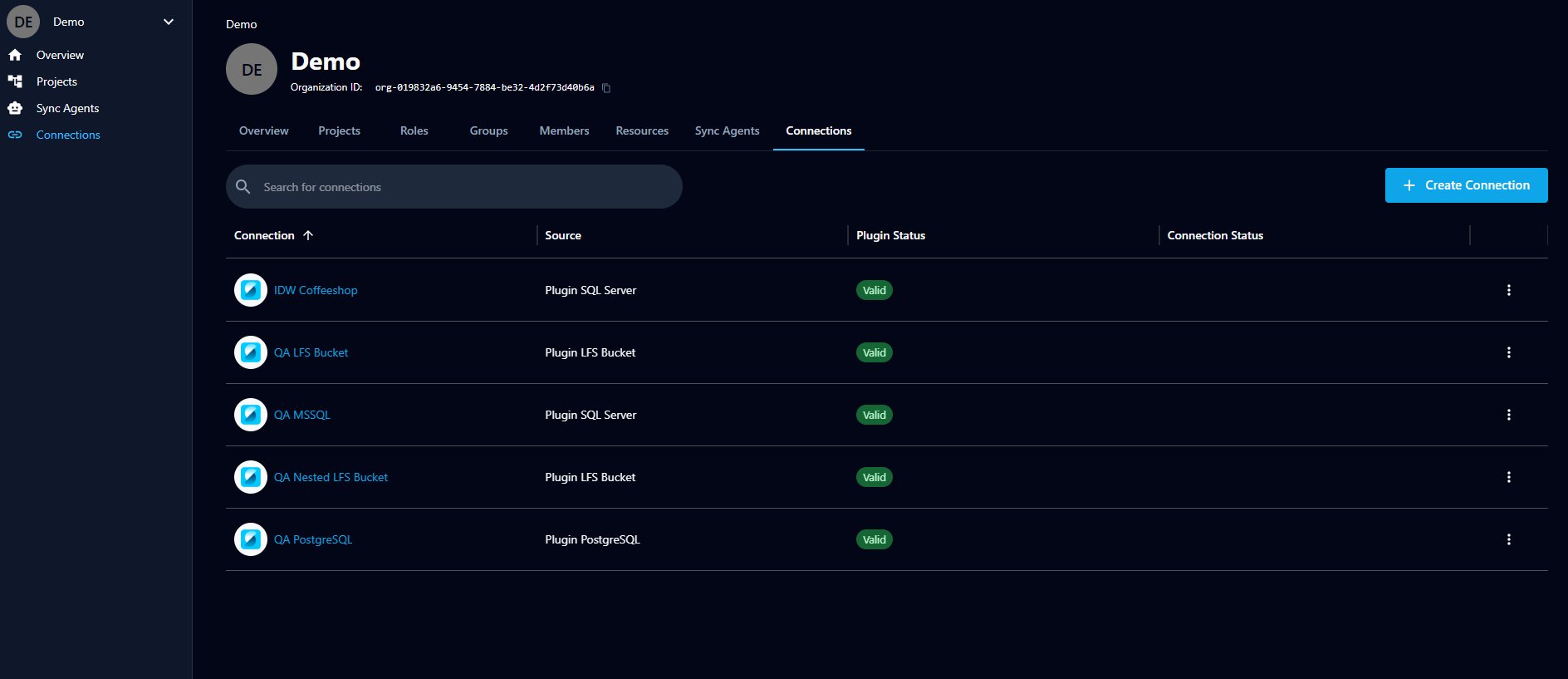
You can search for a connection by name, and use the more (⋮) menu on each row for additional actions.
Creating a connection
Creating a connection is a three-step flow: enter basic details, choose the plugin type, then configure the source-specific settings.
1. Start a new connection. On the Connections tab, click + Create Connection.
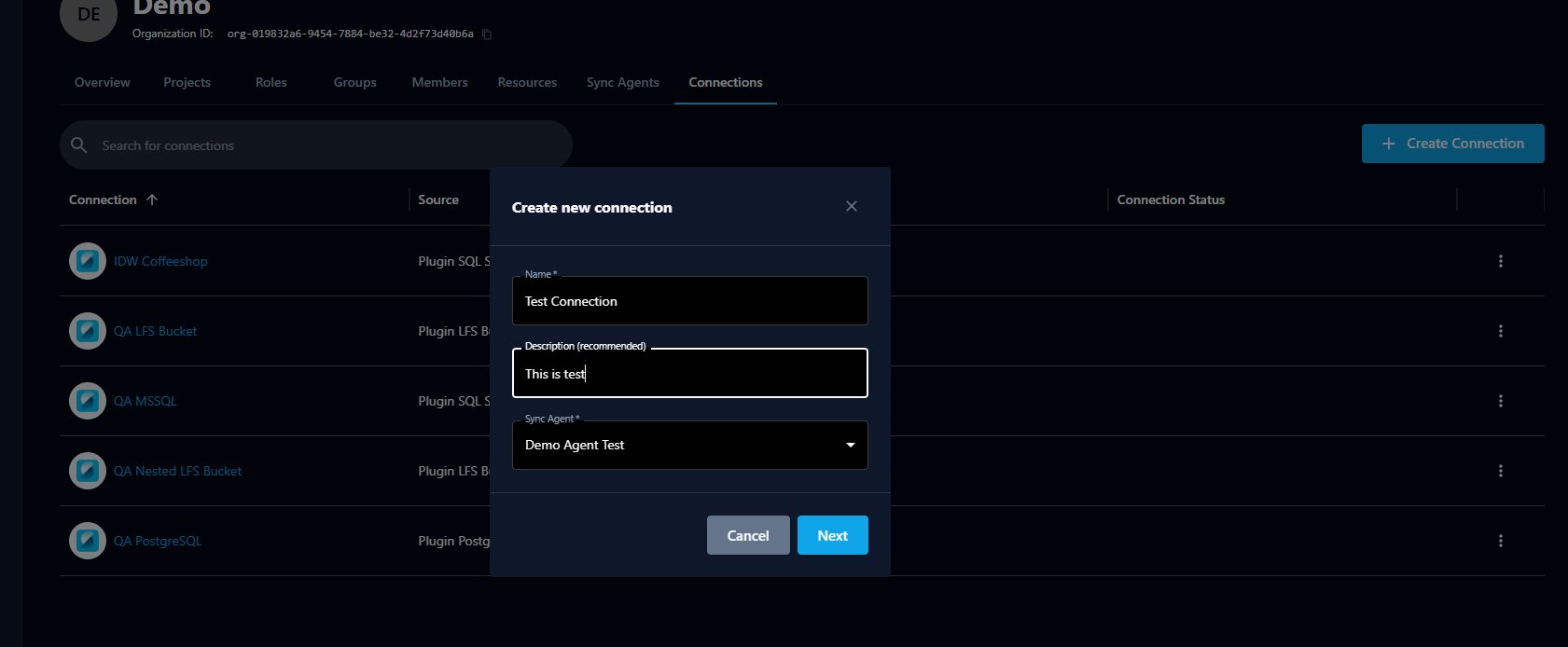
2. Enter the details. In the Create new connection dialog:
- Name (required) — a name for the connection
- Description (recommended) — a short description to make it easier to identify later
- Sync Agent (required) — the installed Sync Agent this connection will run through
Click Next.
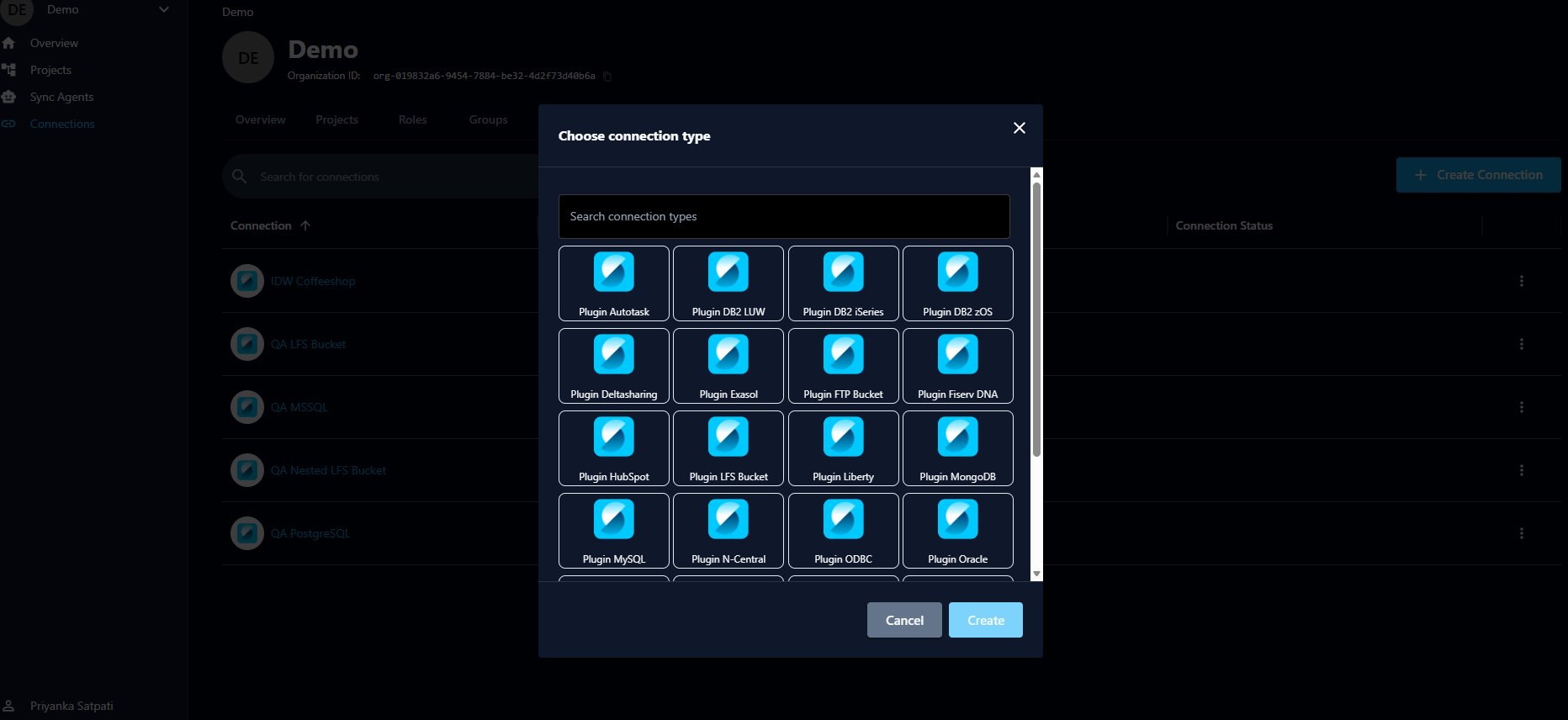
3. Choose the connection type. Select the plugin for your data source. The list includes connectors such as SQL Server, PostgreSQL, MySQL, Oracle, MongoDB, ODBC, LFS Bucket, FTP Bucket, DB2 variants, and many more. You can search to narrow the list. Select a plugin and click Create.
The connection is created and you're taken to its Settings page to finish configuration.
Configuring a connection
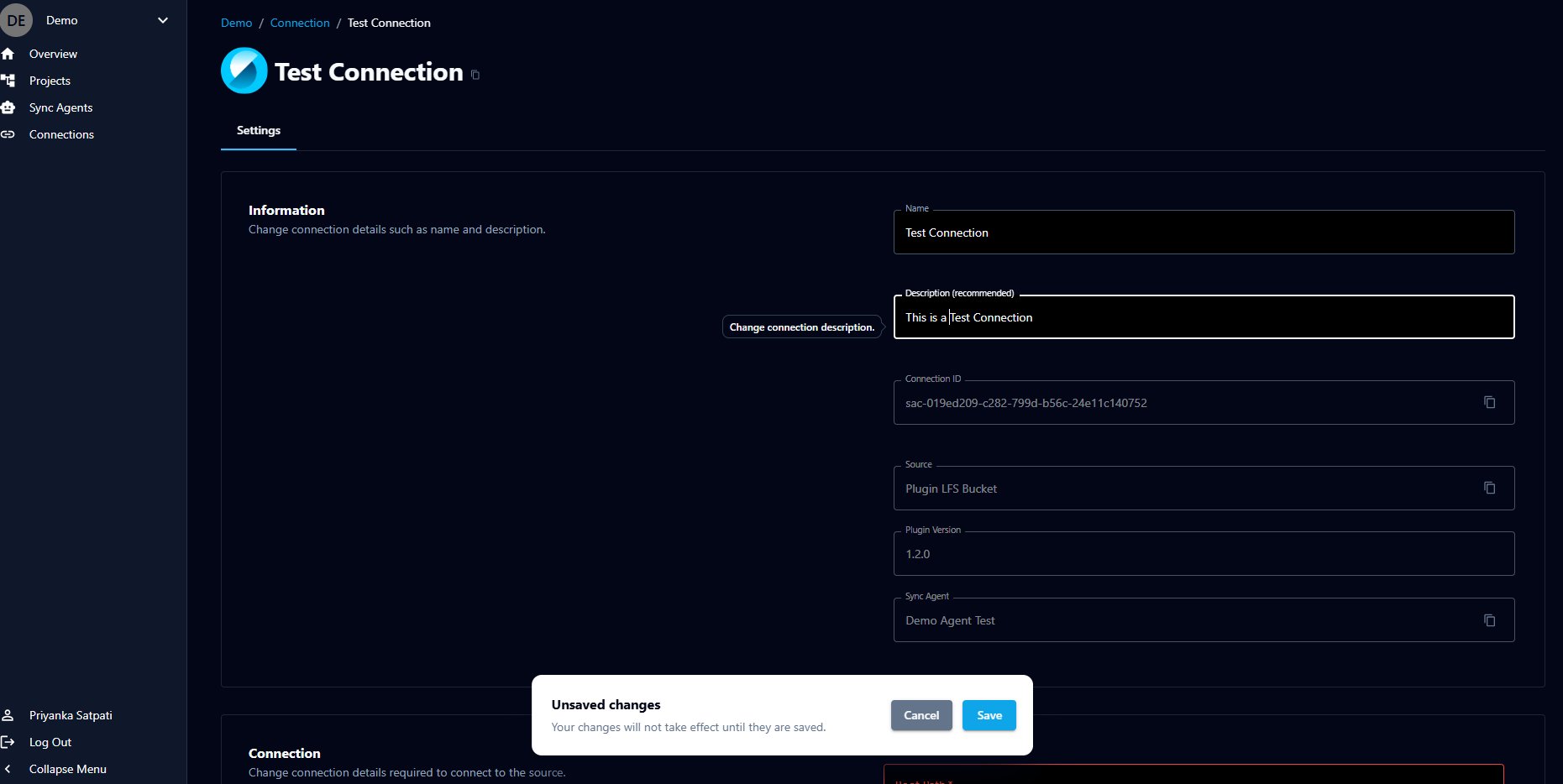
A connection's Settings page has two parts.
Information
General details about the connection — most are read-only references:
- Name and Description — editable
- Connection ID — the connection's unique identifier
- Source — the plugin in use
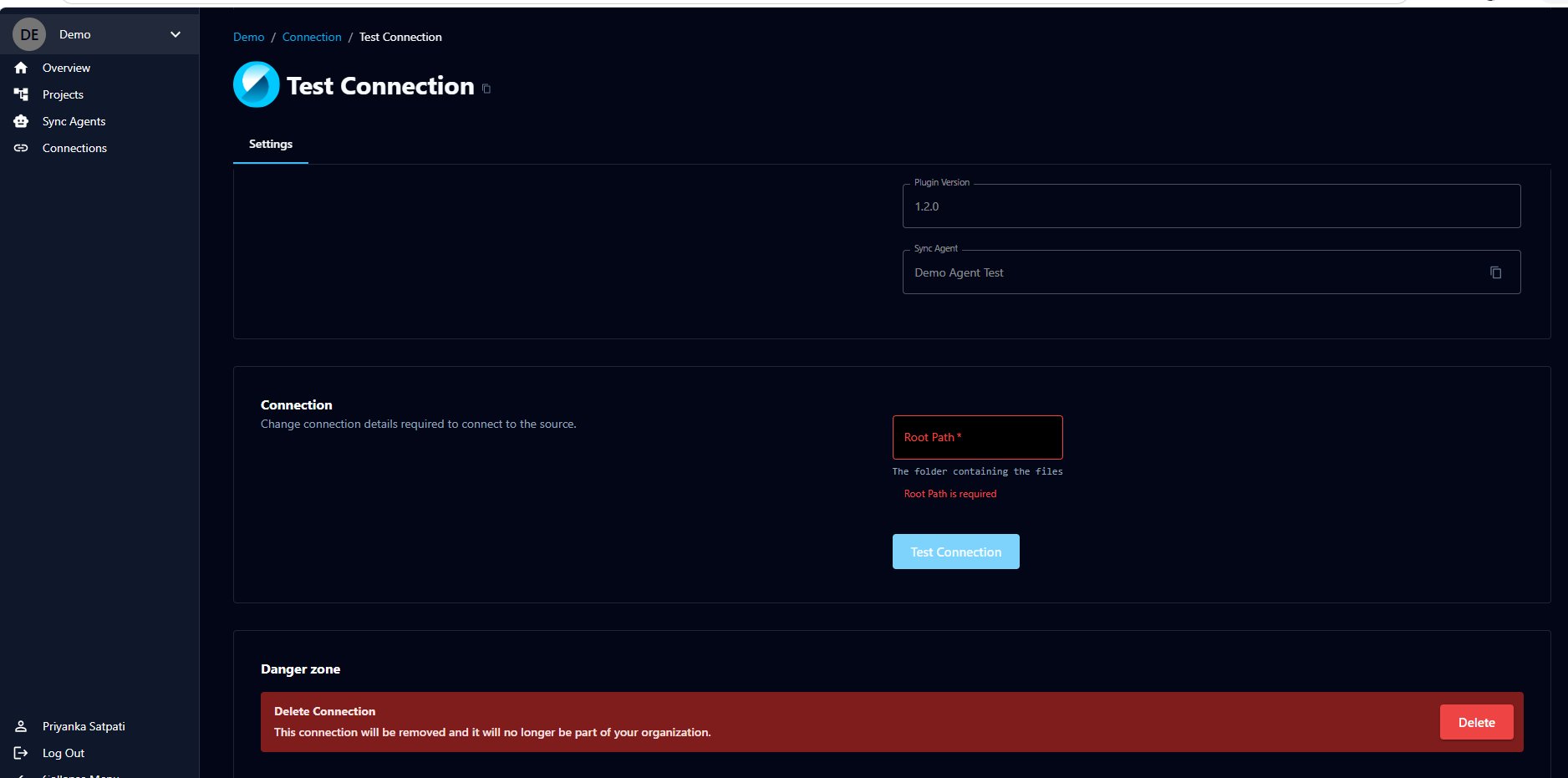
- Plugin Version — the version of the plugin
- Sync Agent — the agent the connection runs through
Connection
This section holds the details required to actually connect to the source. Every plugin has its own connection configuration fields, so what you see here depends entirely on which plugin you chose — a database plugin asks for things like database name and credentials, while a file-based plugin asks for a path. Each field includes a short description of what it expects.
Fill in the required fields for your plugin and save. Required fields are validated — if a required field is left empty, the form flags it (for example, "Root Path is required").
Saving changes
When you edit any connection details, an Unsaved changes bar appears. Click Save to apply your changes (or Cancel to discard them). A success message confirms when the connection settings have been saved.
Testing a connection
Use the Test Connection button in the Connection section to verify the agent can reach the source with the details you've entered. A successful test shows "Connection has been tested successfully."
Deleting a connection
To delete a connection, scroll to the Danger zone on its Settings page and click Delete. The connection will be removed and will no longer be part of your organization.
Using the Toolbelt
Connections can also be created and managed from the command line with the Toolbelt:
# List available sync agents
toolbelt sync-agent list --fields id,name,organization

# List available plugins and their latest versions
toolbelt sync-agent plugin list --fields id,name,latest_version

# Create a connection
toolbelt sync-agent connection create --name 'CONN-NAME' --description '' --agent AGENT-ID --plugin PLUGIN-ID --plugin-version PLUGIN-VERSION-ID

# Update the connection with its configuration JSON (configuration varies by plugin)
toolbelt sync-agent connection update --id CONN-ID --configuration '{}'
toolbelt sync-agent connection update --id CONN-ID --configuration path/to/config.json

# Test the connection
toolbelt sync-agent connection test-connection --id CONN-ID