Local Source Model
The Local Source Model is the client's source data after it has been acquired into Aunsight Data Services and stored in one or more local warehouses — ready to be mapped to the solution's data model.
How the Local Source Model fits in
Understanding where the Local Source Model sits in the acquisition flow makes the tab easier to work with:
- Source — the client's original system (a database, a file bucket, and so on), reached through a connection.
- Remote source model — the source data as it exists in that remote warehouse or bucket, before it comes into the platform.
- Ingestion — an ingestion task pulls the data from the source into the platform.
- Local source model — the acquired data, now stored in one or more logical warehouses inside ADS. At this point the data lives in the platform and is ready to be mapped to the solution's data model.
In short: data is acquired from the source through ingestion tasks, and where it lands inside ADS is the Local Source Model. From here, the next step is mapping it to the solution's model.
The Local Source Model tab
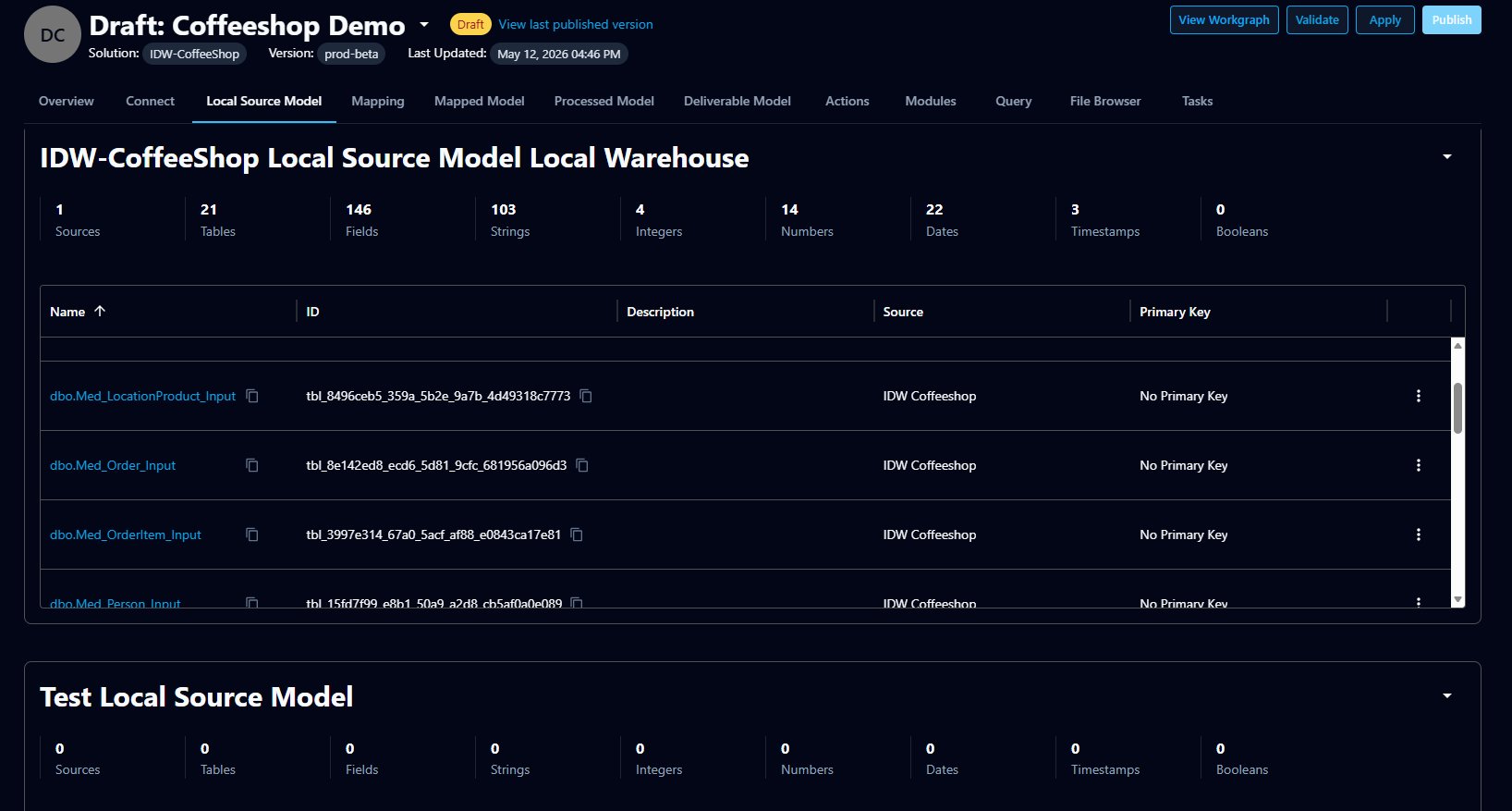
The tab is organized by warehouse. Each warehouse has a header showing its name (for example, IDW-CoffeeShop Local Source Model Local Warehouse) and a summary row of counts that profile its contents:
- Sources — number of source systems feeding the warehouse
- Tables — number of tables
- Fields — total number of fields across all tables
- Strings, Integers, Numbers, Dates, Timestamps, Booleans — the count of fields of each data type
The table list
Below the summary, each warehouse lists its tables with:
- Name — the table name (a link that opens the table data)
- ID — the table's unique identifier
- Description — an optional description
- Source — the source the table came from
- Primary Key — the table's primary key, or "No Primary Key" if none is defined
A project may contain more than one local source model warehouse — additional warehouses appear as separate sections further down the tab.
Exploring a table
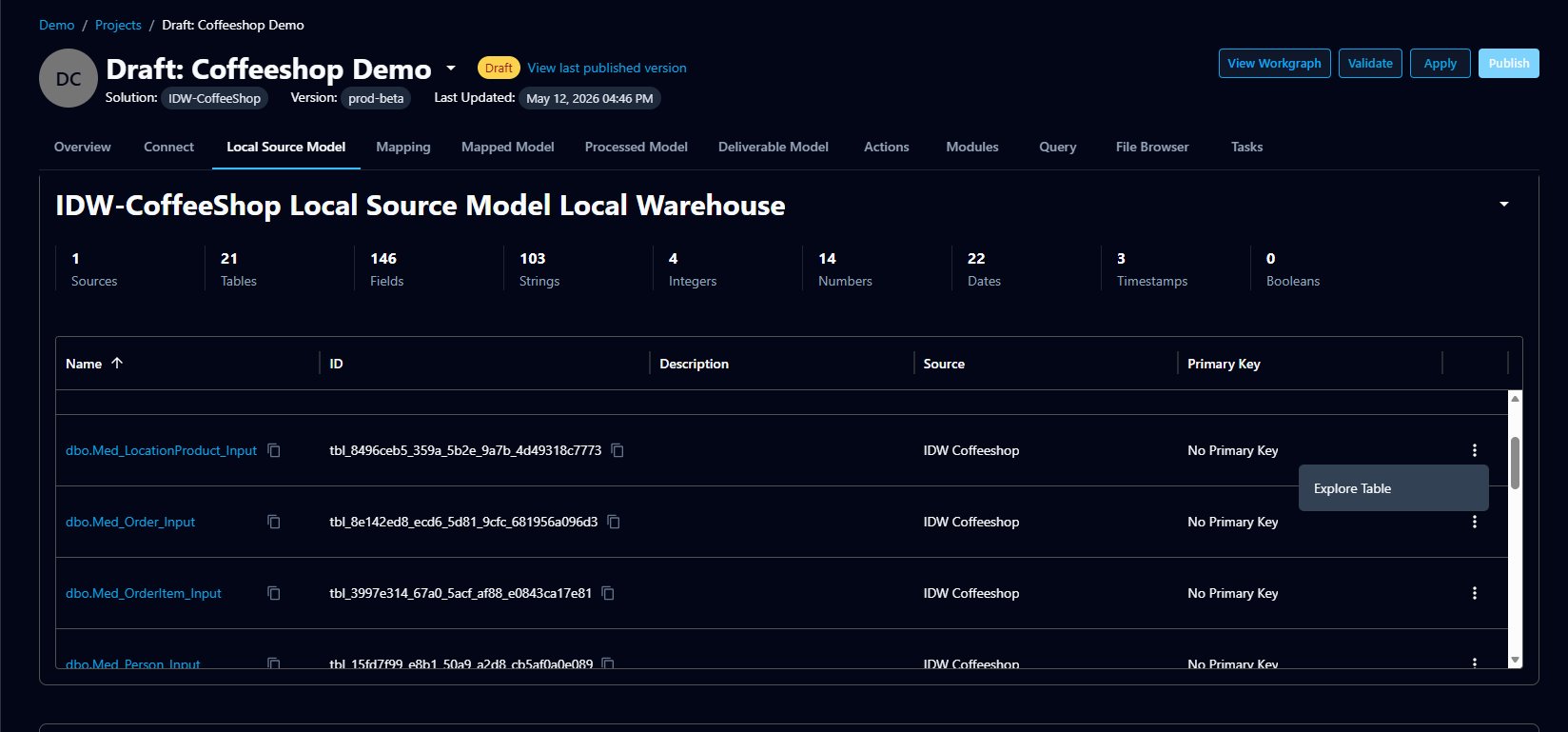
To view the data in a table, either click the table name or open the table's more (⋮) menu and choose Explore Table. Both open the same Explore Table view.
The Explore Table view shows the table's rows and columns in a data grid, with:
- Pagination and a rows-per-page selector at the bottom for moving through large tables
- A Tools menu in the top right with options to Reload the data and Download CSV
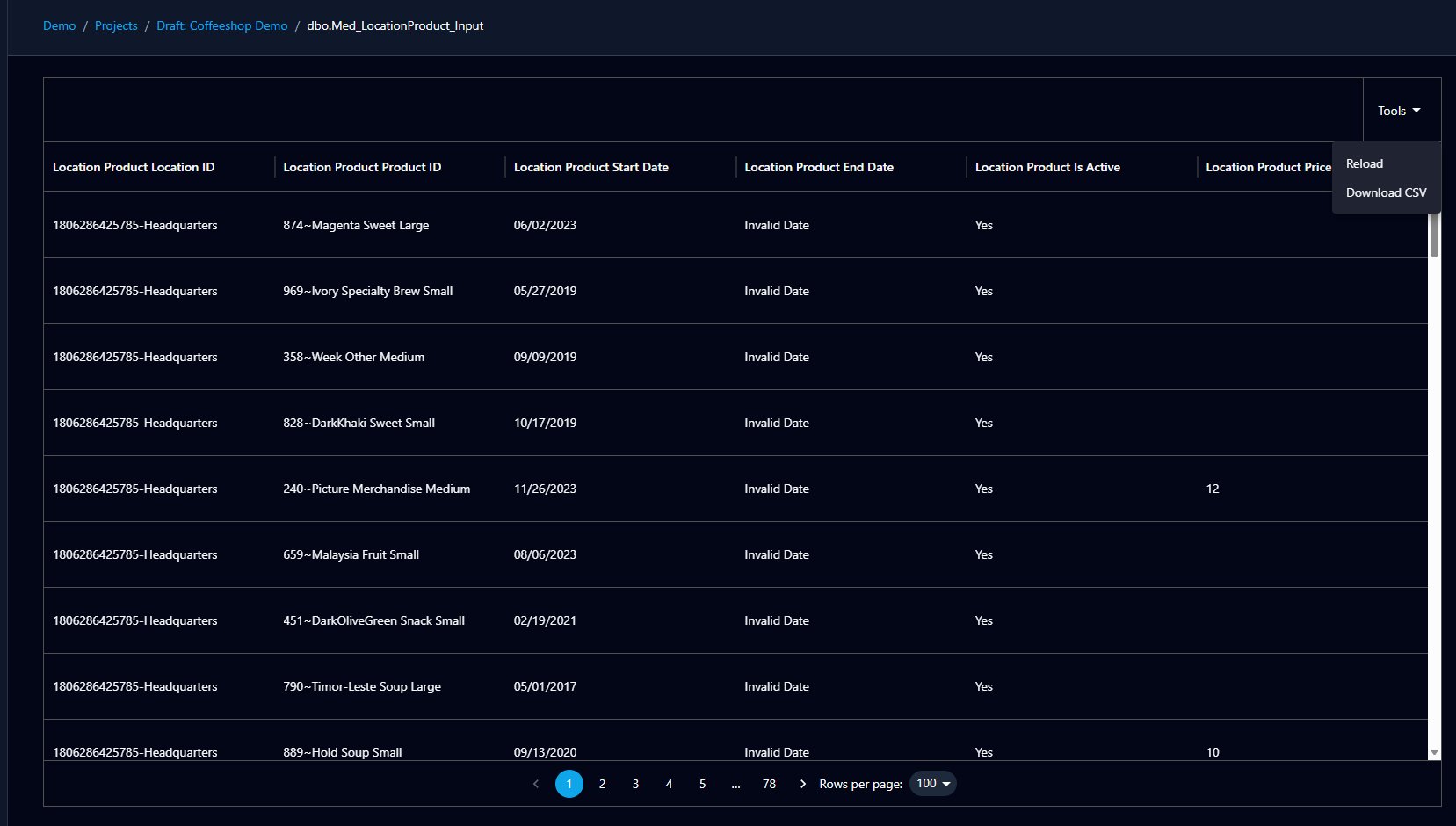
Exploring tables is useful for confirming that data was acquired correctly and for understanding the shape and content of the source data before mapping it.
Next step
Once the source data is in the Local Source Model and you've confirmed it looks right, the next step is to map it to the solution's data model — see Mapping.