Groups
Groups are collections of members managed together. Rather than granting access to each person individually, you assign roles to a group, and every member of that group inherits those roles. Groups are the link between your people (members) and what they can do (roles and permissions).
Federated and non-federated groups
Every group in Aunsight is one of two types:
Federated groups are managed by your organization's identity provider (IdP) — such as Okta or Auth0. Membership is controlled entirely by the IdP: you cannot add or remove members manually in Aunsight. Federated groups let a client manage their members' access to Aunsight from their own identity system. When the client adds a user to the federated group in their IdP, that user can log in to the organization in Aunsight.
Non-federated groups are managed directly within Aunsight. An administrator creates the group and assigns members to it manually. Non-federated groups are useful when you need to give a subset of users within a federated group a different set of permissions, or when you want to manage a group's membership independently of the IdP.
Keeping federated groups in sync
Because federated group membership is driven by the client's identity provider, the Aunsight administrator must be notified when the client adds or changes a federated group. If the group configuration in Aunsight no longer matches the IdP, the federation breaks and affected users will be unable to log in.
Viewing groups
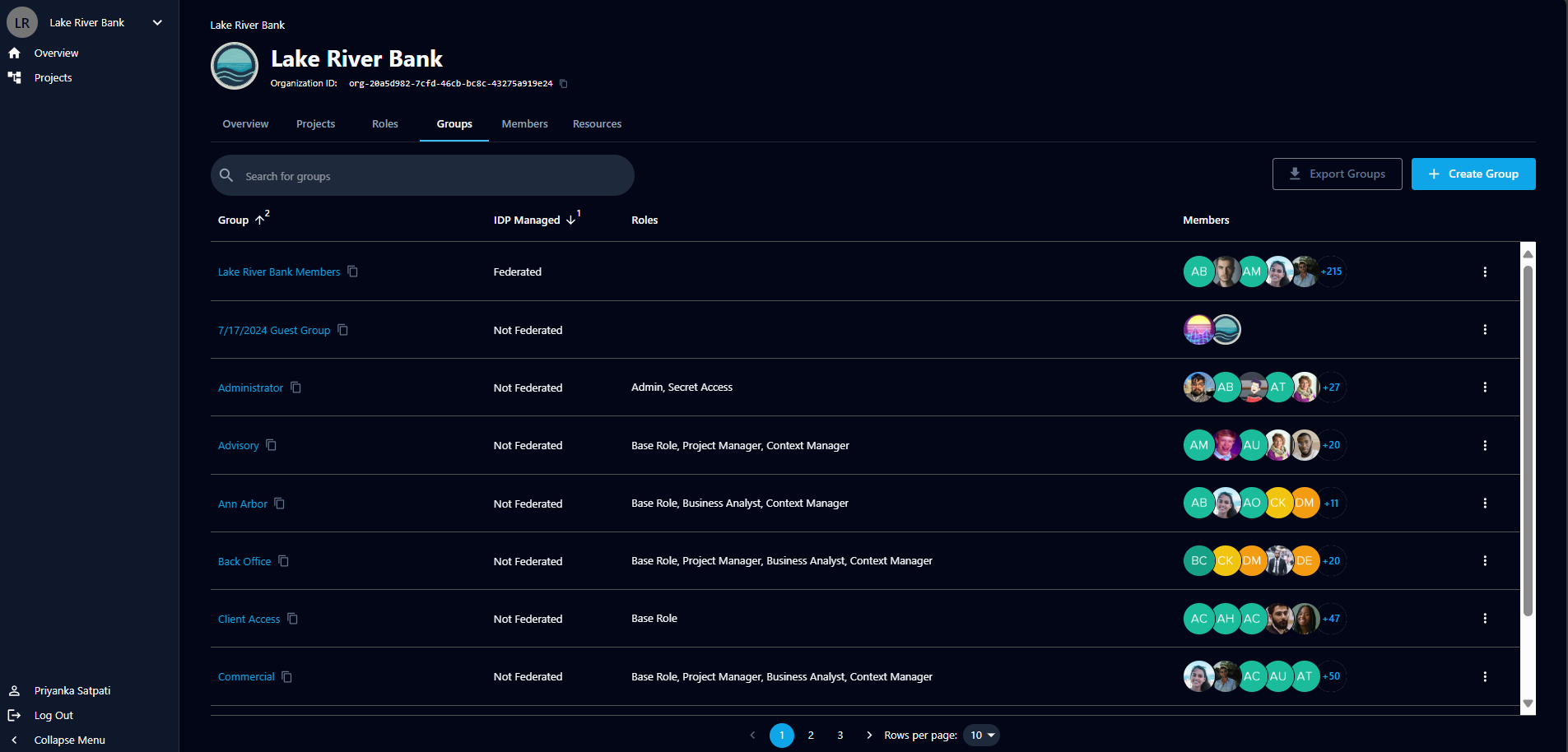
The list of groups for an organization is on the Groups tab within the organization. From the list you can:
- Search for a group by group name or group ID
- Sort results by group name or by the IdP Managed column
- Paginate through results and set the number of results shown per page
Creating a non-federated group
- Go to the Groups tab.
- Click + Create Group.
- In the IDP Managed dropdown, select Non Federated.
- Enter a display name in the required Name field.
- Optionally add a Description — recommended to make the group easier to manage later.
- Click Create.
Creating a federated group
- Go to the Groups tab.
- Click + Create Group.
- In the IDP Managed dropdown, select Federated.
- Select the Identity Provider from the dropdown.
- In the Identity Provider Group ID field, enter the group ID from your identity provider. You'll need this ID or name from the person who set up the group in the IdP.
- Enter a display name in the required Name field.
- Optionally add a Description.
- Click Create.
Once a federated group is created, any user who belongs to that group in the IdP can log in to the organization successfully.
Mirror your IdP naming
Use the same naming convention and description in Aunsight as in your identity provider. Keeping these uniform across platforms makes federated groups much easier to manage.
Managing a group
Search for a group on the Groups page and click its name to open a drawer with tabs:
- Details — edit the group's editable fields. Click Save to apply changes.
- Roles — assign or unassign roles using the toggle next to each role. Save when done. Members of the group inherit the permissions of the roles assigned here.
- Members — for a non-federated group, view, add, and remove members. For a federated group, you can view members but cannot change membership, since it is managed by the client's identity provider.
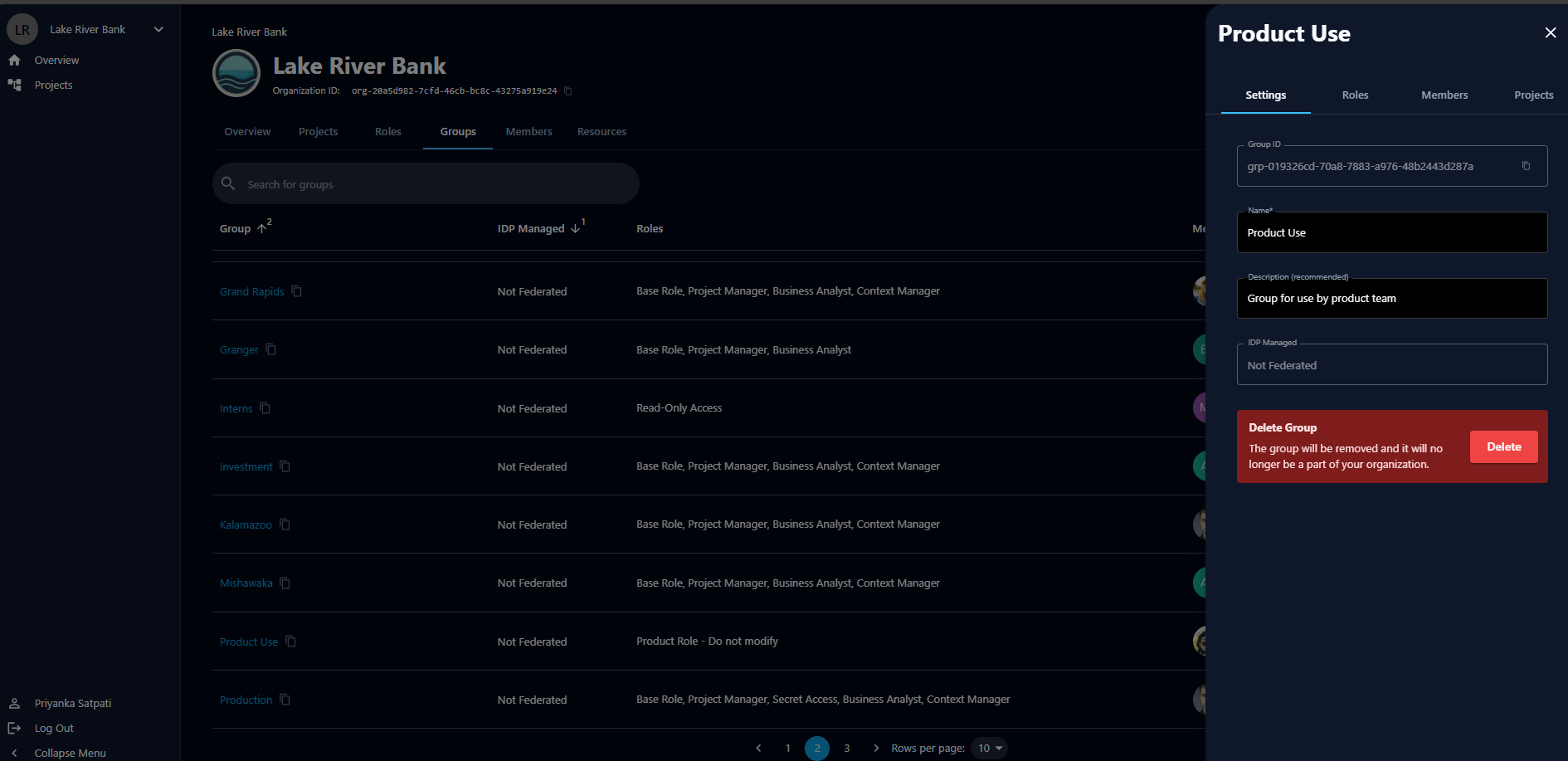
On the Roles tab, toggle each role on or off to control which roles the group carries:
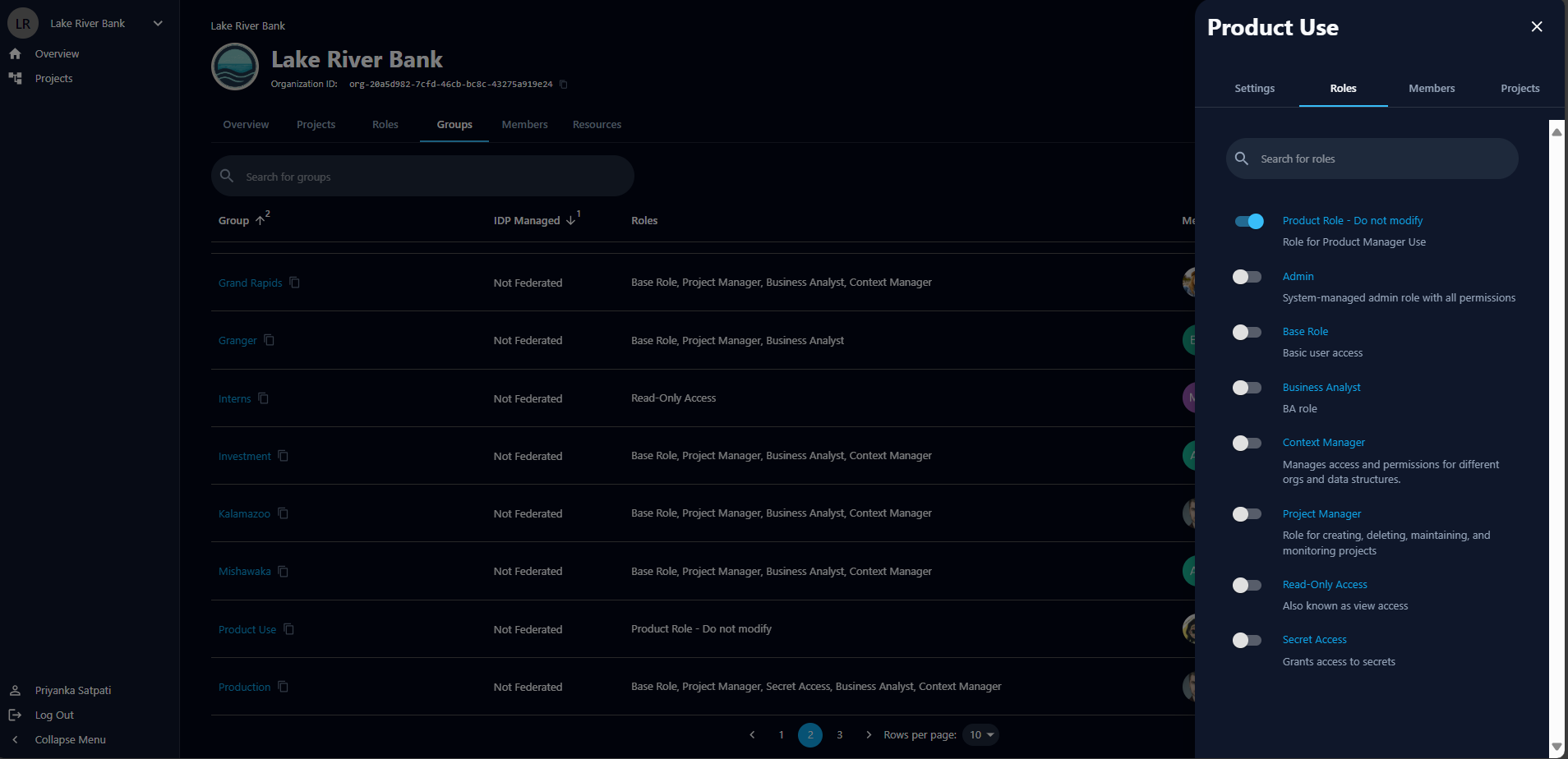
On the Members tab of a non-federated group, add and remove members directly:
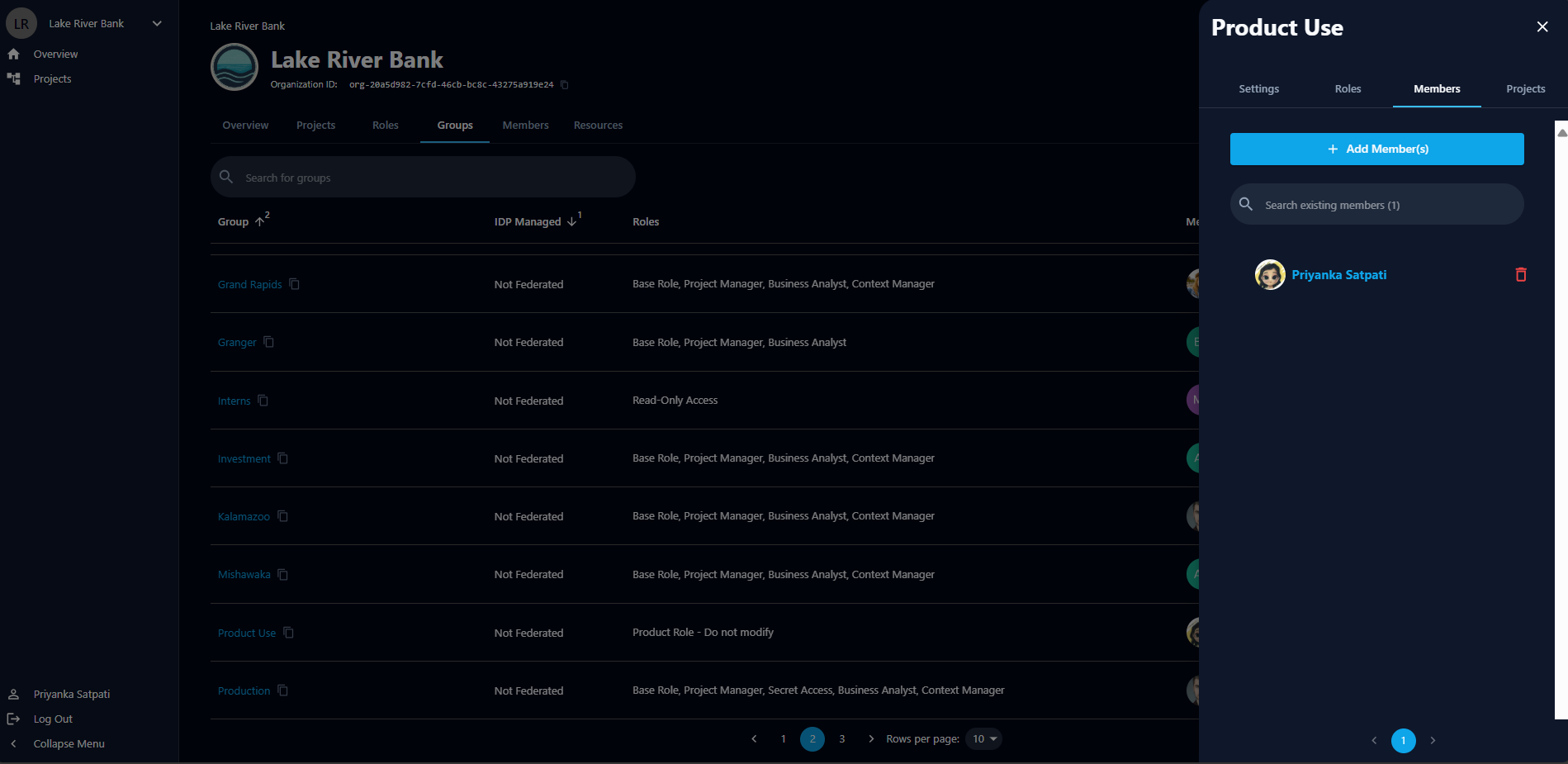
Removing a member from a non-federated group
In the group's Members tab, click the trashcan icon next to a member's name, then confirm by clicking Remove Member.
Deleting a group
In the group's Details tab, click Delete within the danger zone, then confirm by clicking Delete Group.
Deleting federated groups
Deleting a federated group carries more risk than deleting a non-federated one. Members who depend on that federated group for access risk losing the ability to log in to Aunsight if it is deleted.
Exporting groups data
Click Export Groups on the Groups page to download a CSV report of the groups in the table — useful for reporting and auditability.