Members
Members are the individual people who have access to your organization in Aunsight. Each member has a unique identifier (such as an email), profile information, and authentication credentials. What a member can do is determined by the roles they inherit through the groups they belong to.
Member states
A member can be in one of three states:
- Active — the member has access to the organization.
- Inactive — the member's access is currently inactive.
- Suspended — the member's access has been suspended.
Resident and guest members
Members come in two types, based on where they are federated:
Resident members are federated within the current organization — their account lives here. Residents generally have a registered account through the organization's identity provider and have full access to the platform based on the roles they inherit.
Guest members are federated in a different organization but have been added by an administrator as a guest to the current organization. Guests let you grant someone from another org access to this one without giving them a full resident account here.
Viewing members
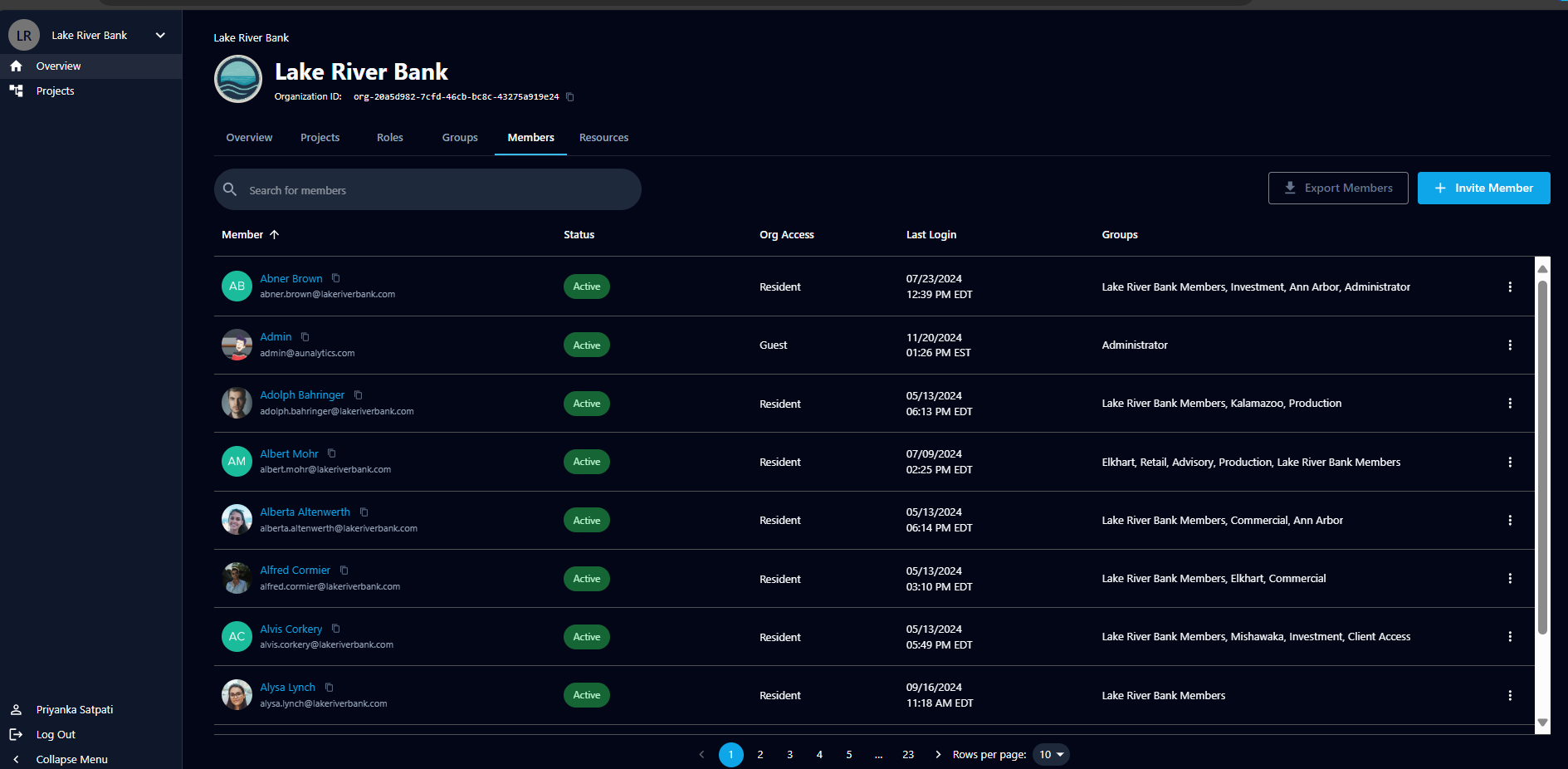
The list of members for an organization is on the Members tab within the Members space. From here you can see each member's state (active, inactive, or suspended) and type (resident or guest).
Inviting a member
- Go to the Members tab.
- Click + Invite Member.
- In the modal, select individual users and/or groups for the organization.
- Click Add Member(s) to complete the invitation.
Assigning a member to groups during the invite is how they receive access — remember that roles and permissions flow from group membership, so adding a member to the right groups gives them the access they need.
Managing a member
Open a member to manage their details and group memberships across two tabs:
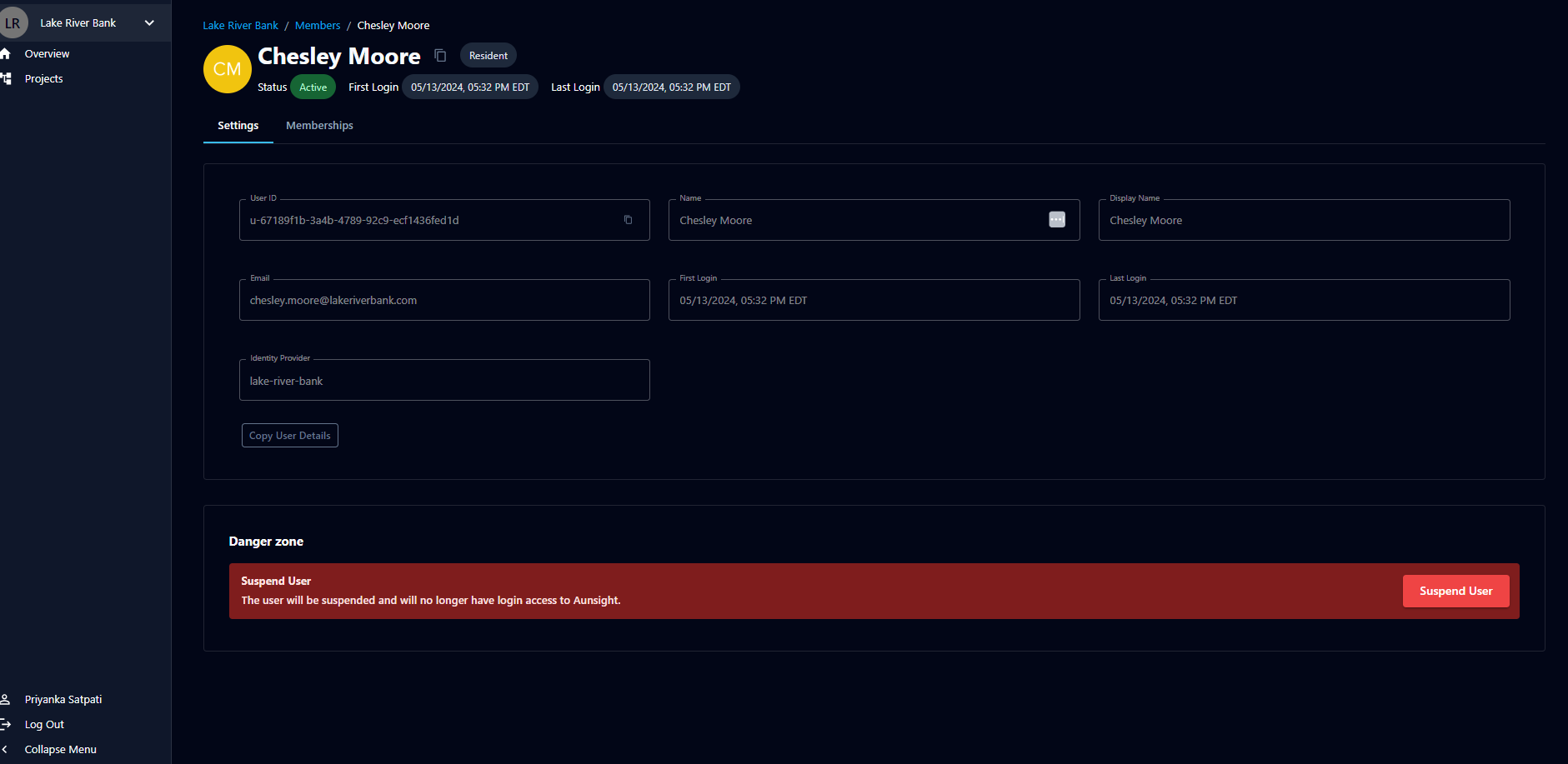
- Settings — view the member's profile, including user ID, name, display name, email, identity provider, and login history. The Suspend User action also lives here (see below).
- Memberships — assign the member to groups. This is how a member receives roles and permissions; there is no way to assign a role or permission to a member directly.
Suspending a member
To suspend a member, open them and go to the Settings tab. In the Danger zone at the bottom, click Suspend User. The user will be suspended and will no longer have login access to Aunsight.
Suspending is the way to revoke a member's access while keeping their record in the organization — useful when someone should no longer be able to log in but you don't want to remove their history or group associations.
A reminder on the access model
Because access flows through Members → Groups → Roles → Permissions, the way to change what a member can do is always to change their group memberships (or the roles on those groups) — never to attach permissions to the person directly. This keeps access consistent and auditable across your organization.