Using the Console
This guide walks through creating and installing a Sync Agent using the Aunsight Console. The examples use Windows; the same flow applies to macOS and Linux with the equivalent commands (see Using the CLI).
Creating an agent in Aunsight
Sign in to the console at https://console-au3.aunsight.com/.
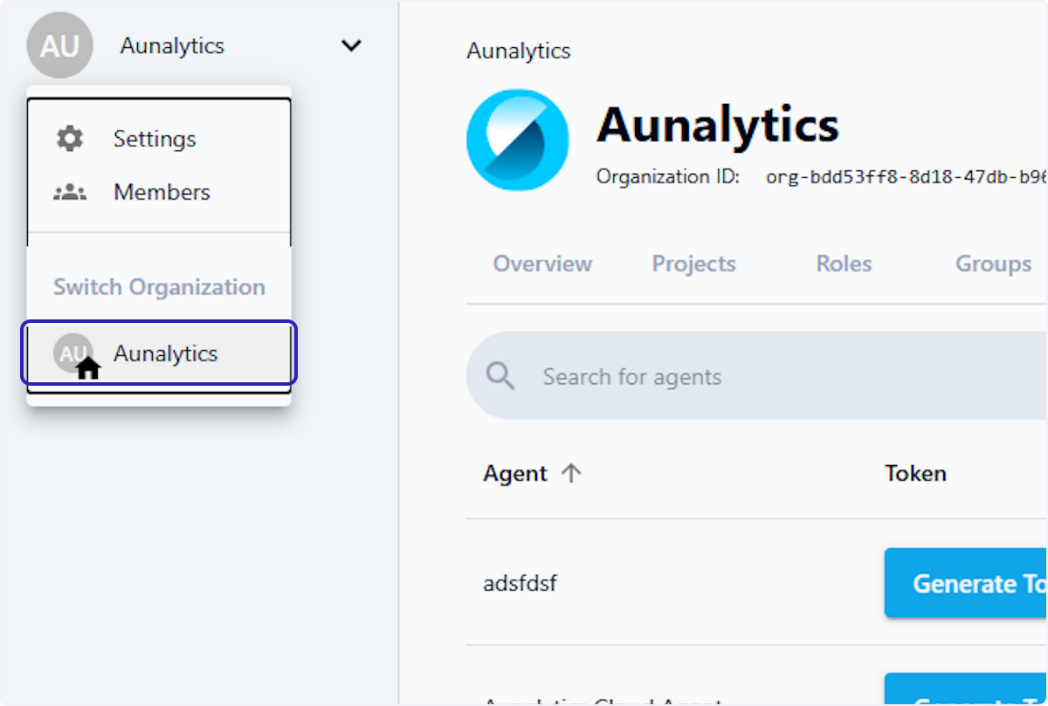
1. Select the organization. In the global navigation bar, use the org selector to choose the organization you want to create an agent for.
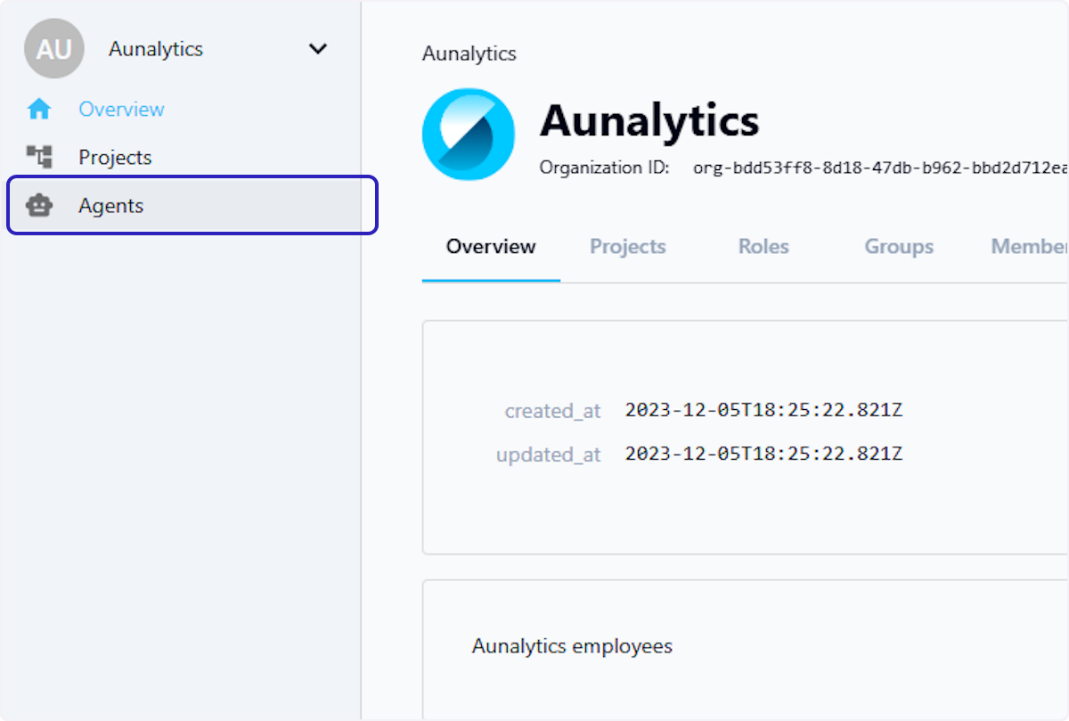
2. Open the Agents tab. Once in the correct organization, click Agents.
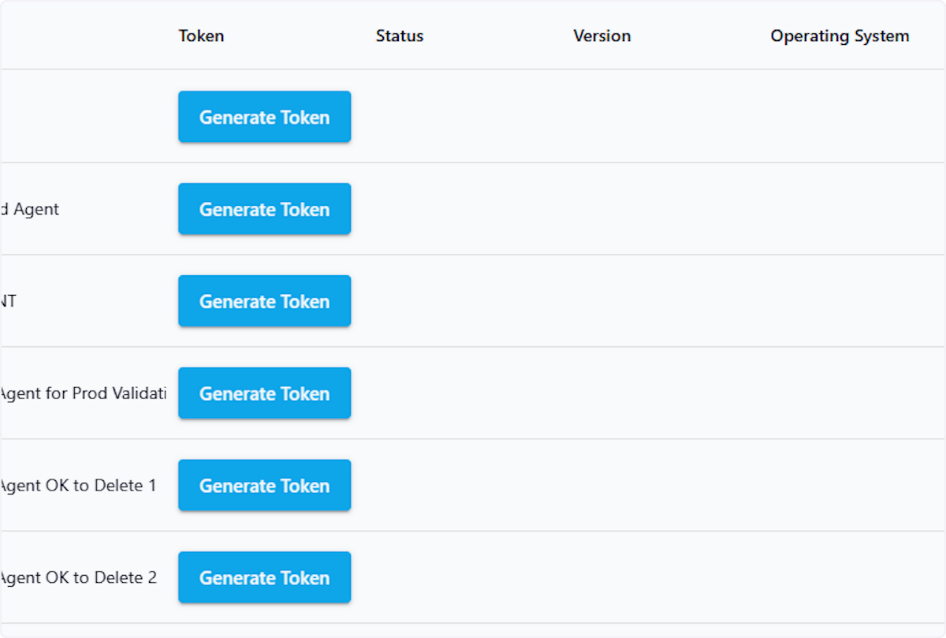
3. Create a new agent. The Agents tab lists the agents available for this organization. Click Create Agent in the upper right-hand corner.
4. Name the agent. Give the new agent a name (required).
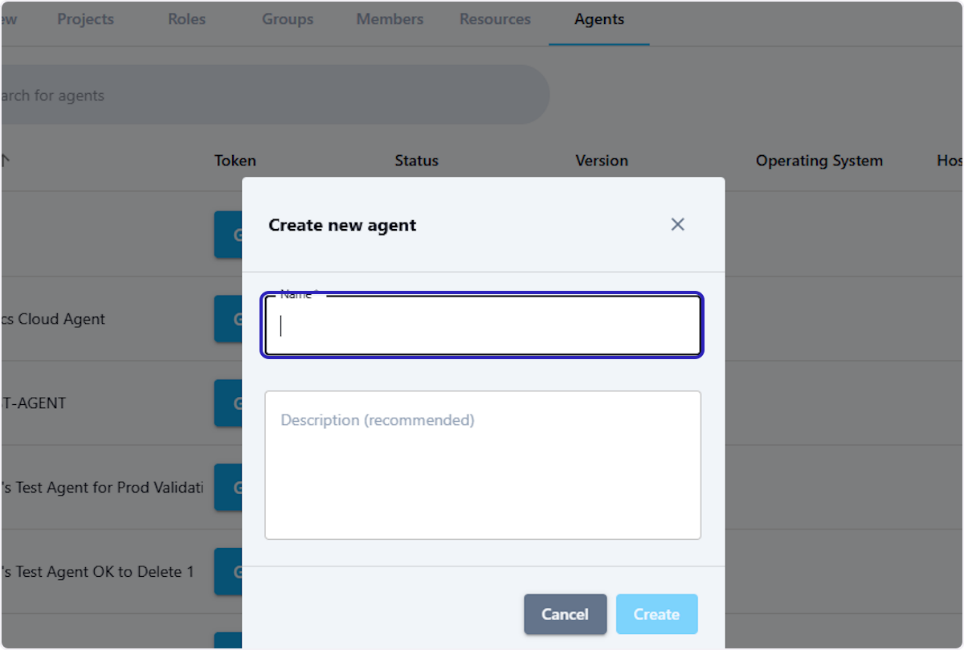
5. Add a description. Optional but recommended — a description makes the agent easier to identify later.
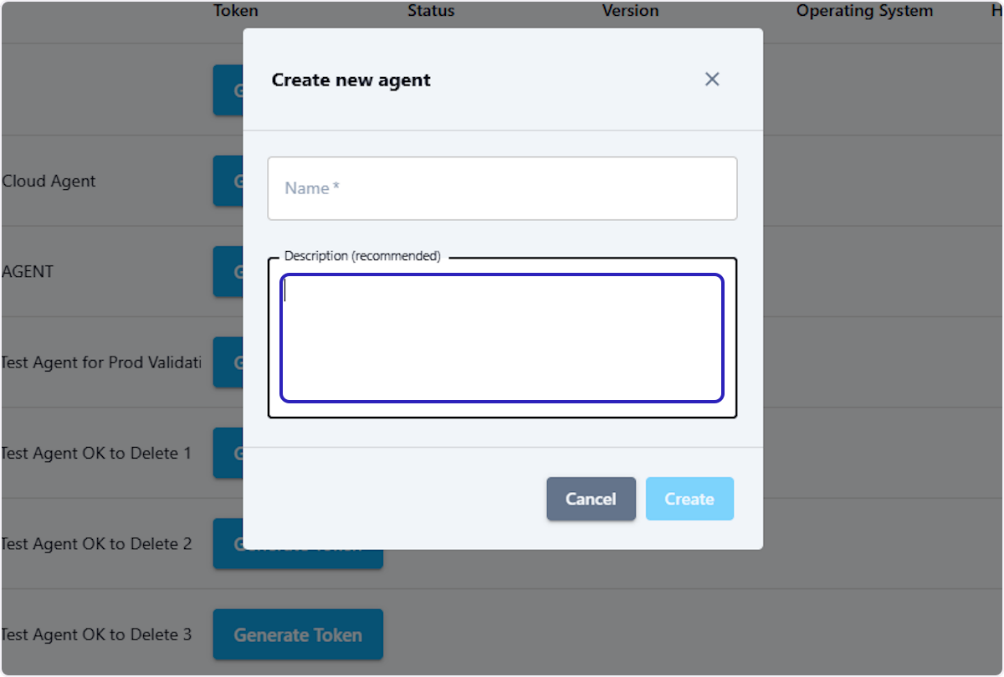
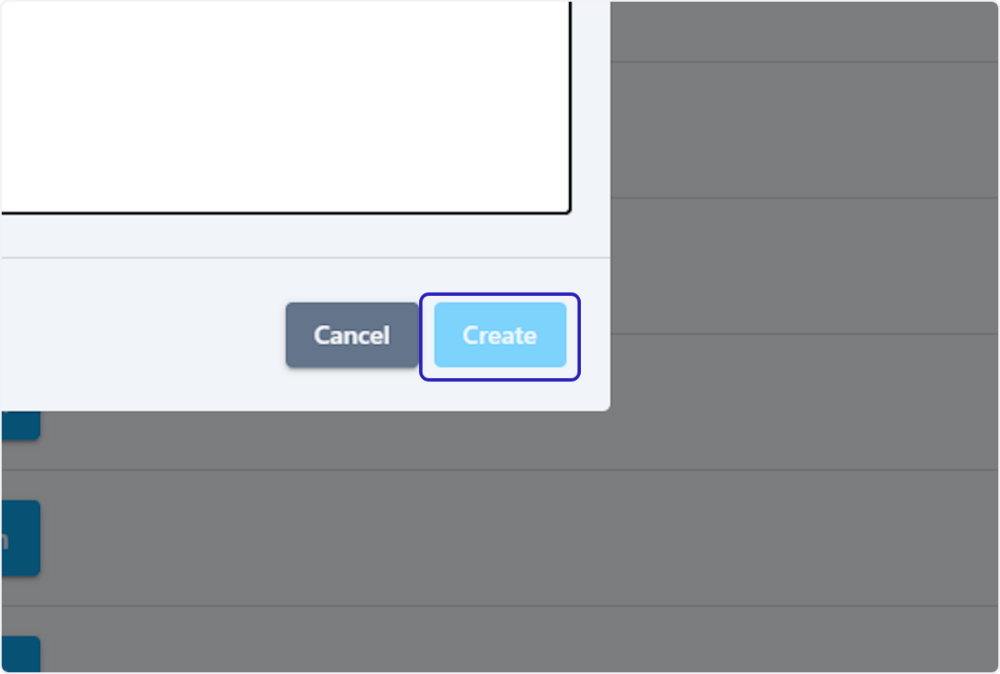
6. Create. Click Create to continue.
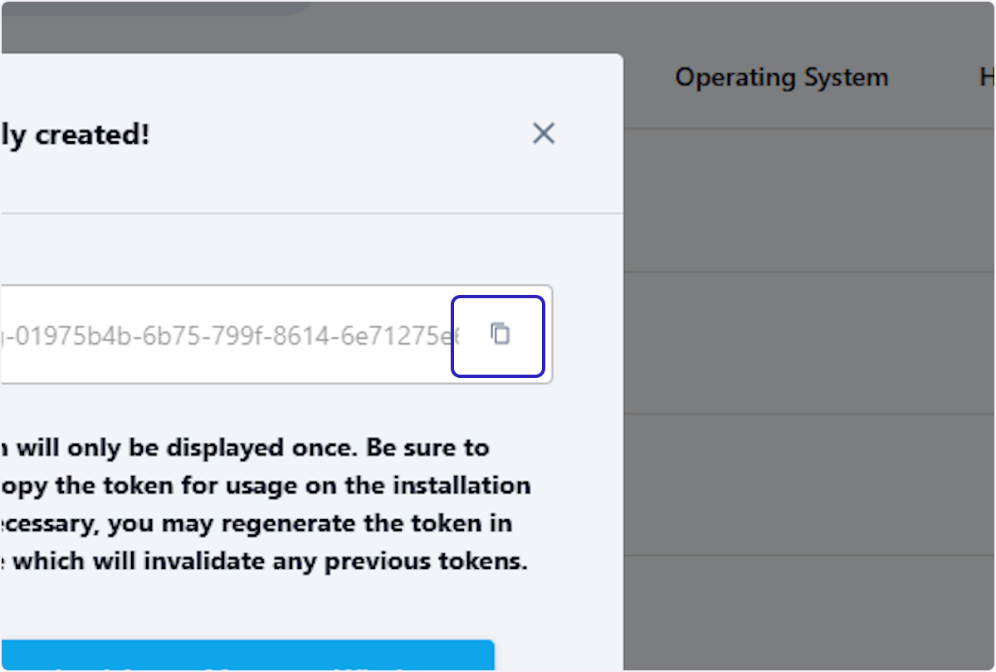
7. Copy the registration token. The agent is now created and a one-time token has been generated. Use the copy button to copy the token — you'll need it during installation.
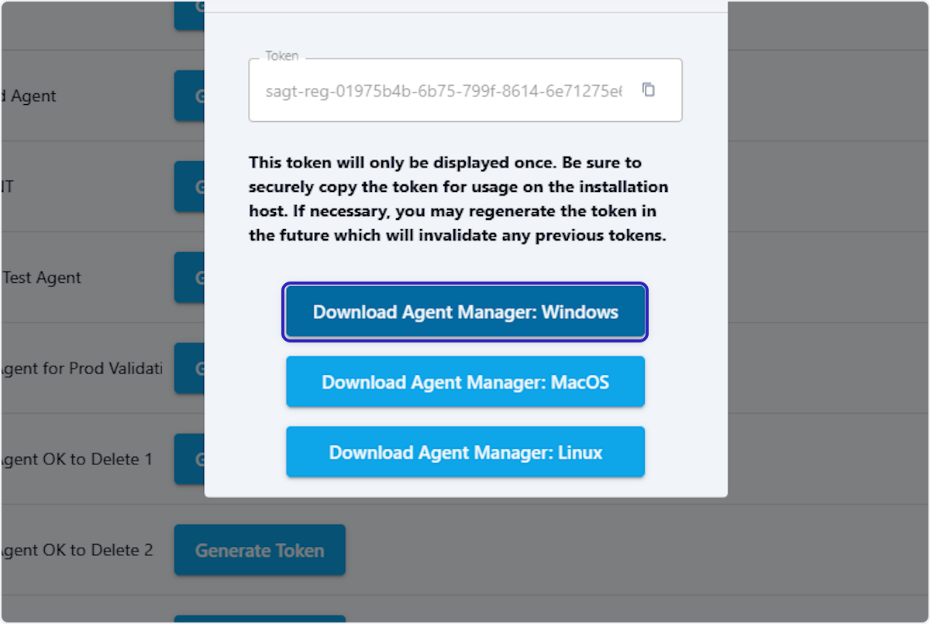
8. Download the Agent Manager. Click Download Agent Manager for your operating system (Windows, macOS, or Linux). A zip file downloads to your downloads folder.
Configuring and installing the agent
9. Extract the zip. Extract the downloaded zip file and copy it to the location where you want the agent to reside.

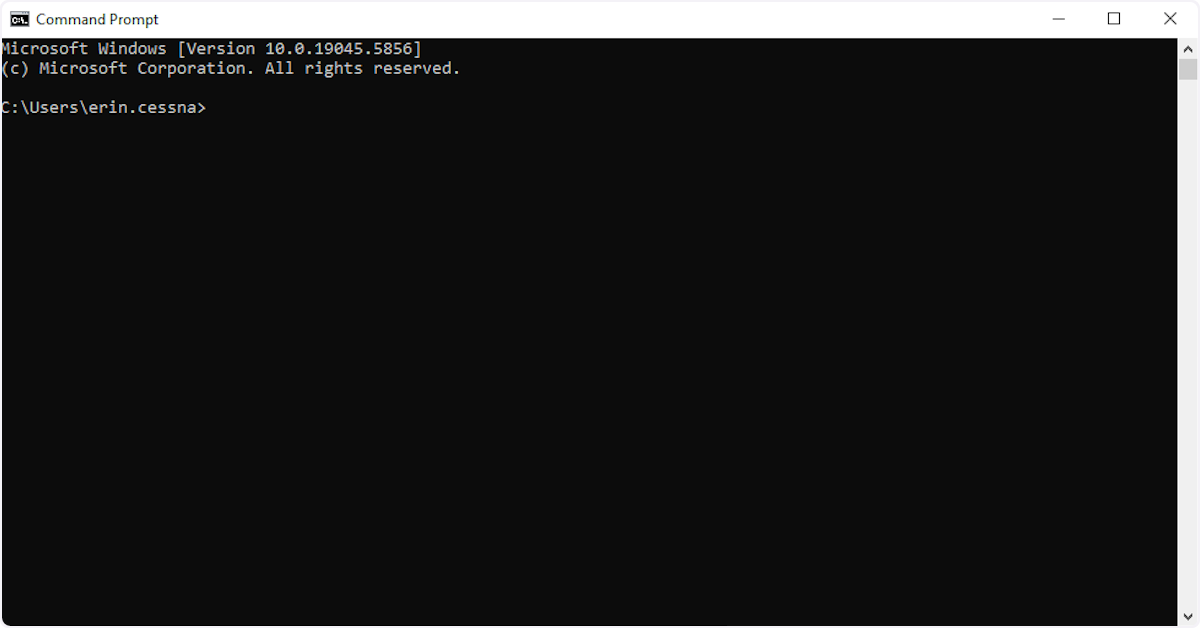
10. Open a command prompt. Type cmd in your machine's search bar and open the Command Prompt application.
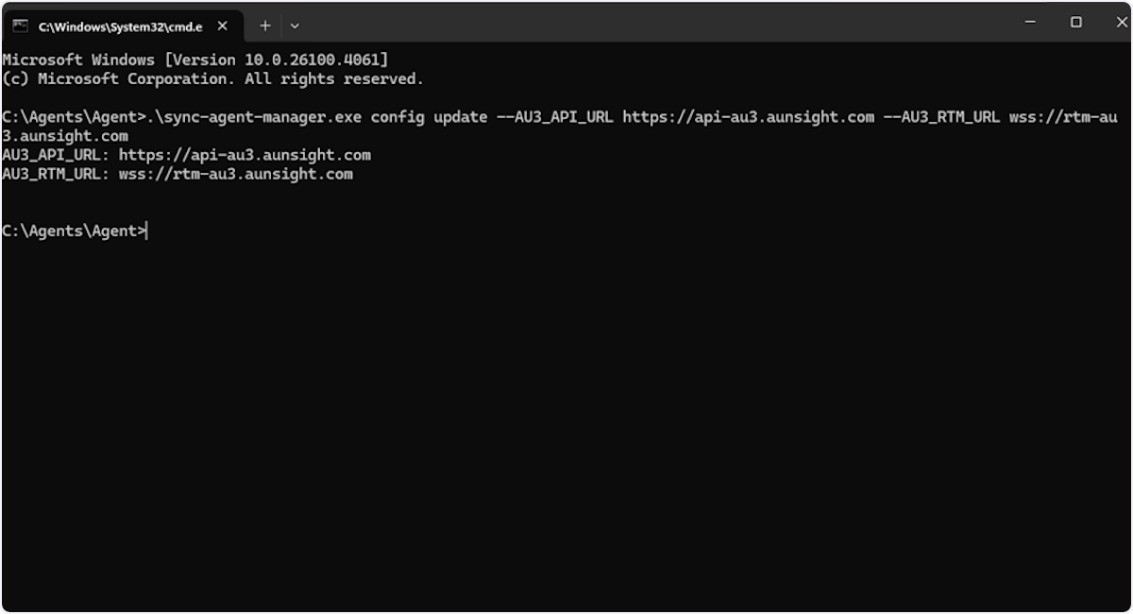
11. Configure the agent. In the command prompt, run:
.\sync-agent-manager.exe config update --AU3_API_URL https://api-au3.aunsight.com --AU3_RTM_URL wss://rtm-au3.aunsight.com
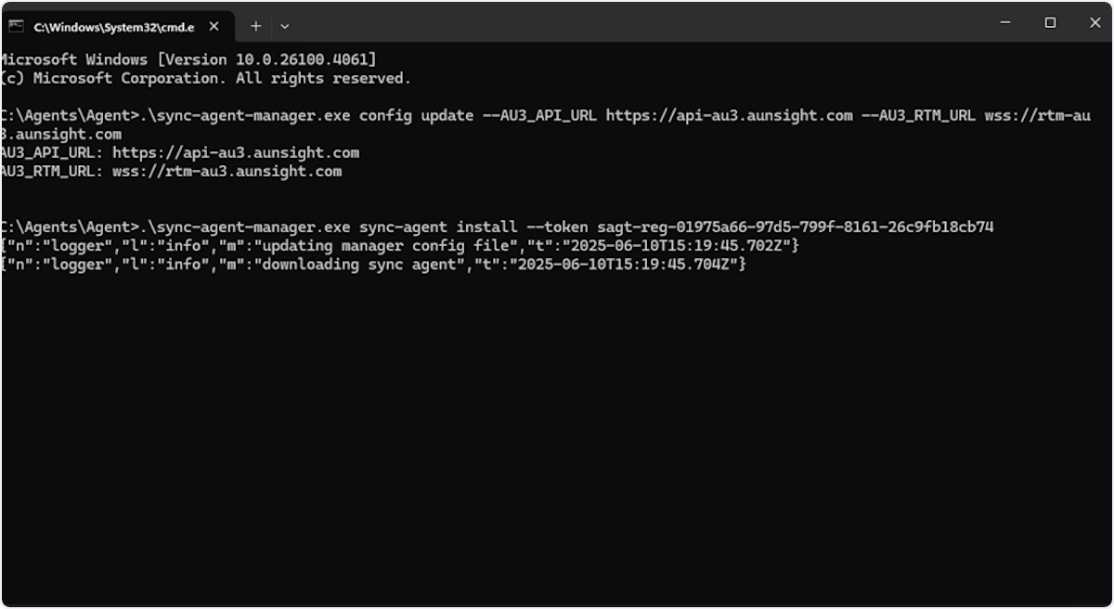
12. Install the agent. Run the install command, pasting in the registration token you copied earlier:
.\sync-agent-manager.exe sync-agent install --token REGISTRATION-TOKEN
13. Confirm success. A successful install reports success: true along with the agent ID, name, install path, and service name.
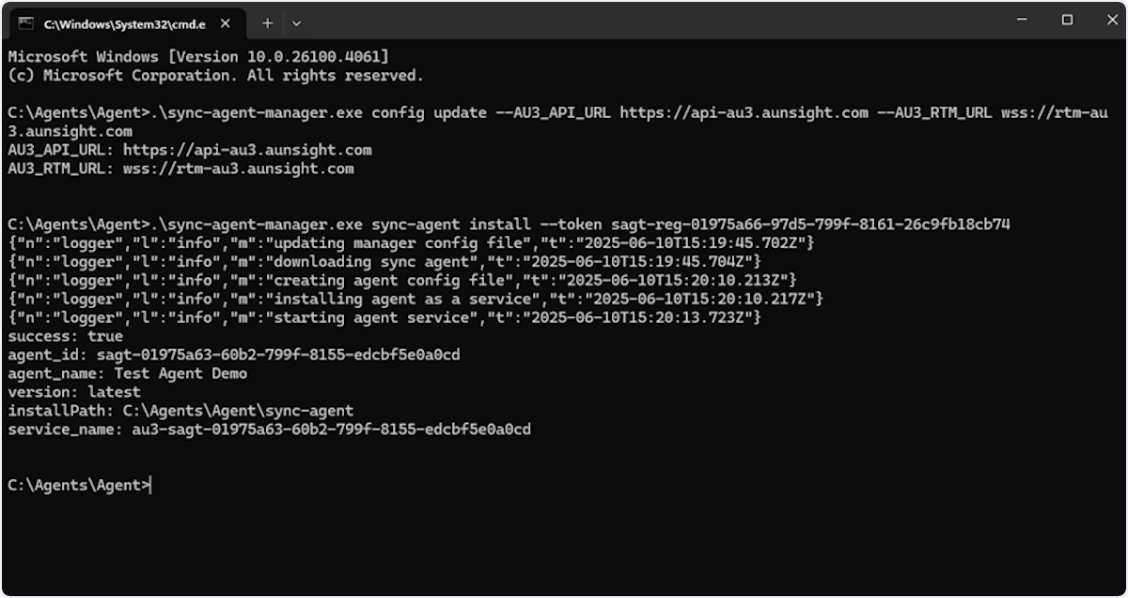
To check that the agent is running, look in the log directory within the sync agent folder, or check Windows Services for the running agent.
Generating a new token
If you need a new registration token later:
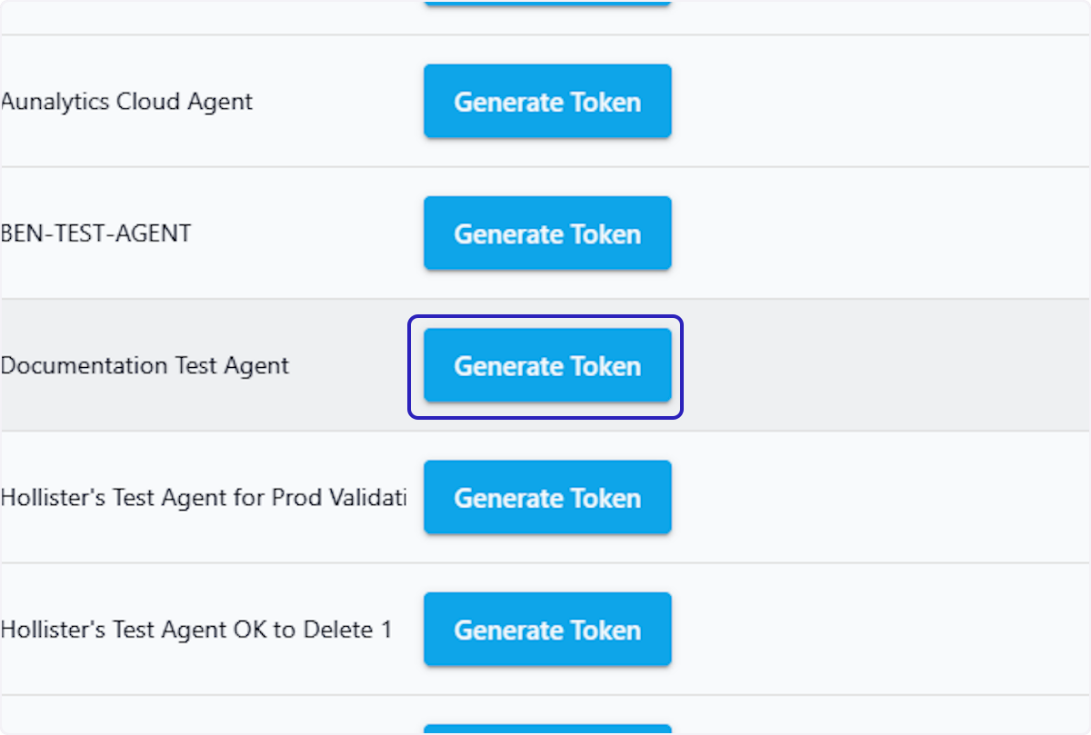
14. Generate a token. Find your agent in the Agents list and click Generate Token.
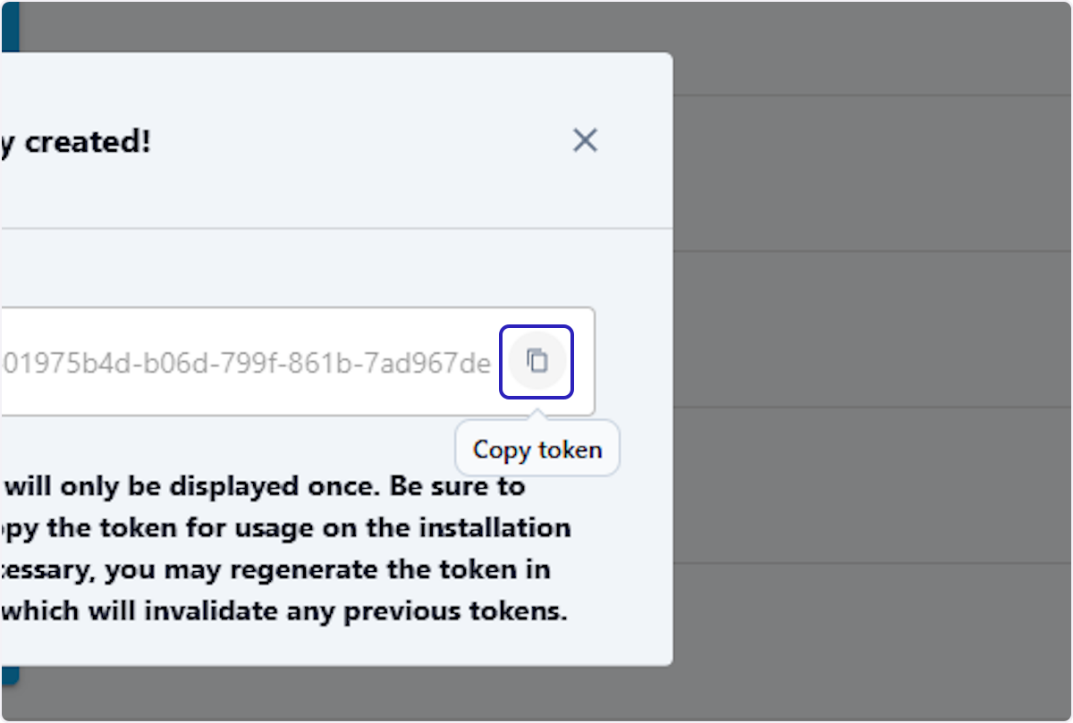
15. Copy the token. A new token is generated — click the copy icon to copy it.
Modifying an agent
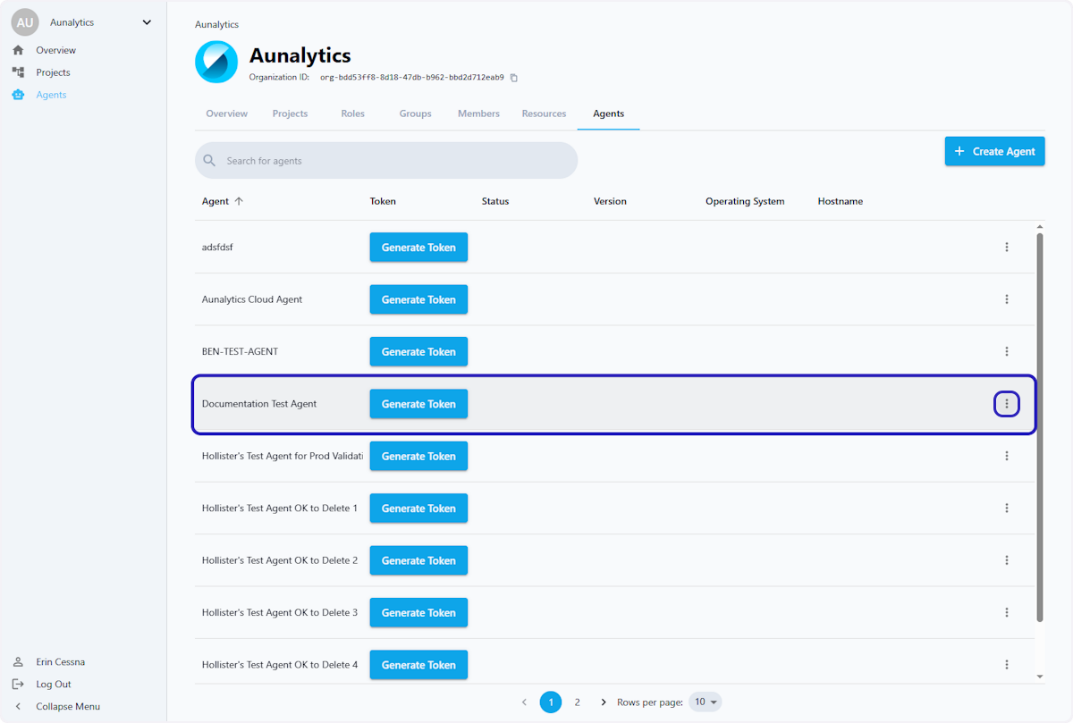
16. Open the agent menu. Click the more (⋮) icon next to the agent you want to modify.
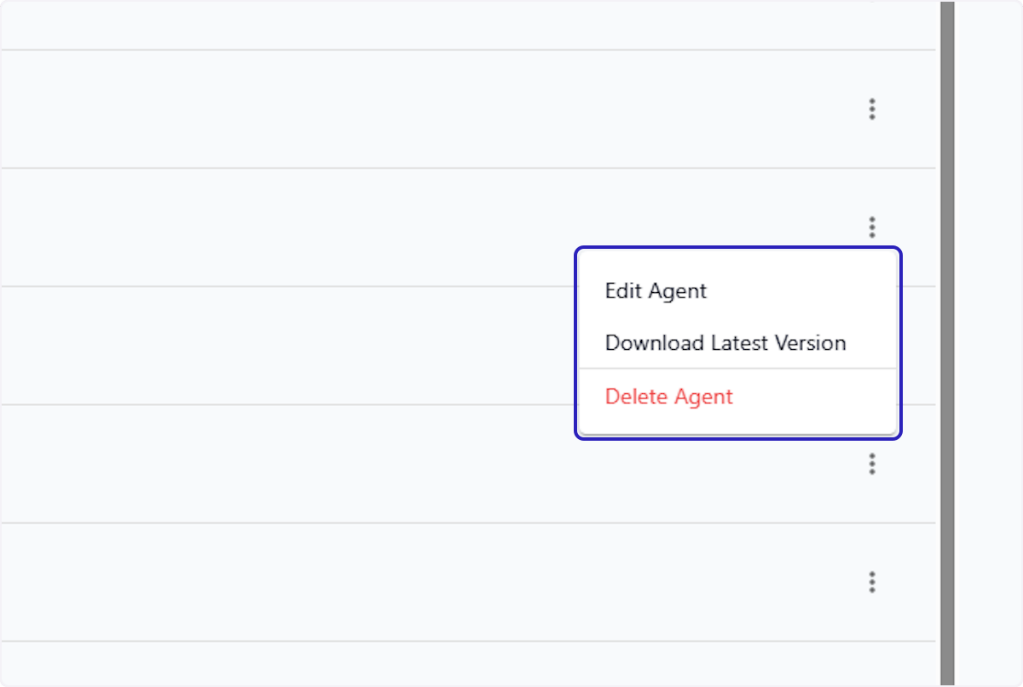
17. Choose an action. Options appear including Edit Agent, Download Latest Version, and Delete Agent.
Restarting a Sync Agent
On Windows you can restart an agent either through Windows Services or through the Manager process.
Using Windows Services
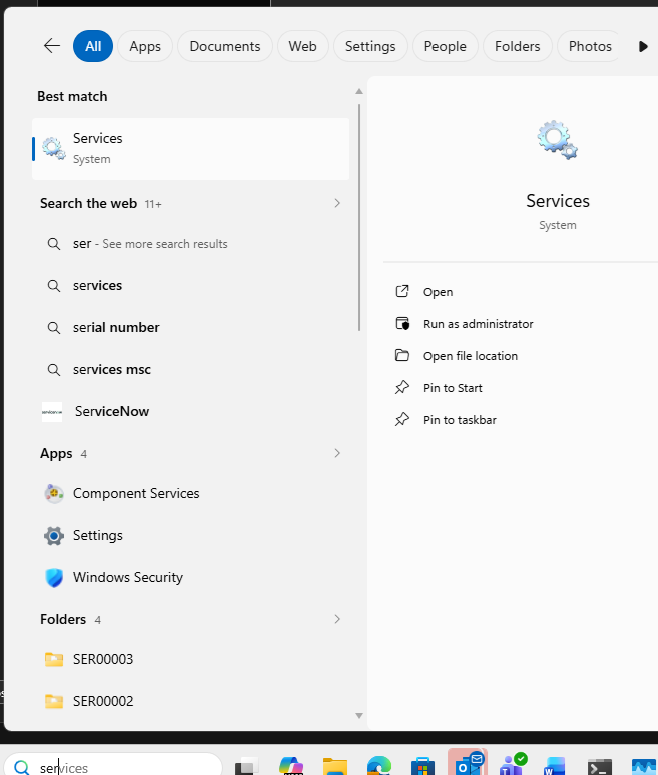
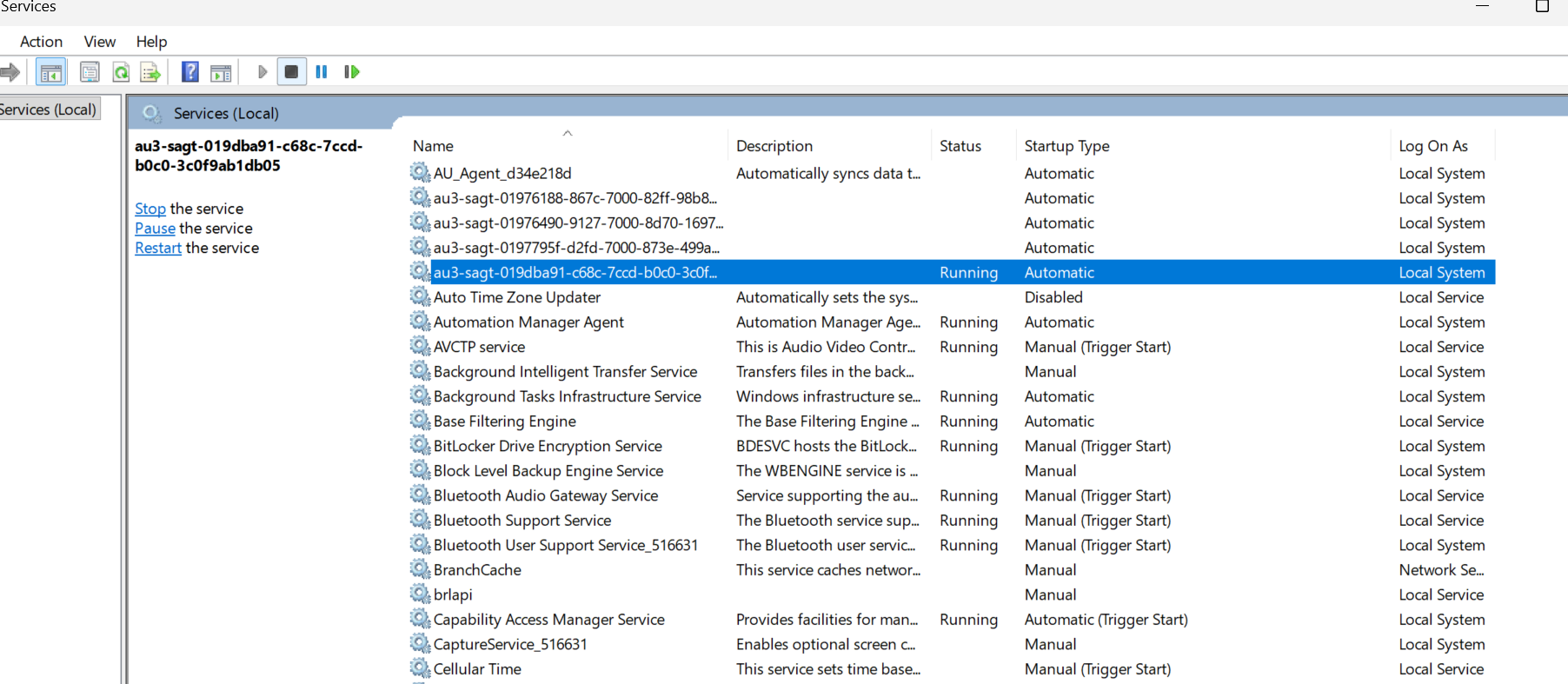
- Go to Services within Windows.
- Look for the agent by its token name.
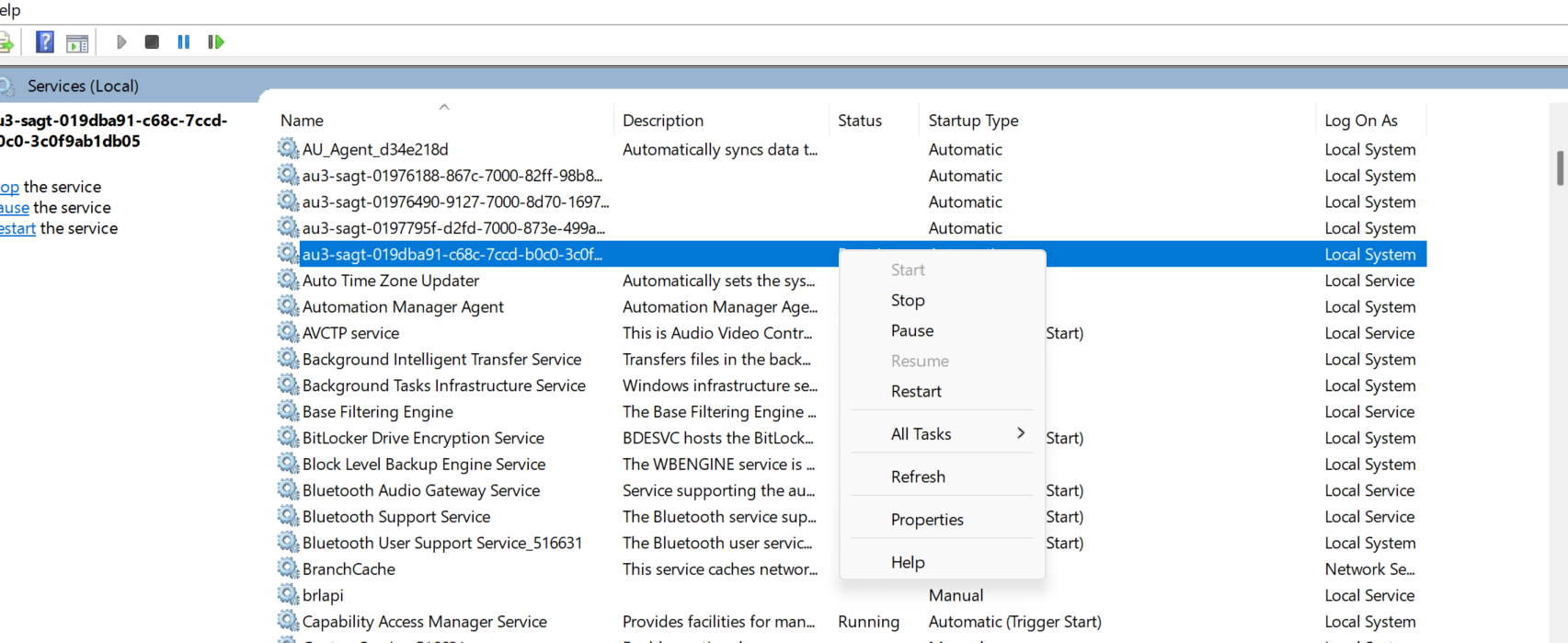
- The status will show as Stopped or Paused. Right-click and select Start.
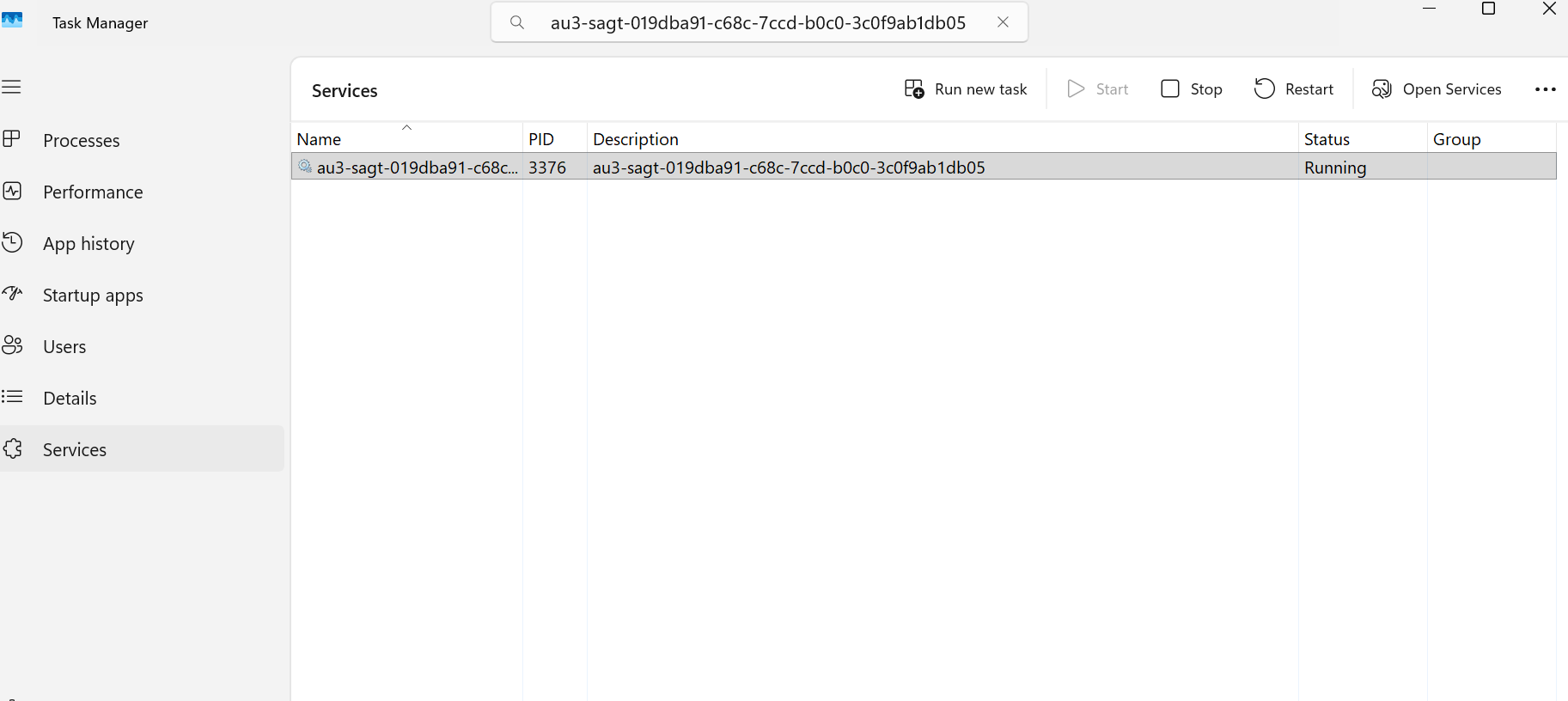
Alternatively, open the Services tab in Task Manager and search for the token.
Using the Manager process
Run this command in an admin PowerShell adjacent to the installed manager:
.\sync-agent-manager.exe sync-agent start
If reauthorization is needed, uninstall and reinstall with a new registration token:
.\sync-agent-manager.exe sync-agent uninstall
.\sync-agent-manager.exe sync-agent install --token NEW-REGISTRATION-TOKEN