Tasks
Almost everything the platform does — transferring data between warehouses, running dataflows, installing a solution, ingesting from a source — runs as a task. The Tasks tab is where you find, inspect, and monitor that work. It's the primary tool for confirming things ran successfully and for investigating when they didn't.
The task model
A task is an asynchronous unit of work executed in a compute environment. Each task moves through a lifecycle of states — for example PENDING → QUEUED → RUNNING → a final state of SUCCEEDED, FAILED, or CANCELED.
Tasks are often nested. A high-level task like a solution installation or a workflow contains child tasks for the individual operations it performs (warehouse transfers, migrations, and so on). This parent/child structure is visible in a task's Trace.
The Task Browser
The Tasks tab opens the Task Browser — a searchable, filterable list of tasks on the left and a detail panel on the right.
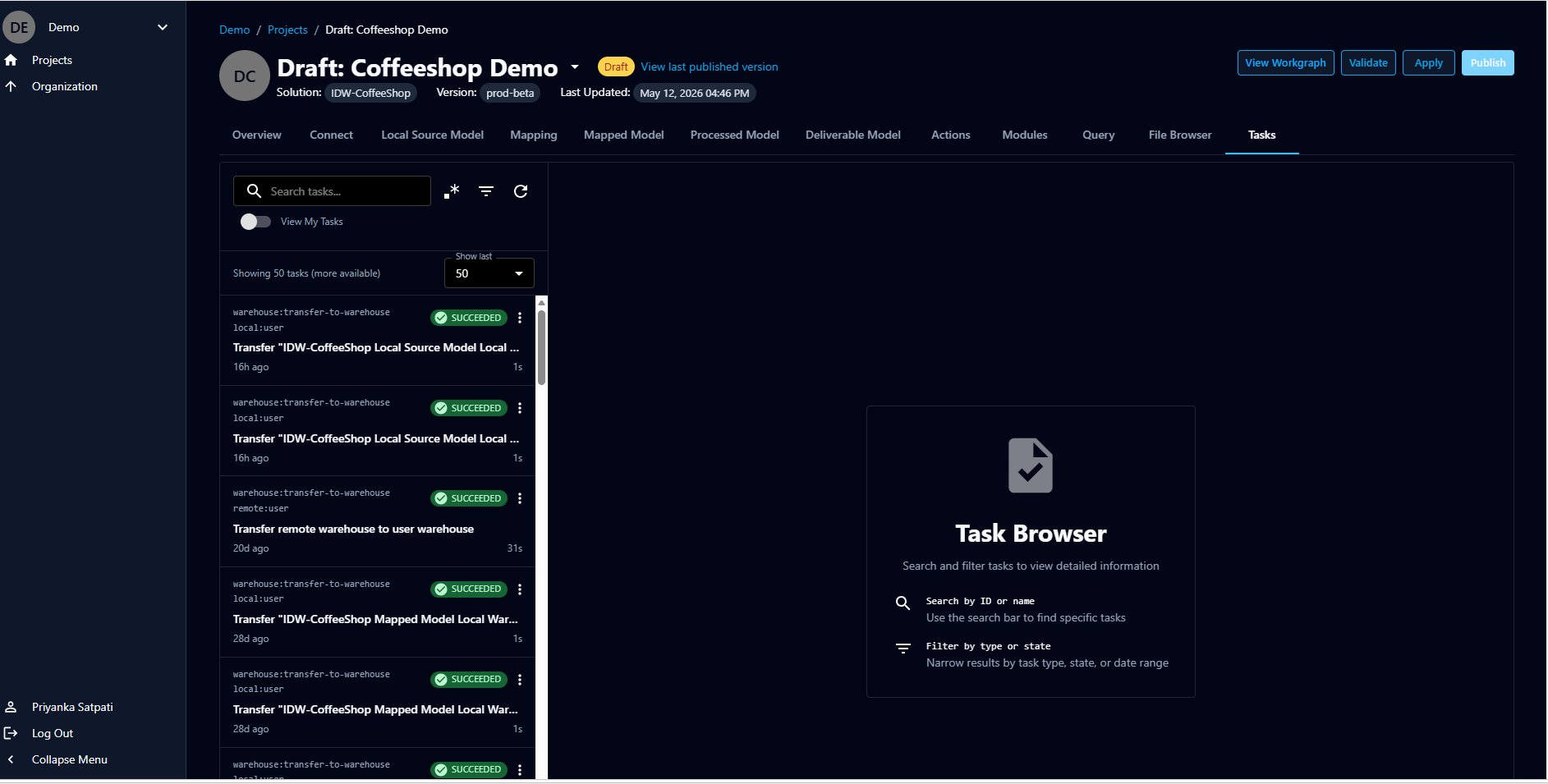
Each task in the list shows its type (for example warehouse:transfer-to-warehouse with a subtype like local:user), a state badge, how long ago it ran, and its duration.
The controls above the list let you:
- Search tasks by ID or name
- Filter tasks by type, state, date range, and many other fields (see below)
- Refresh the list
- Toggle View My Tasks to show only tasks you created
- Set Show last (for example 50) to control how many recent tasks are loaded
When more tasks exist than are shown, the list notes "more available" — narrow your search or filter to find specific ones.
Filtering tasks
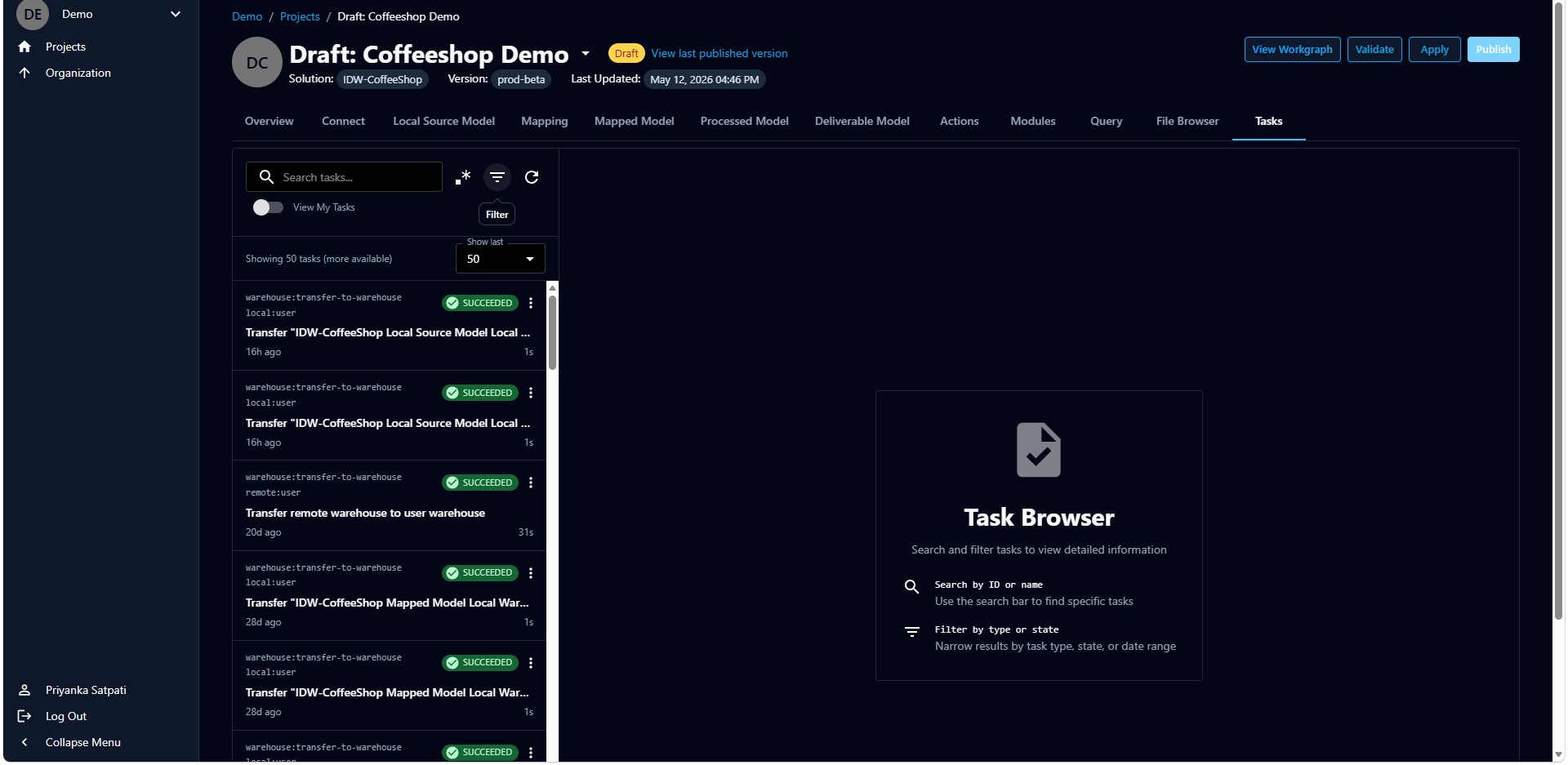
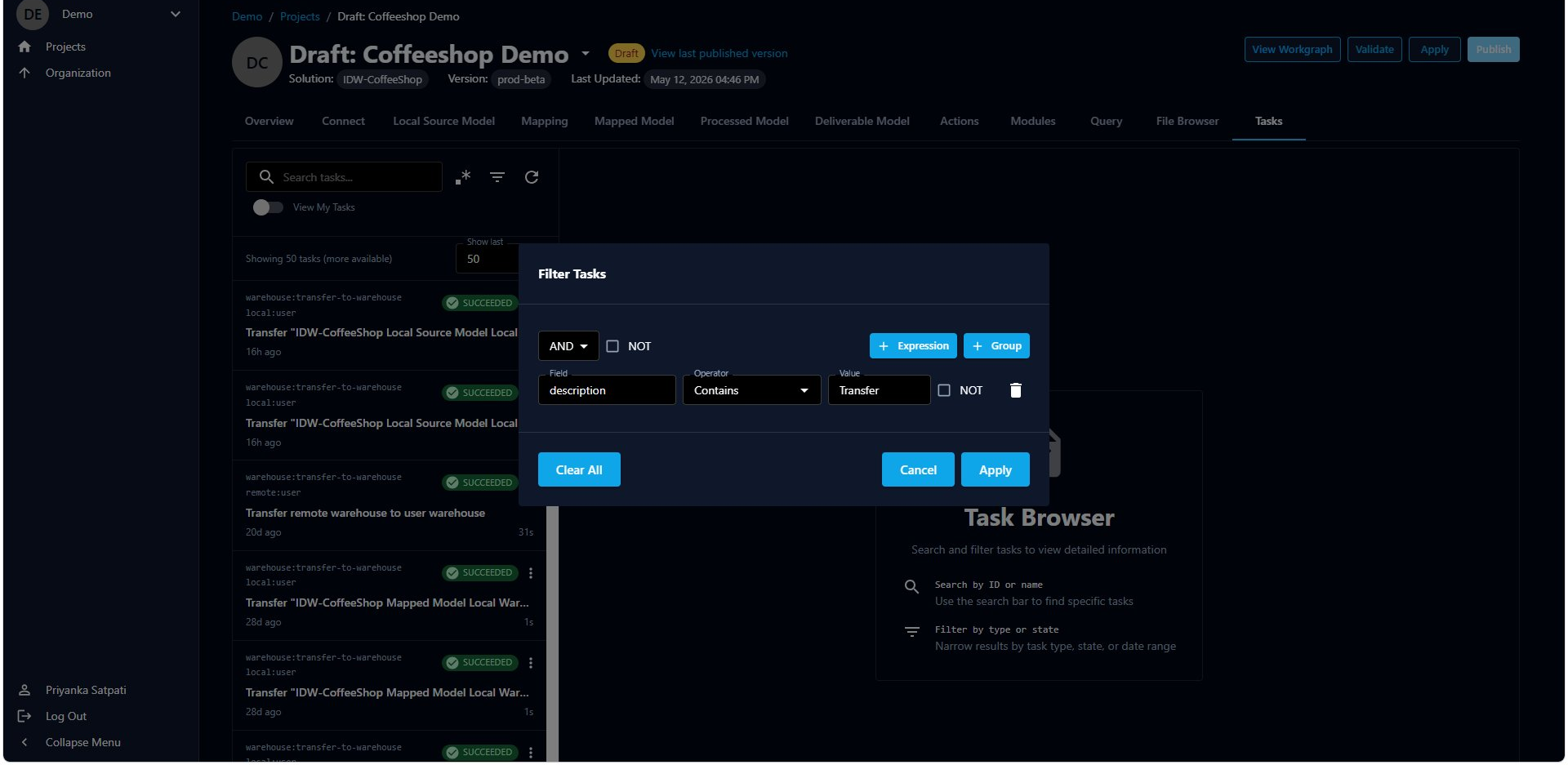
Click the filter icon to open the Filter Tasks dialog and build precise queries.
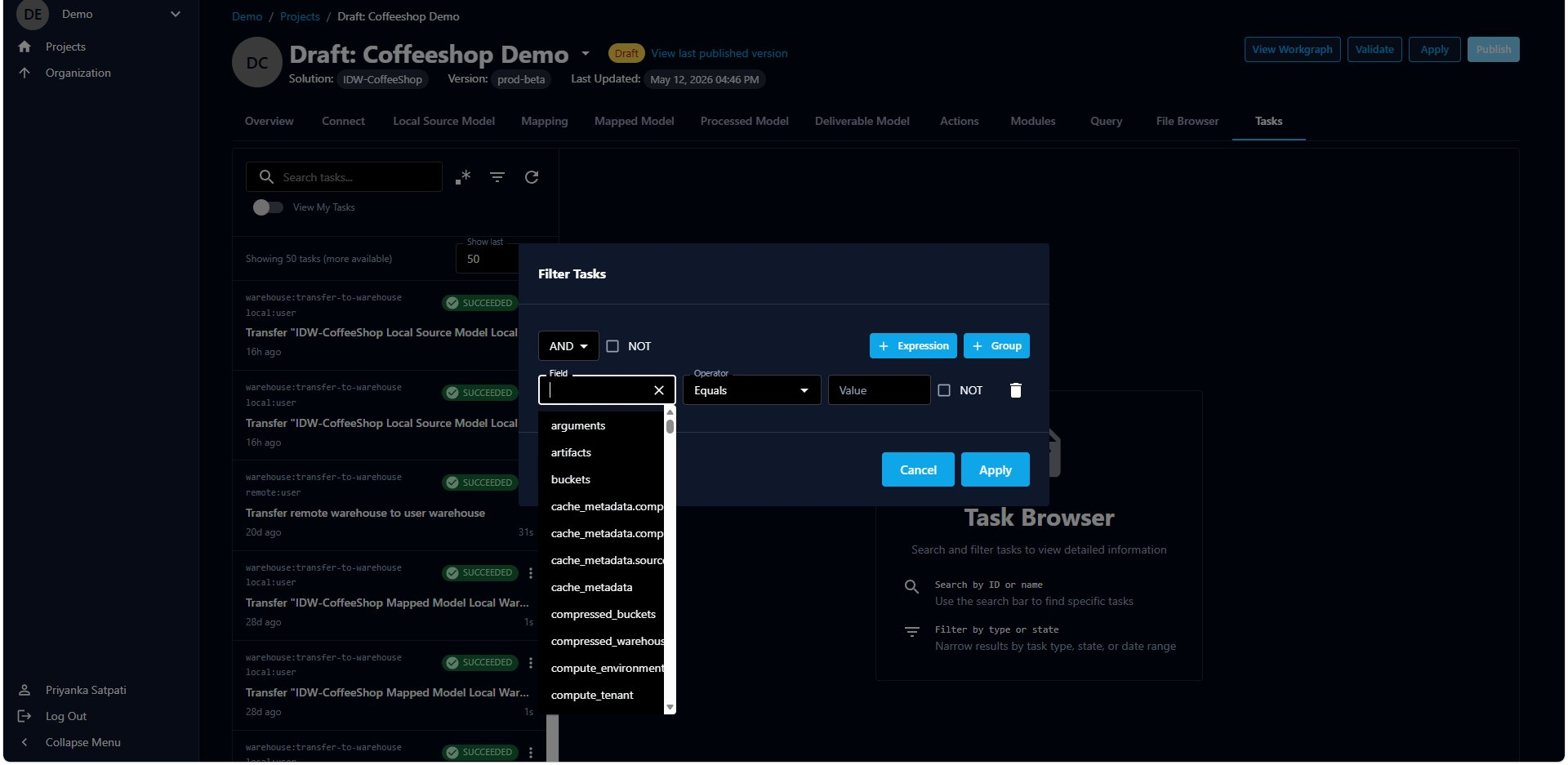
A filter is built from one or more expressions, combined with AND / OR (and optionally negated with NOT). You can also add groups to nest conditions. Each expression has three parts:
- Field — the task property to filter on (for example
description,state,compute_environment,arguments,artifacts, and many more) - Operator — how to compare, such as Equals, Not equals, Contains, Starts with, Ends with (each with case-insensitive variants)
- Value — what to match against
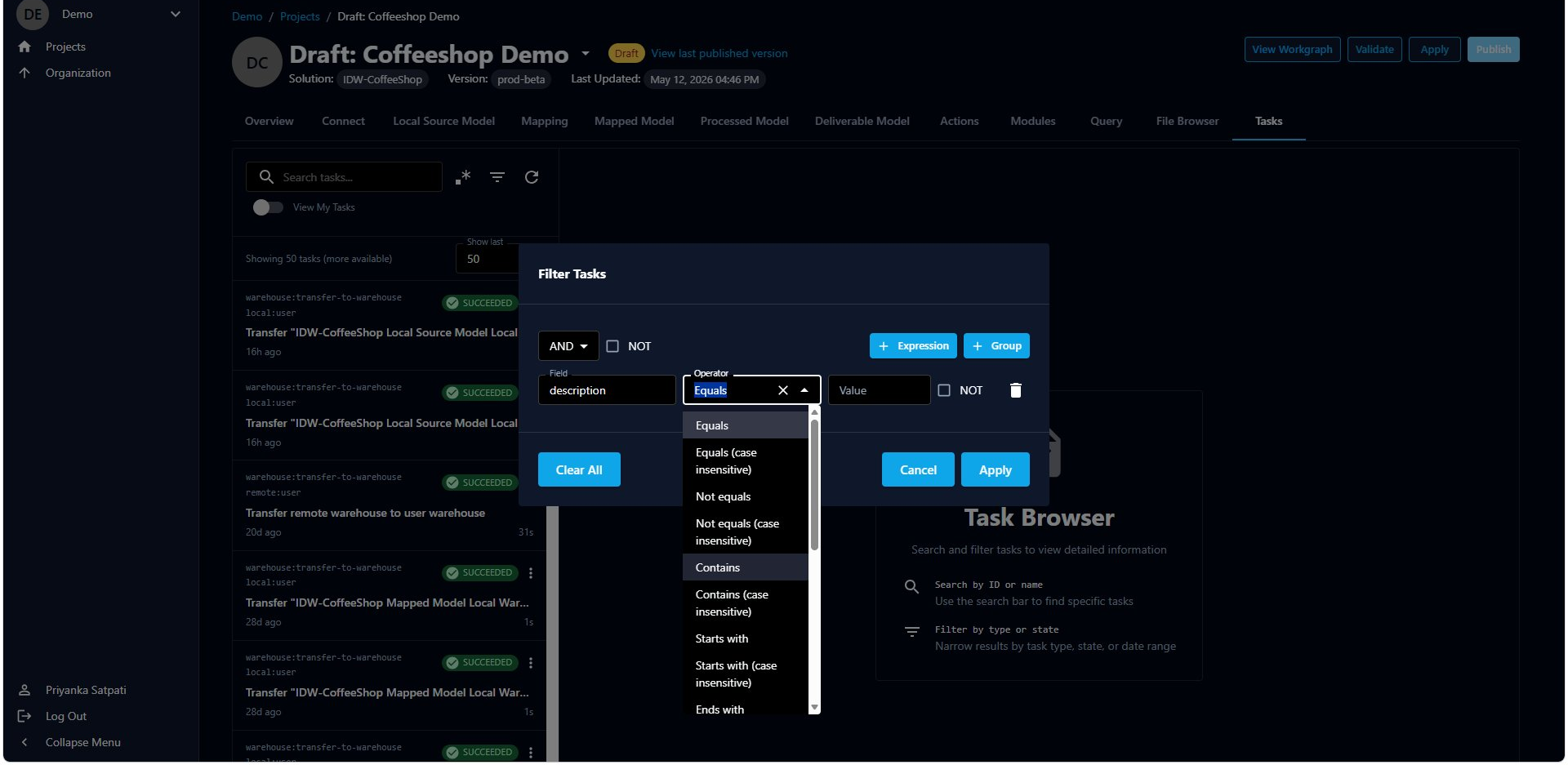
For example, filtering where description Contains "Transfer" narrows the list to transfer tasks. Click Apply to run the filter, or Clear All to reset.
Inspecting a task
Select a task to open its detail panel. The header shows the task's name, state, Duration, Created time, Task ID, and — for tasks that are part of a workgraph submission — a Submission ID. Below the header is a set of tabs.
Trace
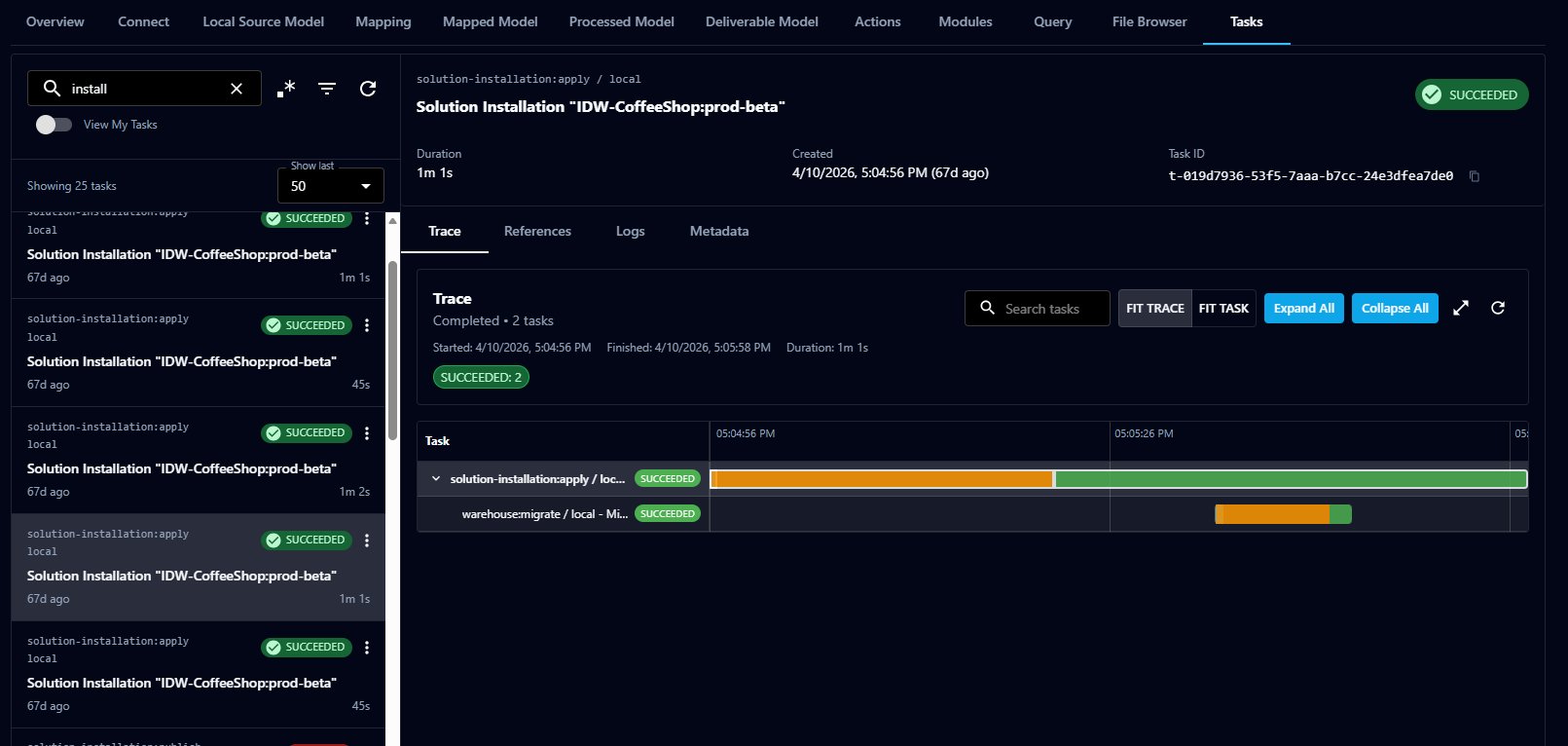
The Trace tab shows the task and its child tasks as a gantt-style timeline, so you can see what ran, in what order, and how long each part took. Controls let you Fit Trace or Fit Task to the view and Expand All / Collapse All the hierarchy. Click any row to drill into that child task.
Submission Trace
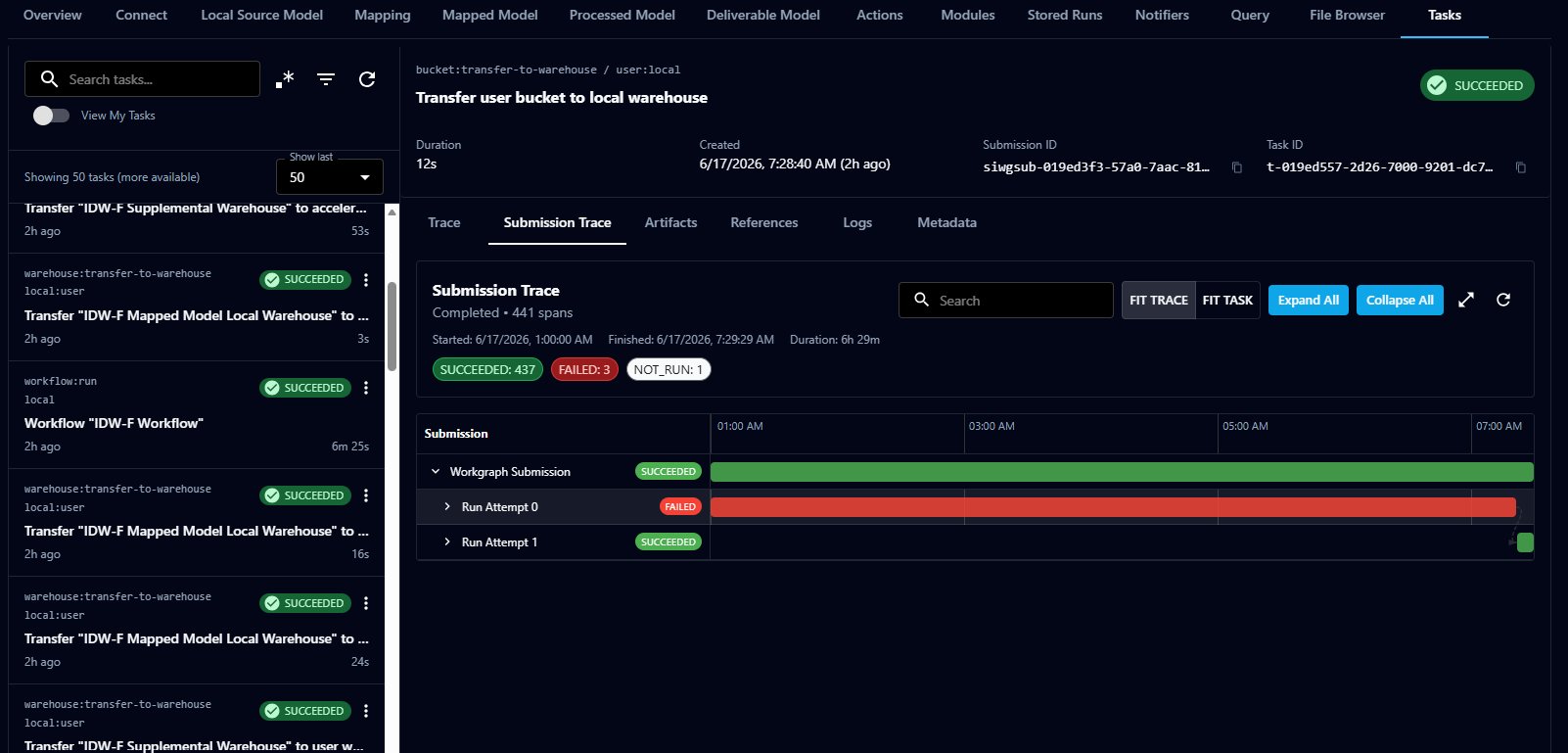
For tasks that belong to a workgraph submission, the Submission Trace tab shows the full submission → run → node hierarchy. A submission can have multiple run attempts — for example an initial Run Attempt 0 that failed and a Run Attempt 1 that succeeded — and the trace summarizes how many nodes SUCCEEDED, FAILED, or did NOT_RUN. You can drill into specific runs, nodes, and tasks by clicking them.
This view is also where you recover or cancel a submission from the UI — see Troubleshooting for recovery procedures.
Artifacts
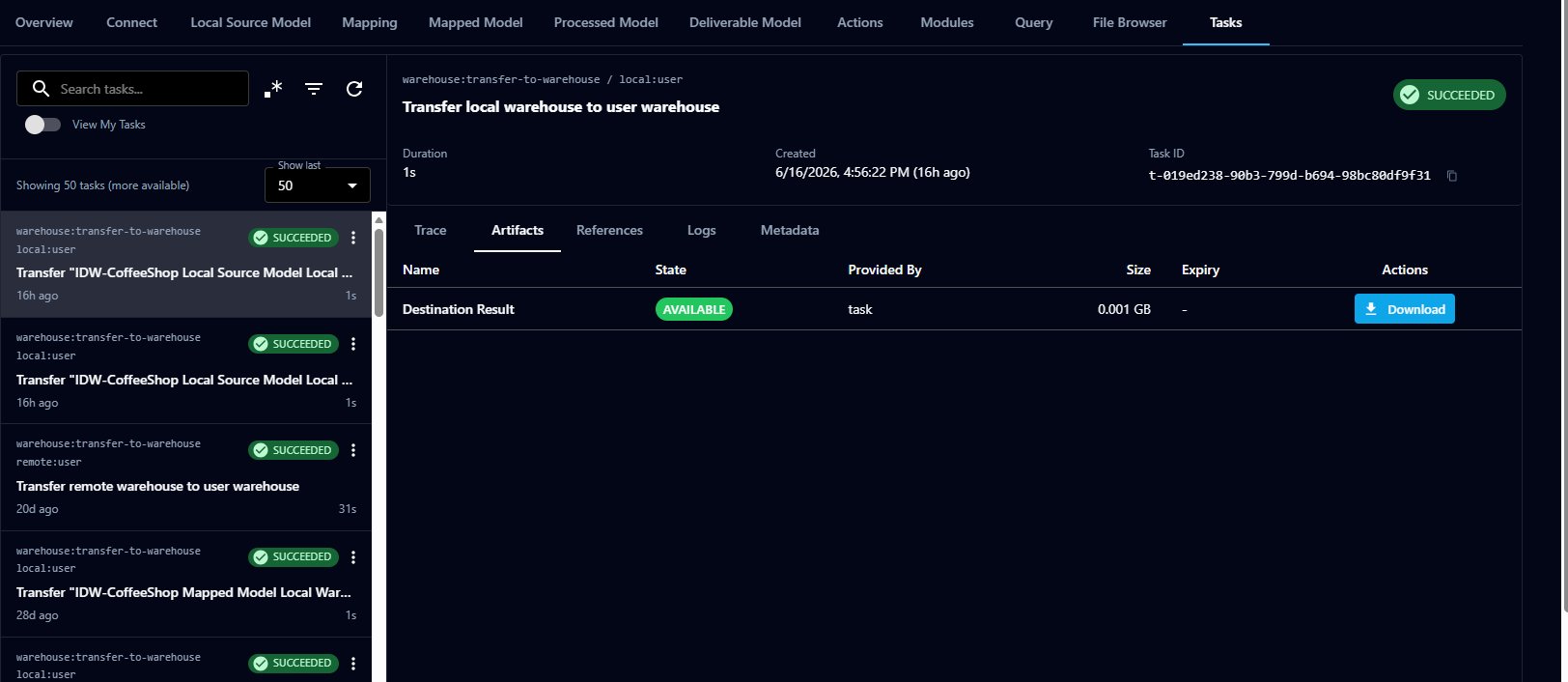
The Artifacts tab lists the outputs a task produced — for example a "Destination Result" — along with each artifact's state, provider, size, and expiry. Available artifacts can be downloaded directly.
References
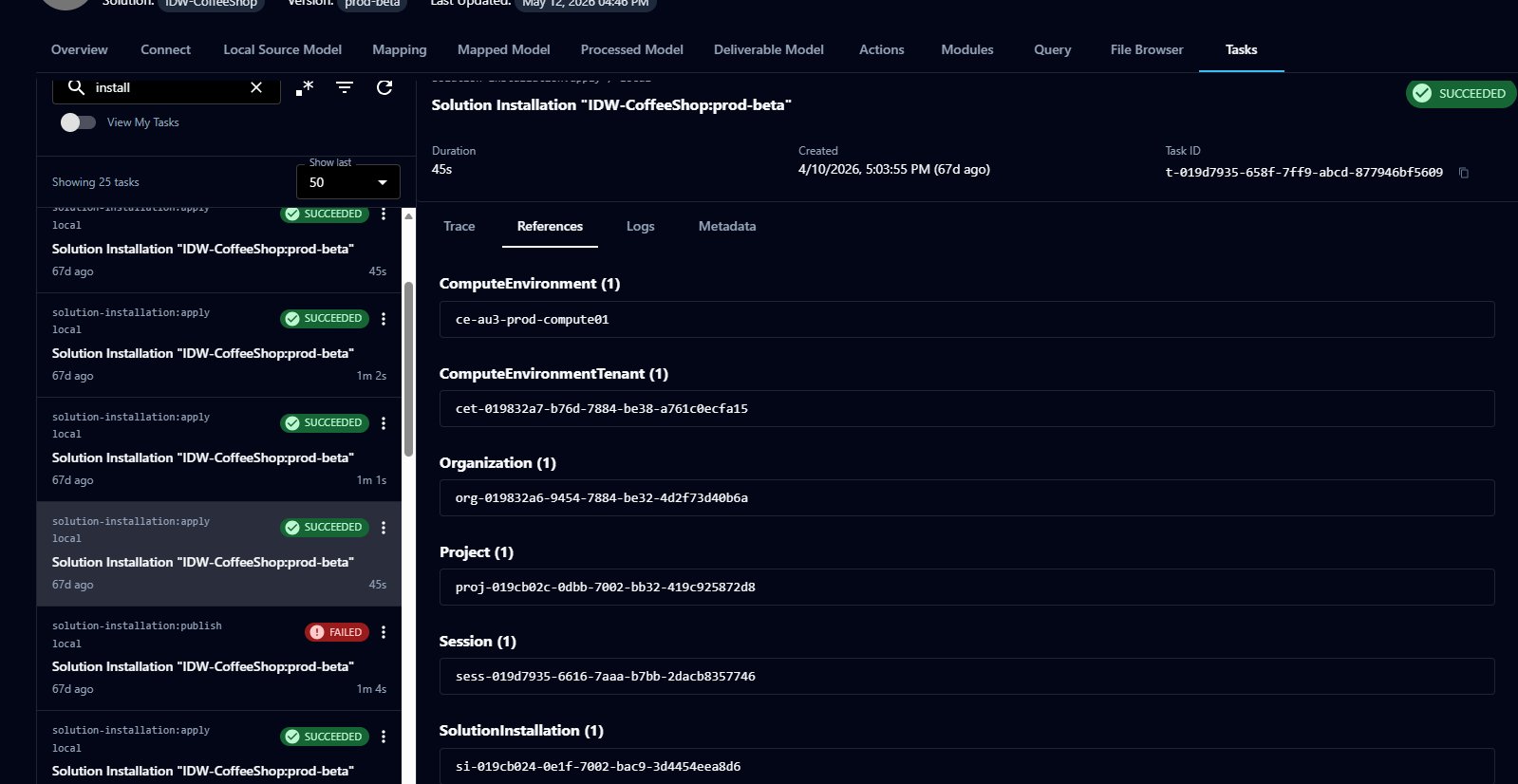
The References tab lists the platform entities the task is associated with — Compute Environment, Compute Environment Tenant, Organization, Project, Session, and Solution Installation — with their IDs. This is useful for correlating a task with the broader context it ran in.
Logs
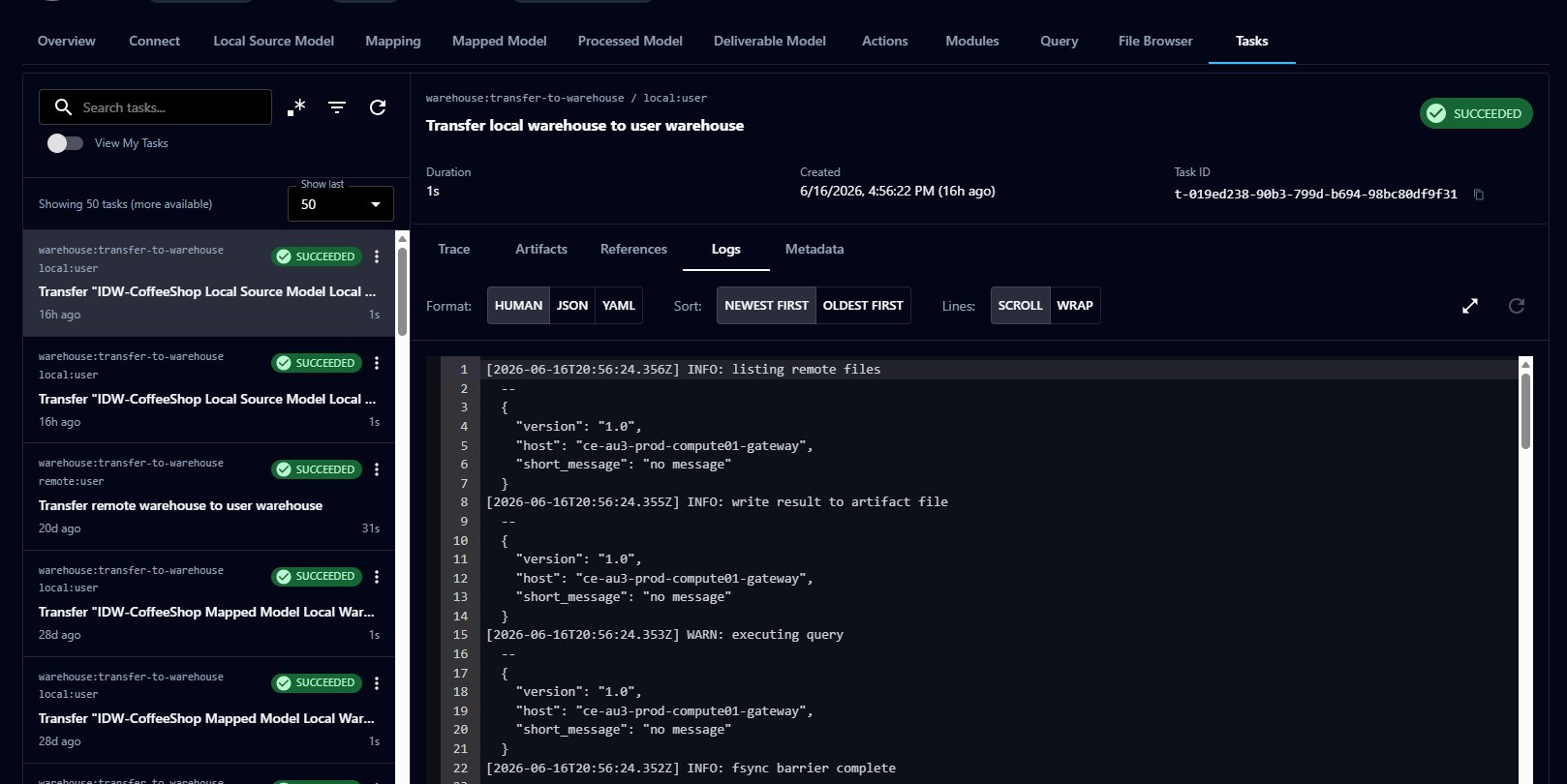
The Logs tab shows the task's execution logs. You can switch the Format (Human, JSON, YAML), change the Sort (newest or oldest first), and choose Scroll or Wrap for long lines. Logs are the first place to look when a task fails.
Metadata
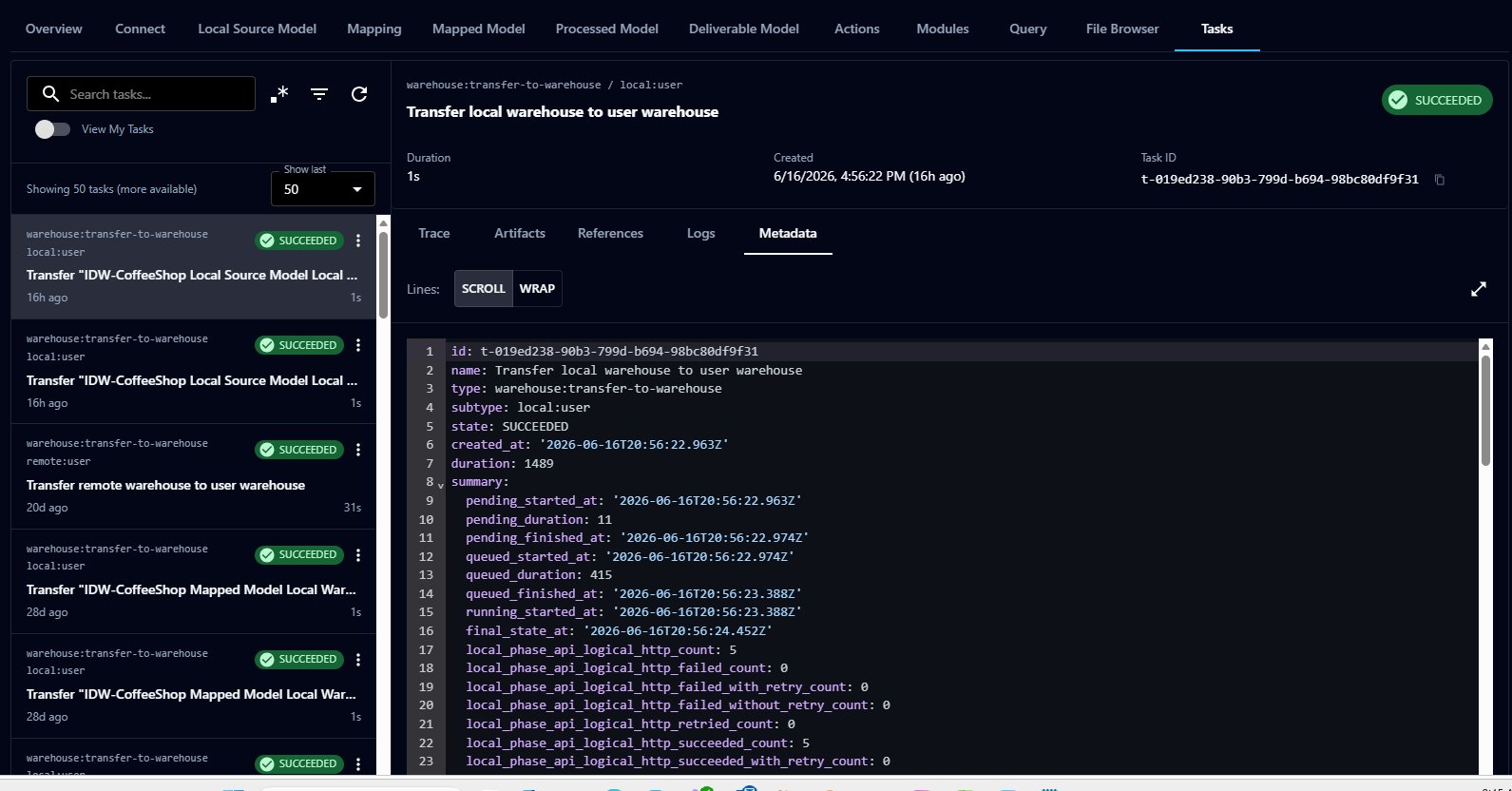
The Metadata tab shows the task's full record — its ID, name, type, subtype, state, timings, and a detailed summary of execution counts and durations. This is the most complete low-level view of a task.
Where to go next
- Troubleshooting — recovering failed submissions, cancelling work, and investigating problems
- Stored runs — scheduling and re-running pipeline work