Connect
The Connect tab is where you manage the data sources that feed a solution project. It lists the connections available to the project, shows the Sync Agent each one runs through and its current status, and lets you set up the ingestion tasks that pull data into the project.
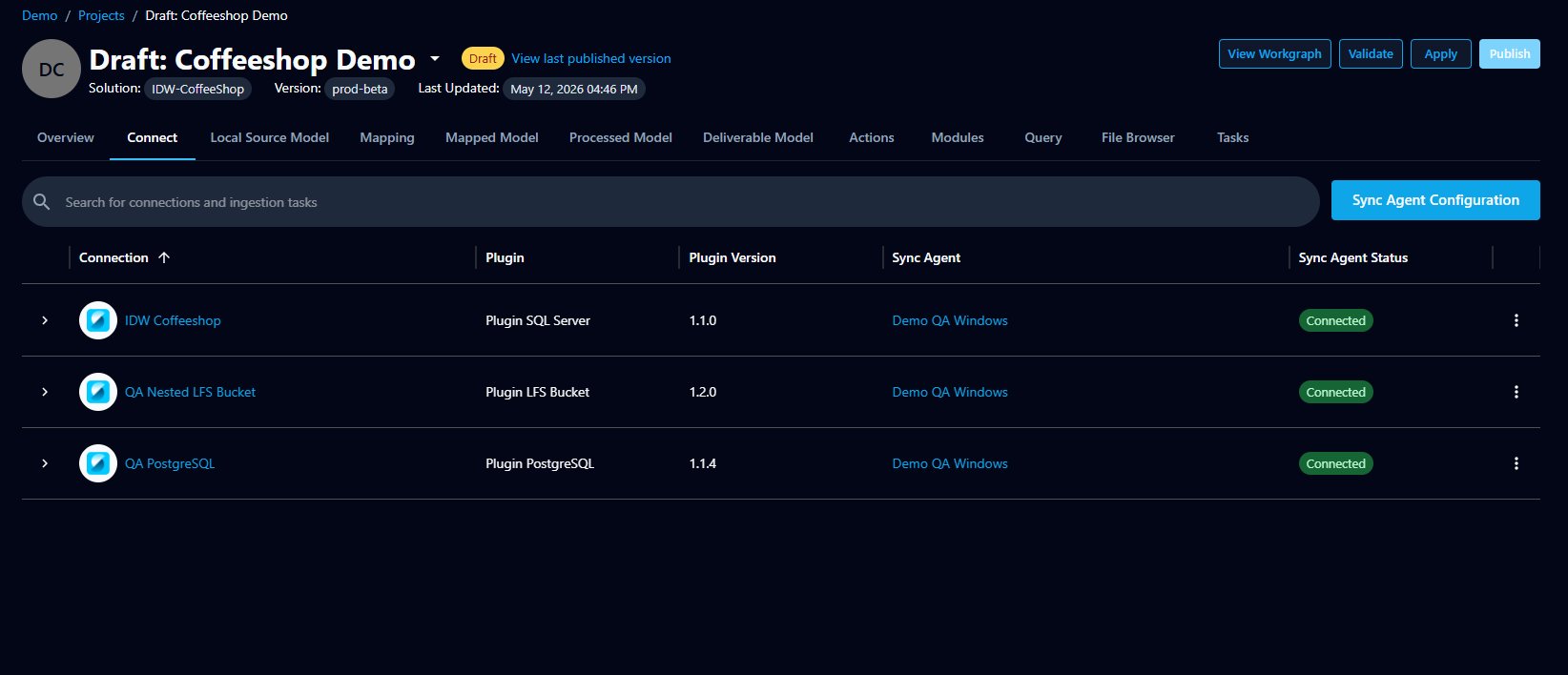
Connections in the project
The Connect tab shows the connections that exist in the organization. Each row displays:
- Connection — the connection name (a link to its configuration)
- Plugin — the plugin the connection uses (for example, Plugin SQL Server, Plugin LFS Bucket, Plugin PostgreSQL)
- Plugin Version — the version of the plugin
- Sync Agent — the Sync Agent the connection runs through (a link to the agent configuration)
- Sync Agent Status — whether that agent is currently connected
Connection scope
Connections are currently shared at the organization level — every connection in the org appears here. Scoping connections to individual projects is planned for the future.
You can search the list by connection or ingestion task name using the search bar at the top.
Ingestion tasks
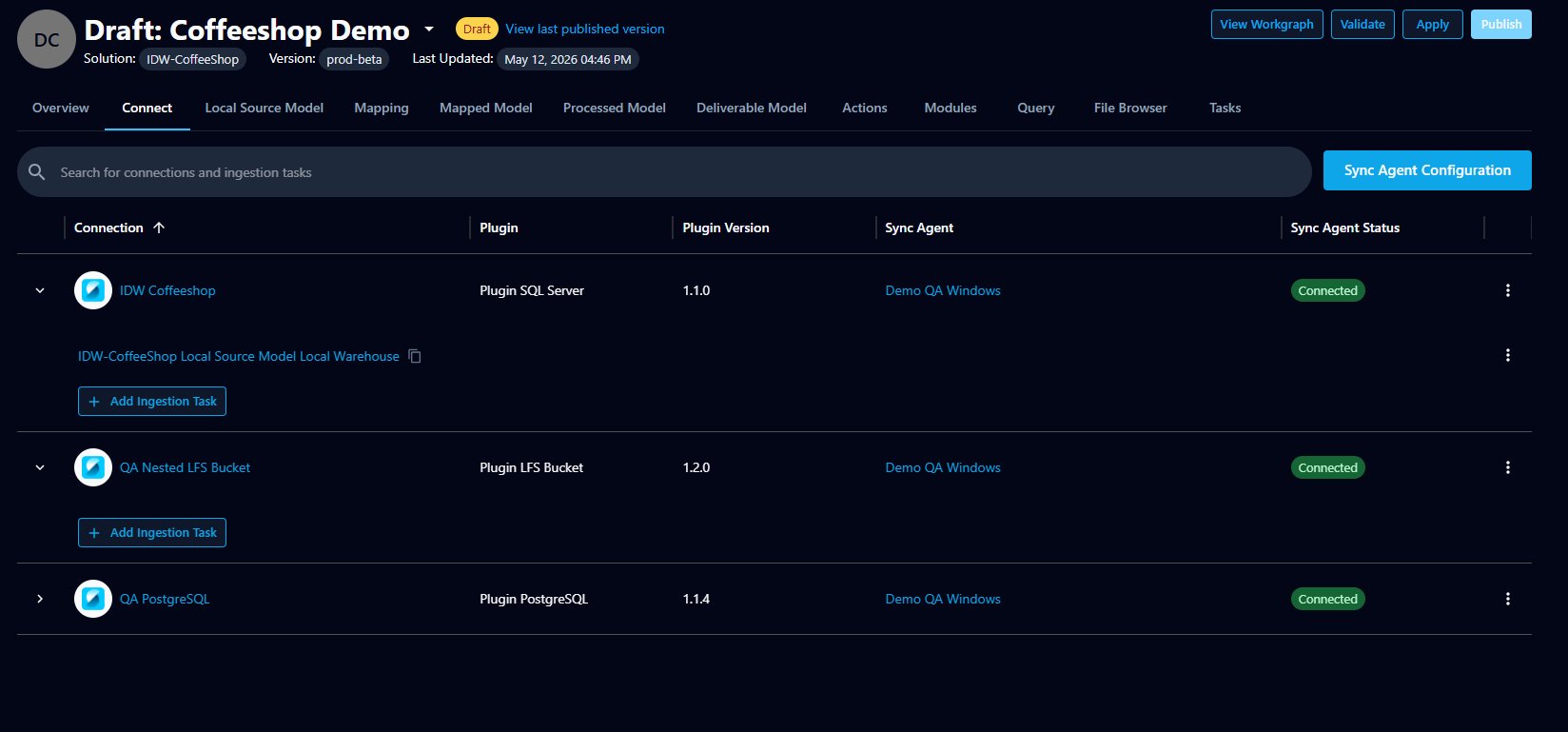
Expand a connection row using the chevron (›) on the left to see the ingestion tasks defined for that connection — the jobs that pull data from the source into the project. Each task is listed by name and has its own menu of actions.
To add a new ingestion task for a connection, expand the row and click + Add Ingestion Task.
Editing connections and sync agents
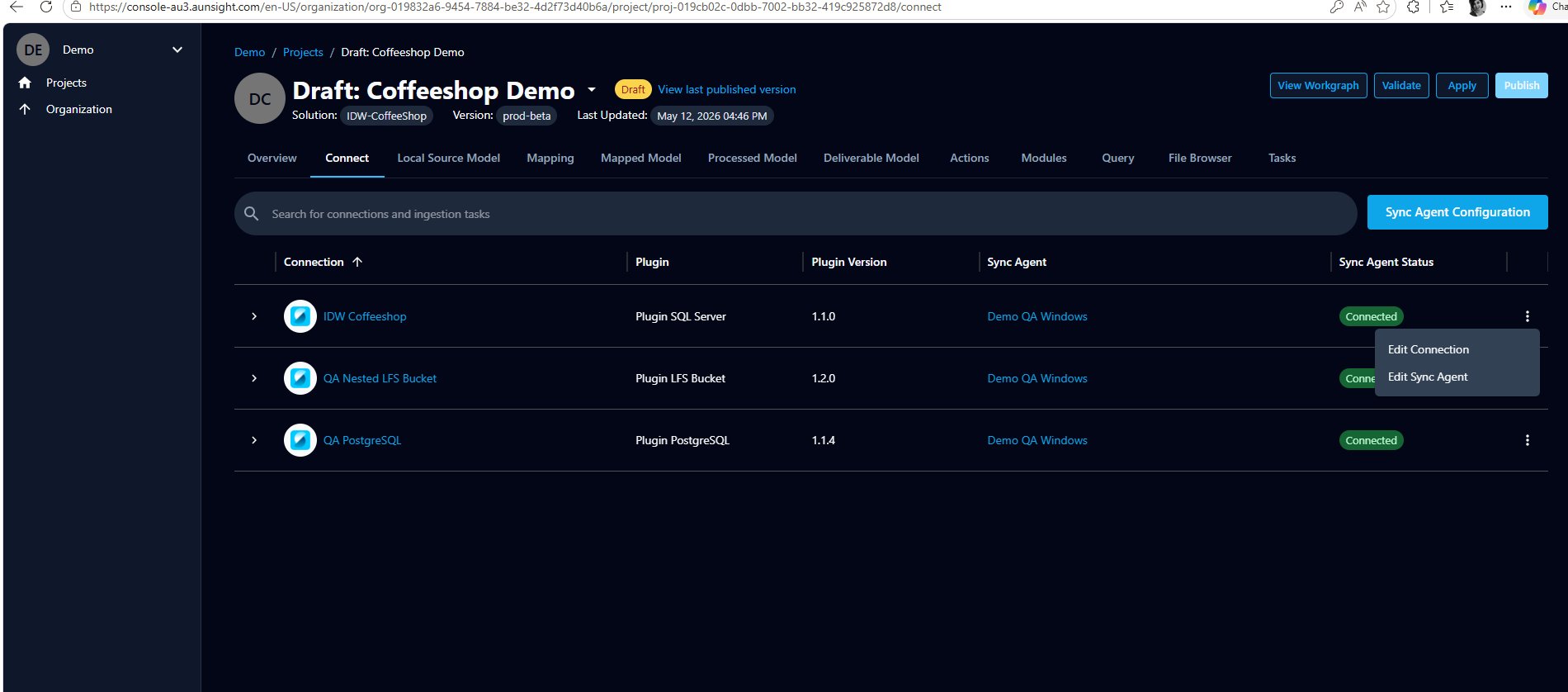
Use the more (⋮) menu at the end of a connection row for quick actions:
- Edit Connection — opens the connection's configuration page, where you can change its details and settings. (You can also reach this by clicking the connection name.)
- Edit Sync Agent — opens the Sync Agent configuration page for the agent that runs this connection.
Sync Agent Configuration
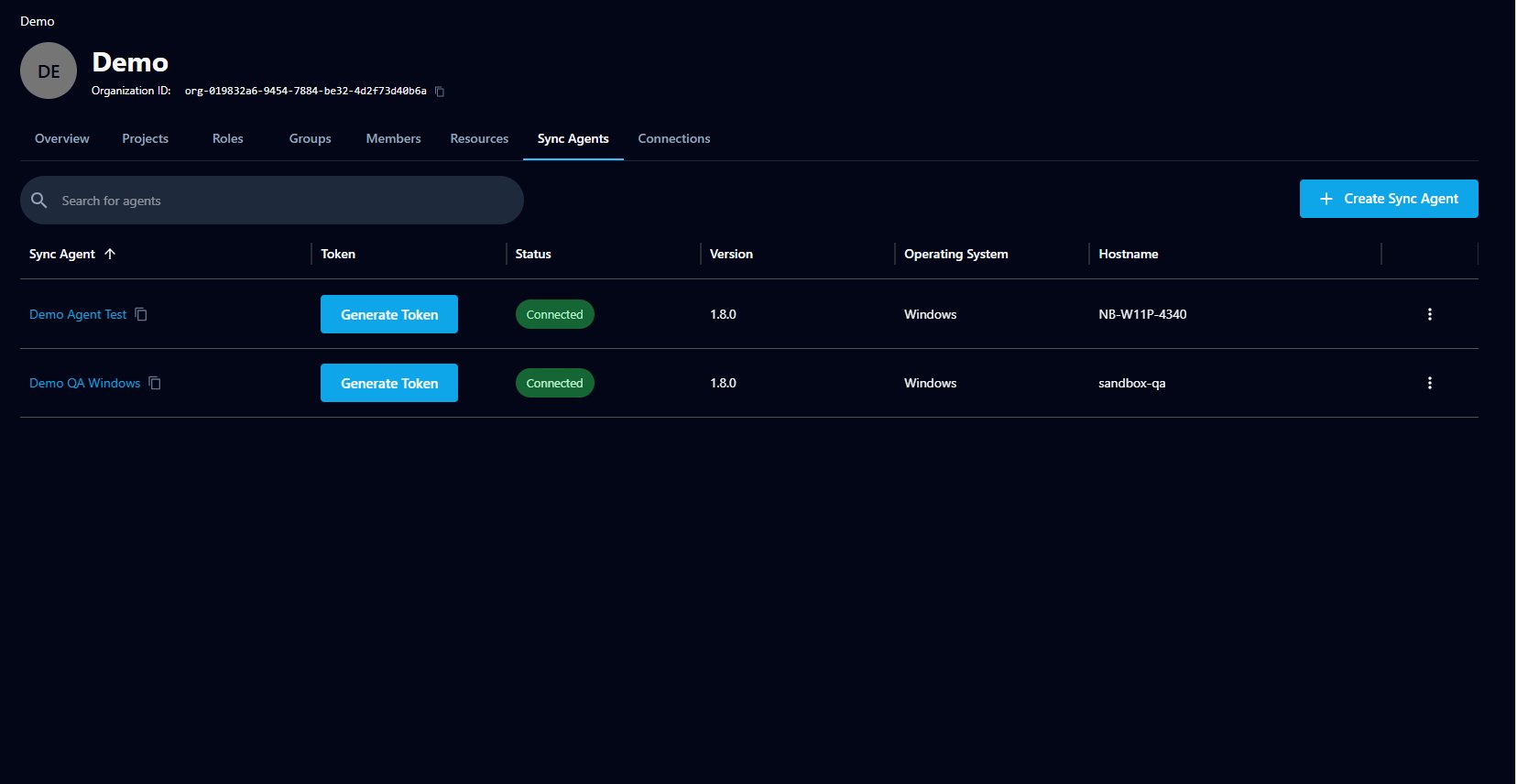
The Sync Agent Configuration button in the top right takes you to the organization's Sync Agents page, where you can view and manage the agents available to the organization. (Choosing Edit Sync Agent from a connection's menu takes you to the same place.)
Related
- Connections — creating and configuring connections at the organization level
- Sync agent — installing and maintaining a Sync Agent