Roles
A role is a named bundle of permissions that defines what actions members can perform. Roles are assigned to groups, and every member of a group inherits the permissions of the roles attached to that group.
How roles work
- A role holds a set of permissions.
- Roles are assigned to groups — one group can have multiple roles.
- Members cannot be assigned to a role directly. A member gains a role's permissions only by belonging to a group that carries that role.
This is the core of the access model: permissions live in roles, roles attach to groups, and members belong to groups.
Permissions in Aunsight
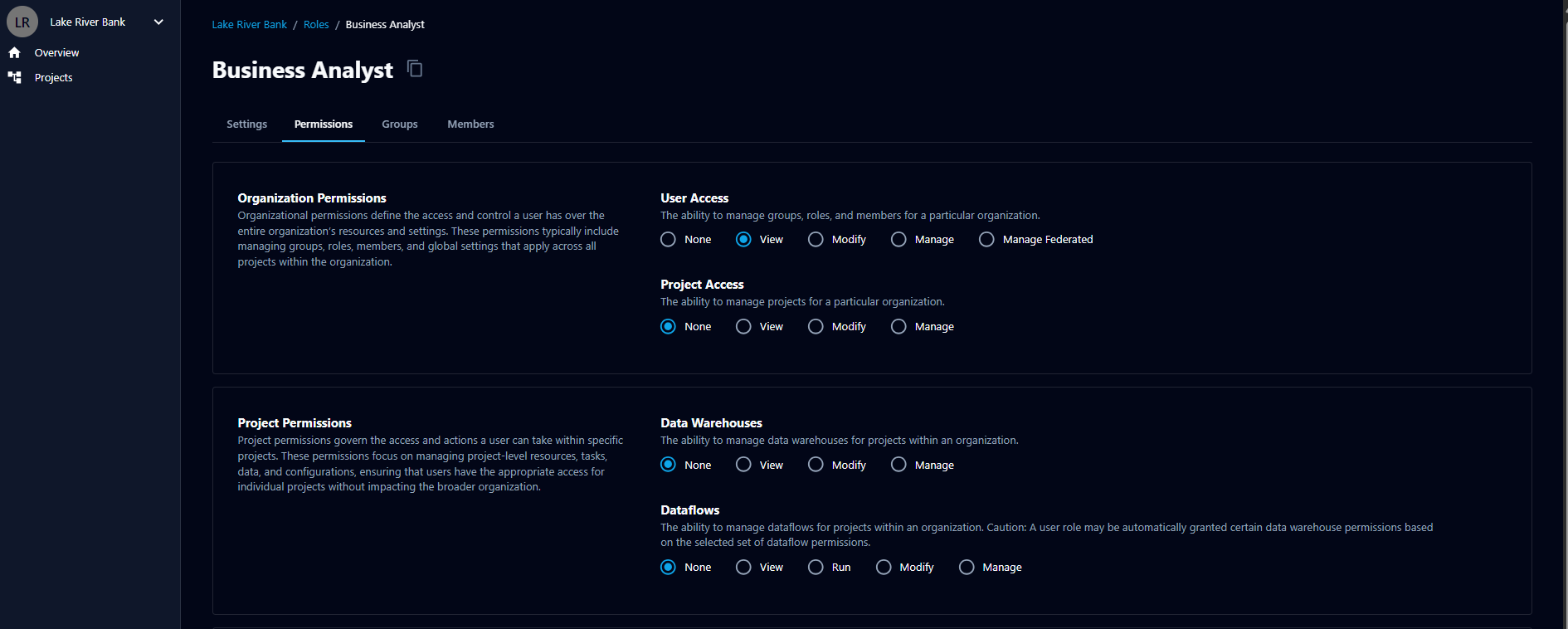
In Aunsight Data Services, permissions are defined at the feature level — each permission grants access to a platform feature. (This is similar to the concept of policies in the previous platform generation, rather than a long list of fine-grained, individual permissions.)
When viewing a role, you can hover over an individual permission to see the granular capabilities it includes.
Permission categories
Permissions are grouped into two categories that mirror how the platform is organized:
- Organization permissions — control access to organization-wide resources and settings, such as managing groups, roles, and members, and managing projects. These apply across all projects in the organization.
- Project permissions — control access and actions within specific projects, such as managing data warehouses and dataflows, without affecting the broader organization.
Access levels
Most permissions are set to an access level rather than a simple on/off. The available levels increase in capability:
- None — no access to the feature.
- View — can see the feature and its data, but not change it.
- Modify — can make changes, in addition to viewing.
- Manage — full control over the feature, including modify and view.
Some permissions have additional levels specific to the feature:
- User Access offers a Manage Federated level, granting control over federated groups in addition to standard management.
- Dataflows offers a Run level, allowing a user to run dataflows.
Related permissions
Some permissions are linked. For example, granting certain dataflow permissions may automatically grant related data warehouse permissions, since the features depend on one another.
Viewing roles
The list of roles for an organization is on the Roles tab within the Members space. Roles can be assigned to one or more groups.
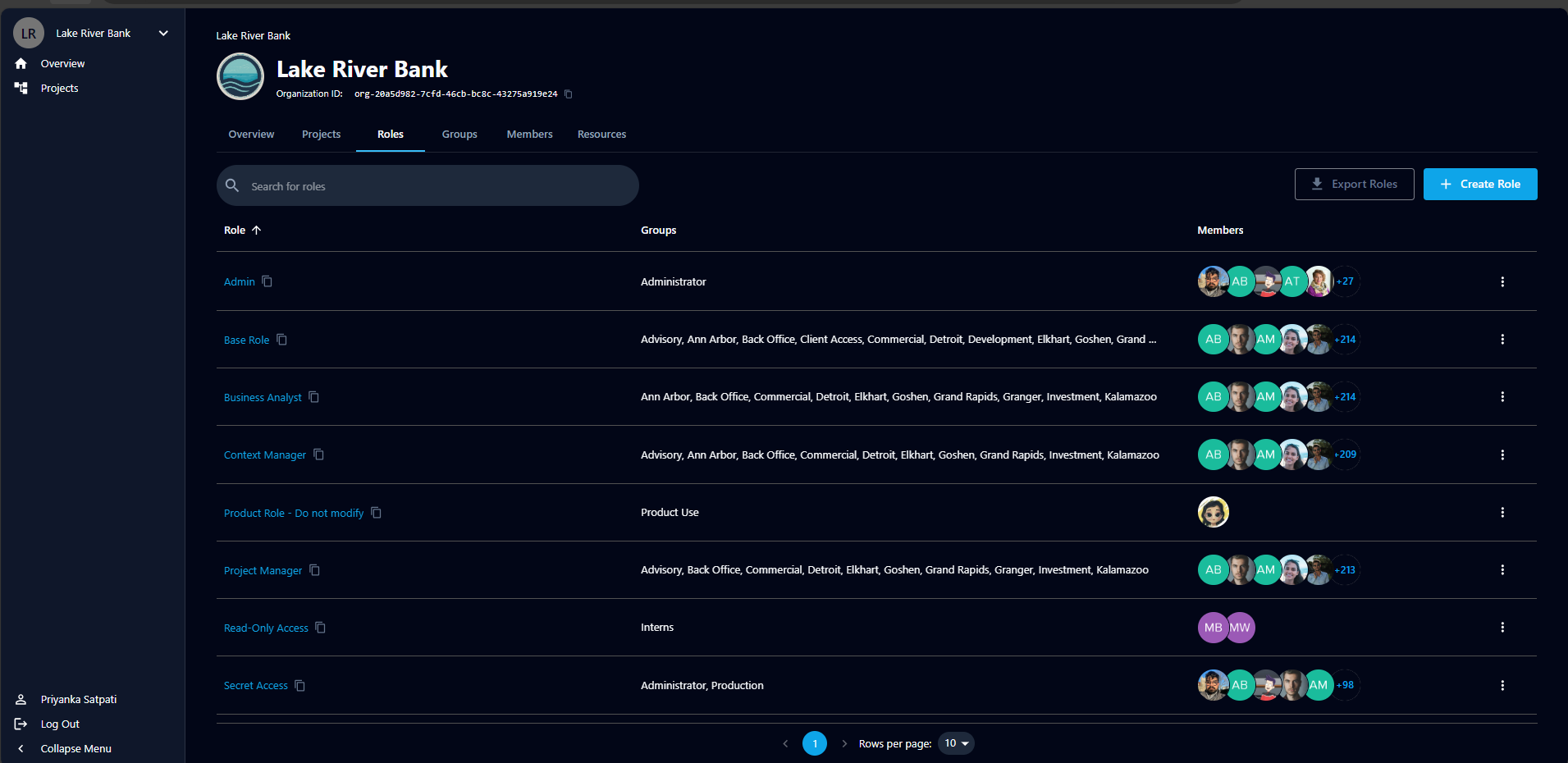
Creating a role
- Go to the Roles tab.
- Click + Create Role.
- Enter a name in the Name field.
- Add a Description. A clear description makes it easier to identify the right role later.
- Click Create.
Managing a role
Open a role to manage it across several tabs:
- Settings — edit the role's name, description, and the permissions it grants.
- Assign groups — attach this role to one or more groups. Every member of those groups inherits the role's permissions.
- View members — see the members who currently have this role through their group memberships. (This view is read-only — members are managed through groups, not here.)
Deleting a role
To delete a role, open it and go to the Settings tab. In the Danger zone at the bottom, click Delete. The role will be removed and your organization will no longer have access to it.
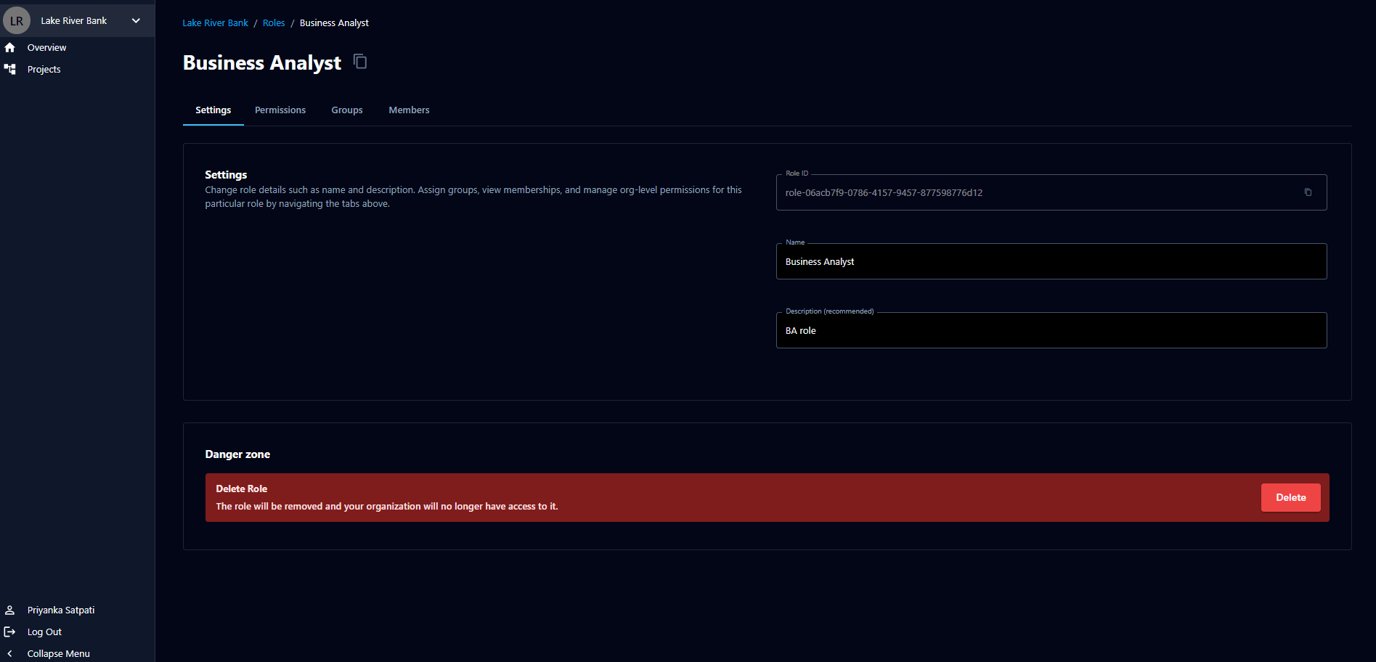
Before deleting, check which groups the role is assigned to, since removing it will revoke its permissions from every member who held it through those groups.