User Profile Setup
User Profile Page
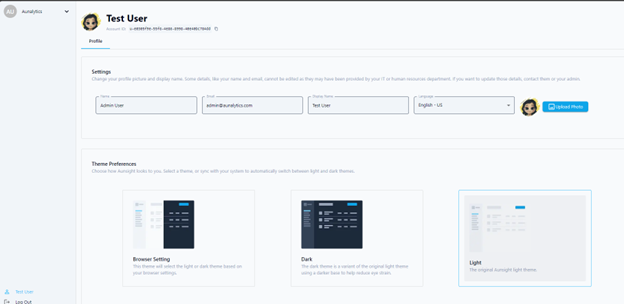
Once a user is set up in Aunsight, they will be able to access the user profile page. User profile is used to select background theme, set display name, language preferences and upload display photo.
A user can log in and navigate to their profile page once set up in Aunsight.
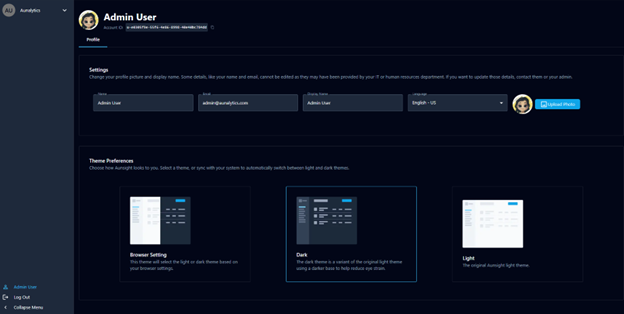
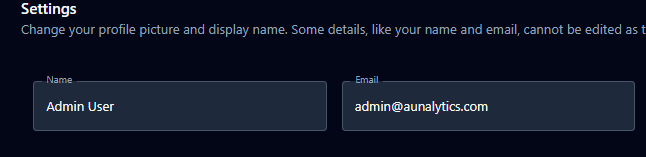
The Name and Email fields are prepopulated by the identity provider (IDP) used and cannot be edited.
Display Name
The Display Name will appear the same as the default name from the IDP when a user logs in for the first time. The display name must be minimum 2 characters long.
A user can edit or modify display name in the "Display Name" field under settings. Changes must be saved to solidify a new display name via the Unsaved changes popup on the bottom of the screen.
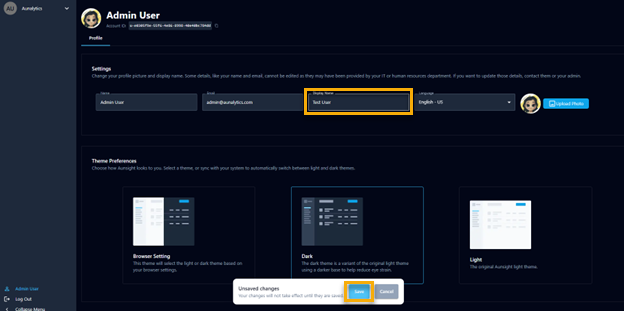
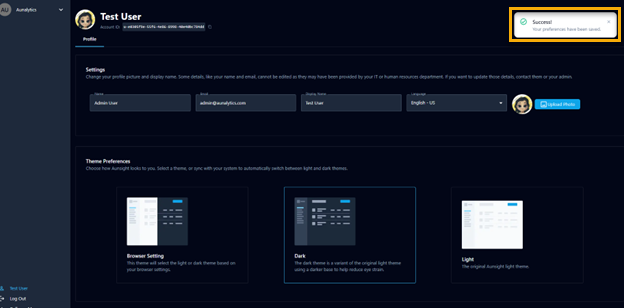
When user saves the display name, the new name will be reflected everywhere as username in Aunsight. Meaning, if the user creates any feature in Aunsight, their display name will reflect everywhere as the creator of those features.
Language Preference
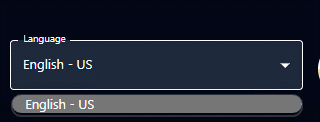
Users can select their language preferences in Aunsight Profile with the Language selector drop down.
Profile Photo
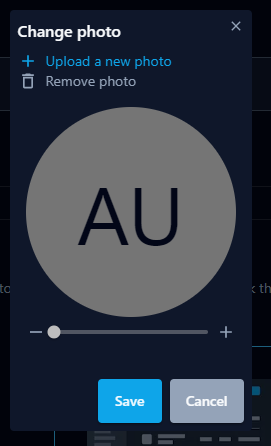
Users can upload a profile photo from local machine in Aunsight by clicking the "Upload Photo" button.
Photo size can be adjusted by using the slider bar below the image in the change photo window.
Background Theme Preferences
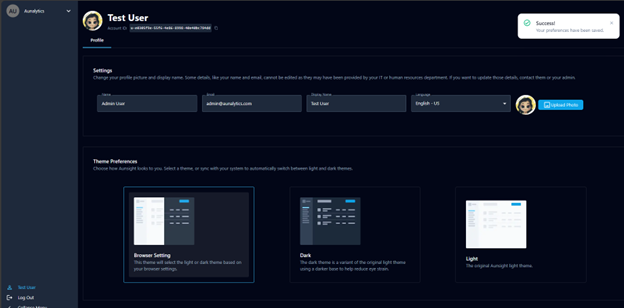
Users can select their preferred background theme for Aunsight.
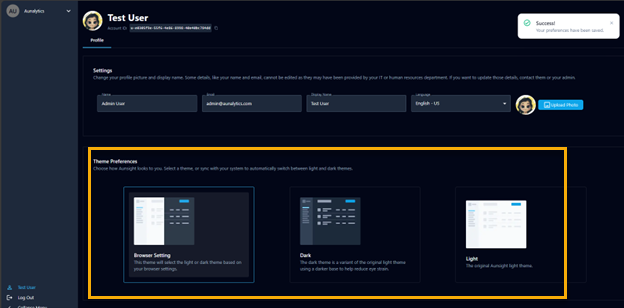
Aunsight will appear in dark mode by default. However, users can set the background mode of their choice by selecting Light theme or the same theme as the users browser settings.